Tools Tips and Tricks #7: PsExec as parent and ProcMon as child

A new week begins and the Tools, Tips and Tricks series continues. Today I shall talk about using PsExec (part of the PsTools package) to collect data from a remote box through PsExec. PsExec lets you execute processes on other systems without having to manually install client software.

The scenario that I will discuss today is collection of a Process Monitor trace on a server without logging onto the machine. This is quite useful if you need to collect a Process Monitor trace from one of the passive nodes while running SQL Server 2005 setup.

The .cmd file that I am using in this case has the following commands:


set PM=D:\ProcMon\procmon.exe

start %PM% /quiet /minimized /AcceptEULA /backingfile D:\ProcMon\notepad.pml

%PM% /waitforidle

ping 127.0.0.1 -n 10 -w 100

%PM% /terminate

I am running the .cmd file to spawn Process Monitor on a different server and capture a trace using a local file as the backing file. The reason why we would have to run Process Monitor from command line is because while running setup, it’s recommended that you do not log into the passive nodes using Terminal Services or Console Mode.

The command that I used to execute the commands present in the .cmd file is

PsExec \\<server name> -c RemoteProcMon.cmd

If you do not prefer the ping method to simulate waits, you can use the SLEEP utility available with Windows 2003 Resource Kit. This utility takes a parameter for milli-seconds to wait. If you need to set filters for Process Monitor, then run the Process Monitor tool in GUI mode and set the Filters and save it. After that Exit Process Monitor and run the above command from Command Line. Or you could alternatively create a configuration file and use the /LoadConfig command line switch for Process Monitor.

Again the possibilities are endless and you can extend this by using the command line options for PsExec and Process Monitor.

Use the options mentioned in Tools Tips and Tricks #1: Process Monitor so that the filters are correctly set and the page file doesn’t get overwhelmed if you are capturing data for long periods or on servers where there is high amount of activity.

Tools Tips and Tricks #6: Custom Reports in SQL Nexus

Here is another post in the Tools Tips and Tricks series which tells you some feature about SQL Nexus which is not widely used. Yes, SQL Nexus is one of my favorite tools (provided it is used correctly). Automation of analysis helps get the picture quickly but the co-relation of data has to be drawn by the person performing the analysis.

Today I shall show you how you can use custom reports feature by creating simple RDL files in Visual Studio and getting SQL Nexus to use them.

As you can see in the screenshot below, I have a few reports which are not part of the standard installation of SQL Nexus available on the CodePlex site.

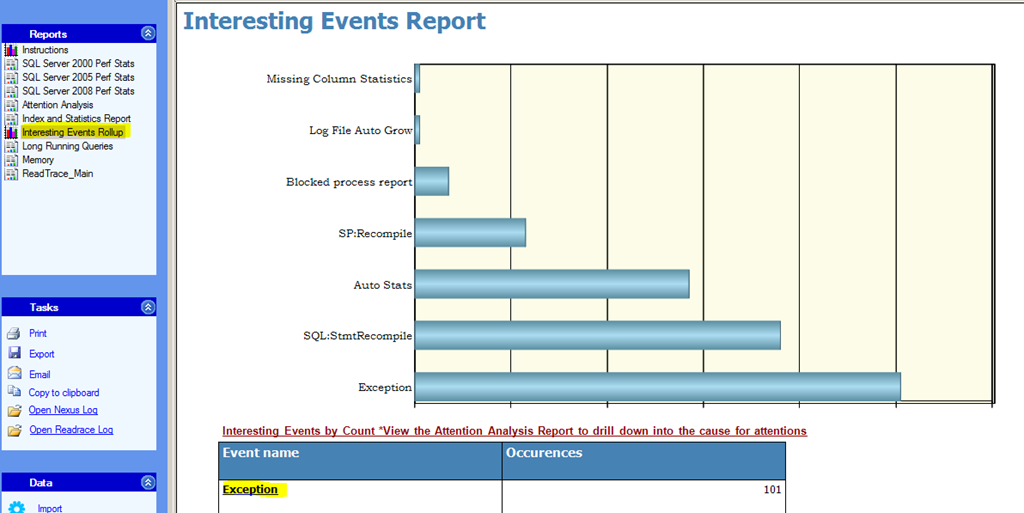
I had built this report ages ago when RML Utilities didn’t have the option of drilling through the Interesting Events and fetching out the sub-class reason for the Interesting Event.

image

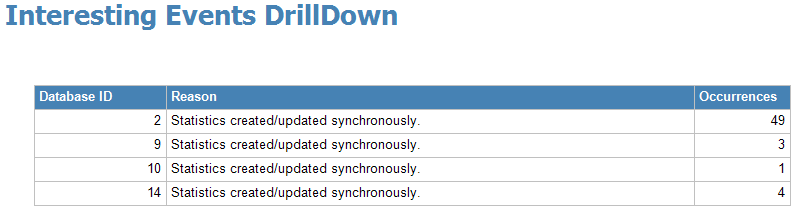
The report structure itself is quite simple. It uses the Shared Data imageSource “sqlnexus.rds” so that the database context can switch when you change the database name using the drop-down menu in the SQL Nexus tool. Then I created an Action Event to jump to a child report which is called “Event Drilldown.rdlc”. This gives you a view as shown in the screenshot below. This is showing you a on which database the AutoStats event was fired and what the reason for AutoStats kicking in.

image

Once you have the custom reports built, you can drop them in the following folder: %appdata%\SQLNexus\Reports. SQL Nexus will automatically pickup these reports when it is launched.

The two files that are used in the above example can be downloaded from here. You can dissect the structures of the report to understand what queries were used to fetch the data for the reports shown above.

The ReadTrace_Main report for RML Utilities provides this drill-down function currently using the “Interesting Events” link on the main dashboard under “Additional Reports”.

Have a good weekend and stay tuned to this series for more tips and tricks next week!

Download linke for RDL files: Client Report Definition (.rdlc) Files

Tools Tips and Tricks #4: RML Utilities

It is time again for your friendly neighborhood (or virtual neighborhood) SQL CSS person to provide you with the next set of tips for the various tools that he uses in his day-to-day work. I probably use this tool “RML Utilities” or the database created by this at least once a day and sometimes even more. Not kidding!!

This tool has become synonymous with Profiler Trace analysis collected from customer environments in CSS. Majority of you might be familiar with the tool “SQL Nexus” which call RML utilities in the background to load the collected Profiler Traces into a SQL Server database. This calls an executable, ReadTrace.exe. In this post, I will talk about a few conditions when you should be calling ReadTrace.exe instead of invoking it from SQL Nexus.
image

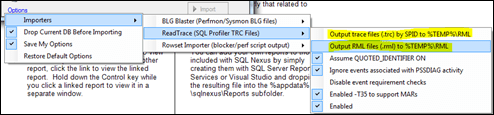
As you can see above that SQL Nexus provides you the option of breaking down the activity of each SPID into individual .trc files but they can only be directed to the %TEMP%\RML folder on your machine. The previous server that I had didn’t have sufficient disk space to hold over 100GB of data in the TEMP directory. Yes, we do analyze data which runs into a few hundred GBs at times!

Now you have two options, change the %TEMP% environment path on your machine to a different drive or use the ReadTrace.exe to generate the .trc files in the required path.

Another option that cannot be controlled from SQL Nexus is the ability to add SPID, Hostname and Application filters while importing the data.

Some of the defaults for ReadTrace are shown below which are required for any profiler trace import are:

-o Output files to be generated in the current directory
-S Connect to default SQL Server instance on the machine
-d Load profiler data into PerfAnalysis database
-E Use windows authentication while connection.

Here are a few scenarios where I use ReadTrace.exe directly….

Analyzing a deadlock scenario where I know the Session IDs involved

Sometimes the deadlock graph is not sufficient to figure out why a lock is still held by that session and why that session acquired the lock on the object in the first place. At that point, you need to track down the sequence of statements executed by the session. In this case, I will use the following command to import the data.

readtrace -S. -E -ddbRMLUtilDemo
-I"D:\RML\RMLUtil_demo.trc" -A"!SQLCMD" -s53 -s55 -MF -o"D:\RML\output" -f

The above command will import the trace files into a database dbRMLUtilDemo on the default instance on the machine with a SPID filter of 53 and 55 and exclude events generated with the application name SQLCMD. Additionally, individual .trc files will be generated containing the activity of SPIDs 53 and 55.

Generating .RML files to be used by OStress

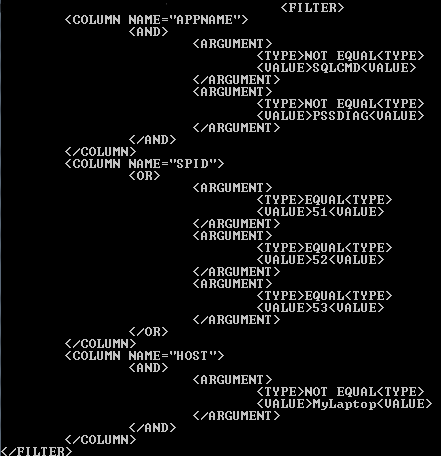
Use the –o parameter to change the output path and use the –s, –A and –H filters to apply the necessary SPID, application name and host name filters respectively. An example to apply filters for SPIDs 51, 52, 53, exclude events generated by application name PSSDIAG or hostname MyLaptop.

readtrace -S. -E -ddbRMLUtilDemo
-I"D:\RML\RMLUtil_demo.trc" -A"!SQLCMD" –s51 –s52 -s53 -o"D:\RML\output" –H"!MyLaptop" –A"!PSSDIAG"

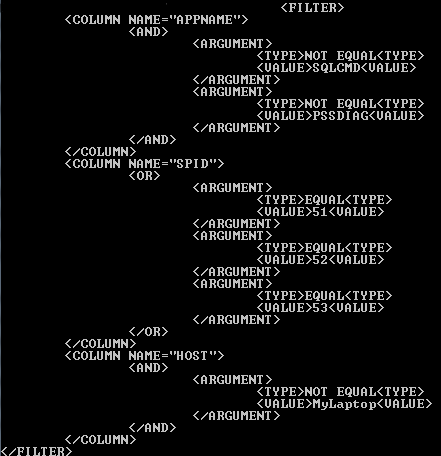
The command line window and the ReadTrace.log file available in the output directory will confirm if the filters were applied correctly or not. Below is a screen shot of the command line window showing that the filters were applied correctly:
image

Handling MARS sessions

ReadTrace has limited processing ability for handling sessions using MARS (Multiple Active Result Sets). You have to use –f and –T35 to import data from trace files which contains MARS sessions. ReadTrace uses the formula ((Session Id * 10 ) + BatchId) so that a MARS sessions appears as a separate session. Eg. If you see Session ID 1620, 1621 and so on in the ReadTrace/SQLNexus database but cannot find such a session in the DMV outputs captured during that time, then the activity corresponds to Session ID 162 which was using MARS.

Note: And remember to always use a Server Side trace whenever possible to capture a profiler trace output to a local disk.

The PDF help files for RML Utilities are located at <system drive>:\Program Files\Microsoft Corporation\RMLUtils\Help folder by default on a machine where RML Utilities is installed in case you wanted more information on the above.

RML Utilities Download
http://blogs.msdn.com/b/psssql/archive/2008/11/12/cumulative-update-1-to-the-rml-utilities-for-microsoft-sql-server-released.aspx

Keep following the tag “Tools tips and Tricks” for more posts on the various tools that we use. That’s it for today!

Tools Tips and Tricks #3: Custom Rowsets using SQL Nexus

This post is part three of the Tools Tips and Tricks series that I started last week. In my T-SQL Tuesday post for this month, I already explained how I always have the inclination of importing data collected into a SQL Server database. I shall touch upon this yet again but this time through the use of SQL Nexus. I am going to use a small script to collect data for the user requests which are executing queries against a particular SQL Server instance. The script that I used to collect data is shown below:


set nocount on
go

while (1=1)
begin

print '-- RequestsRowset'

select GETDATE() as runtime,a.session_id as session_id,
a.start_time as start_time,
a.[status] as [status],
a.command as command,
a.database_id as database_id,
b.objectid
from sys.dm_exec_requests a
cross apply sys.dm_exec_sql_text(sql_handle) b
where session_id <> @@spid

raiserror ('', 0, 1) with nowait

waitfor delay '00:00:05'
end

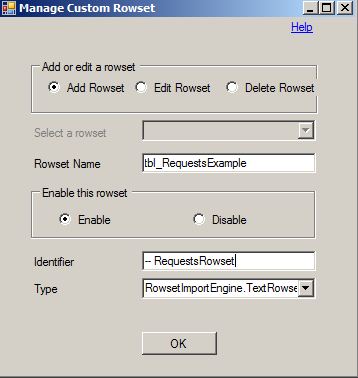
I have stored the output captured by the above query in a file called CustomRowset.OUT. Using the Edit Custom Rowset option in the SQL Nexus UI (available in the third expandable tab named Data, on the left hand side), I can pull up a UI where I can specify the table name into which the data needs to be imported into (tbl_RequestsExample in this case) and the identifier for the data which needs to be imported (— RequestsRowset in this case). I was executing a WAITFOR DELAY command from another session while the above script was capturing data. I then import the data into a SQL Nexus database using the Importoption. Once this is done, I can then query the database and look into the results which were imported into the database. (see screenshot below). You can extend this functionality to any degree you want and even combine multiple T-SQL commands to capture different result sets in the same loop. You just need to make sure that the rowset identifier for each query result set is unique.

Additionally, if you attempt to capture outputs which have columns with data type length greater than 8000, then the import will fail with the following error in the SQL Nexus log file:

SQLNexus Information: 0 : RowsetImportEngine Error: An unexpected error has occurred:

System.Data.SqlClient.SqlException: The size (8192) given to the column ‘query_text’ exceeds the maximum allowed for any data type (8000).

SQL Nexus 3.0 doesn’t give you the option to add your own column data types using the UI.  Using the form (shown on the left) will treat all columns as varchar. If you want to change this behavior, then modify C:\Users\<user name>\AppData\Roaming\sqlnexus\TextRowsetsCustom.xml directly to add or modify the data types that you want.

Where is this helpful?
Let’s say I decided to collect the output of customized T-SQL script for an extended period of time. Instead of scouring the .txt or .out file manually using a text editor, I can import the data into a table and then run queries on them to save yourself a hair-raising experience and valuable time!

How do I make sure that the data is imported correctly?
1. If you have data which is larger than varchar(8000) in the result sets collected, then make sure to modify the TextRowsetsCustom.xml before you import the data.
2. Give each rowset that you collect an unique identifier. You don’t want the importer to mix-n-match the data you are importing.
3. Add a runtime column using GETDATE() or a variable for scripts capturing data in a loop to ensure that you can track the trend easily without having to second-guess.
4. All columns that are collected in the result set(s) have to be named.
5. Avoid CR/LFs in the result set i.e. don’t use CHAR(13) in your T-SQL script while capturing the data as this seriously confuses the importer as it treats CR/LFs as end-of-row indicator.
6. Either capture the data directly into a file by running the data collection script from Management Studio or use sqlcmd -W parameter if you are capturing the data using sqlcmd. -W ensures that trailing spaces from the result sets are removed.

That is all I have for today. Happy customizing and importing!

Tools Tips and Tricks #1: Process Monitor

I recently wrote about importing a Process Monitor trace into SQL Server database table and crunch up the data to extract the events and call stacks. This prompted me to think about capturing data with Process Monitor and some things I learnt along way while using this tool working at CSS.

imageThe first tip is to disable any activity that you don’t want to capture or are not required for the issue that you are troubleshooting. The capture tracks three classes of operations: File System, Registry and Process. In the toolbar show on the left in the screenshot, you can enable/disable the following captures:

a. Registry activity
b. File System activity
c. Network activity
d. Process and Thread activity
e. Profiling events

More information about the above is available in the Process Monitor help file. image

The command line options specified are immensely helpful if you are scripting the capture of a trace using a batch file or if you are generating an automation routine to load the captured data into another data source. I had used /OpenLog and /SaveAs1 option to generate the XML file from the saved .PML file.

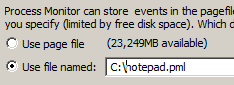
imageOne of the most useful options that I suggest using when capturing a Process Monitor trace is to use the backing file option (/BackingFile command line parameter or CTRL+B when using the GUI). This prevents using the page file as the backing store for trace capture and avoid running in unresponsive server issues while you are still capturing your trace and the paging file fills up. I normally point the backing file to a local drive on the machine which has sufficient amount of disk space.image

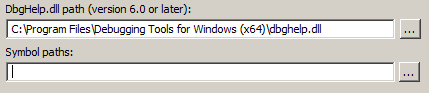
Process Monitor can use symbol information, if available, to show functions referenced on event stacks. You can point to the symbol path (local symbol cache or Microsoft Symbol Server: http://msdl.microsoft.com/download/symbols) using Options –> Configure Symbols. Additionally, you can specify the path to the source files for the application in the same dialog. This will help you resolve the function calls using the symbol path and if a source path is present, open a text viewer dialog with the source line highlighted which is being referenced. The symbol path is needed when /SaveAs2 option is used for converting the .PML file to .XML format. Note that this option considerably increases the export time due to symbol resolution time involved.

I am starting a series tagged with “Tools Tips and Tricks” which will document the various tweaks that I use for data collection for the various data collection/analysis tools that I use on a day-to-day basic.