Performance benchmarking: Explicit vs Implicit Transactions

imageBenchmarking… The single most important word in Performance Tuning. Without an established benchmark, you really don’t know when to actually call it a day!

If you have ever worked in testing on database projects, you would have probably done testing by trying to narrow down the data set involved which is nearly representative of the actual production data set or used a sub-set of the queries which are representative of the workload which is expected or is active on the production environment.

Now this brings me to the reason of this post. It is quite often during testing that we forget that SQL Server executes all DML operations by default in autocommit mode. This means that all individual statements are committed if they complete successfully. If you want to avoid this behavior, then you either need to set IMPLICIT_TRANSACTIONS setting to ON for your database connection or use a BEGIN TRANSACTION command before you execute your query.

SQL Server follows Write Ahead Logging protocol which means no data modifications are written to disk before the associated log record is written to disk. This maintains the ACID properties for a transaction. (when you involve disk-caching, that opens up another can of worms but that discussion is outside the scope of this blog post)

My belief is that if you are comparing execution times between two different environments, then you should be doing that on exactly the same hardware configuration and if that is not feasible, you should at-least match the CPU, physical RAM and disk sub-system on both sides. I had already documented in an earlier blog post why RAM/CPU configurations are important when comparison execution statistics between two different SQL Server environments. Ideally, you should have the same exact environment as your test environment including the workload (i.e. number of users, connections etc.). However, we all know that Utopia is not a place where we live in and hence the toned down test scripts, scaled down/up environments, shared resources and I could keep lamenting!!

In the last month, I dealt with two such issues where in a T-SQL batch performing a large number of inserts on a database table was being used to compare the performance between two different environments. Since I get called in to fix a problem and no-one generally calls CSS to tell us that their server is running as expected… the problem invariably happened to be that a bigger, beefier server was taking a longer time to execute the same batch. I shall demonstrate where not knowing about the WAL protocol can cause such test mechanisms to be skewed and take you down the proverbial rabbit-hole!

The script that I shall be using for demonstrating the pitfalls of this behavior is pretty simple:

declare @cntr int = 1
while @cntr <= 1000000
begin
insert into tblInserts (SNo,RowVal) values(@cntr,’Record ID ‘ +CAST(@cntr as varchar(7)))
set @cntr += 1
end

The script inserts 1 million rows into a database table (a heap table) using a while loop. During the time of the insert, I shall capture various performance counter values during the execution along with wait statistics for the query.

Modification: September 9th, 2011: Based on Kendra’s (Twitter) feedback, changing the sub-headings. Test 1 makes use of auto-commit mode of SQL Server which is the default and Test 2 can be achieved either by using implicit transaction mode or performing an explicit transaction (BEGIN…COMMIT).

Test 1: With AutoCommit mode

For two iterations the above script on an average took 8 minutes and 30 seconds to complete. When I looked into the wait statistics captured (at 5 second intervals), I don’t see anything standing out other than a few non-zero wait durations for WRITELOGs during certain periods. The non-zero wait times (in milli-seconds) are shown below with the highest value being captured being 10 milli-seconds. The Average Disk Secs/(Read/Write) don’t show me any outstanding values during the data capture to indicate that the disk was a bottleneck, then why does the data below show so many WRITELOG waits. Keep in mind that the total amount of time waited for as indicated by the data below is also not a significantly large amount. So why is it taking over eight minutes to insert the data??image
Runtime Session_id Status Wait_type Wait_time Last_Wait_Type
12:46 AM 51 suspended WRITELOG 10 WRITELOG
12:46 AM 51 suspended WRITELOG 7 WRITELOG
12:47 AM 51 suspended WRITELOG 1 WRITELOG
12:47 AM 51 suspended WRITELOG 2 WRITELOG
12:47 AM 51 suspended WRITELOG 3 WRITELOG
12:47 AM 51 suspended WRITELOG 2 WRITELOG
12:48 AM 51 suspended WRITELOG 7 WRITELOG
12:49 AM 51 suspended WRITELOG 8 WRITELOG
12:49 AM 51 suspended WRITELOG 1 WRITELOG
12:49 AM 51 suspended WRITELOG 10 WRITELOG
12:49 AM 51 suspended WRITELOG 6 WRITELOG
12:50 AM 51 suspended WRITELOG 2 WRITELOG
12:51 AM 51 suspended WRITELOG 3 WRITELOG
12:51 AM 51 suspended WRITELOG 4 WRITELOG
12:51 AM 51 suspended WRITELOG 1 WRITELOG
12:51 AM 51 suspended WRITELOG 2 WRITELOG
12:52 AM 51 suspended WRITELOG 5 WRITELOG
12:52 AM 51 suspended WRITELOG 7 WRITELOG
12:53 AM 51 suspended WRITELOG 1 WRITELOG
12:53 AM 51 suspended WRITELOG 8 WRITELOG

To explain the query, I would need to fall back of SQL Server Performance Monitor counters (sampled at 5 second intervals). On analysis of the performance monitor counters, I found the following:
a. SQLServer:Databases: Log Bytes Flushed/sec showed that on an average 3.1 MB of log bytes were being flushed every 5 seconds for the database on which I was performing the inserts.
b. SQLServer:DatabasesLog Flushes/sec showed that about 6000 log flushes were occurring for this database every 5 seconds on an average.
c. SQLServer:Wait Statistics: Log write waits shows me that on an average there were about 9000+ waits started per second. However, the Cumulative wait time (ms) per second for the same counter shows me negligible values and the Average wait time (ms) value is nearly zero through the data collection period.

So how can I explain where the time is being spent?? Now I decided to run another test using implicit transactions.
imageTest 2: Without AutoCommit mode

I ran two iterations of the above T-SQL batch within BEGIN TRANSACTION…COMMIT block and the average duration was 14 seconds! Whattttt!??!?! Yes.. And all this can be simply explained using the same counters that I looked above. This time around the performance monitor data told me the following story:
a. SQLServer:Databases: Log Bytes Flushed/sec showed that on an average 26 MB of log bytes were being flushed every 5 seconds for the database on which I was performing the inserts.
b. SQLServer:DatabasesLog Flushes/sec showed that about 468 log flushes were occurring for this database every 5 seconds on an average.
c. SQLServer:Wait Statistics: Log write waits shows me that on an average there were about 23(approx.)+ waits started per second.

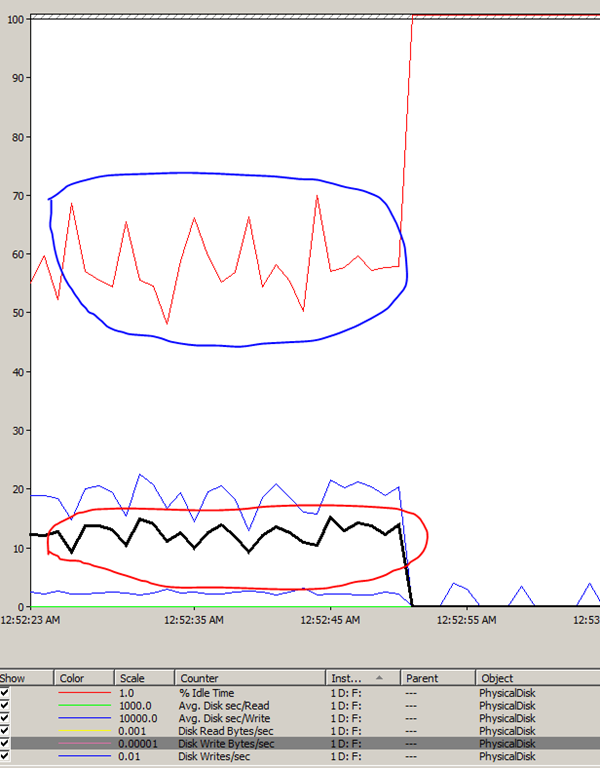
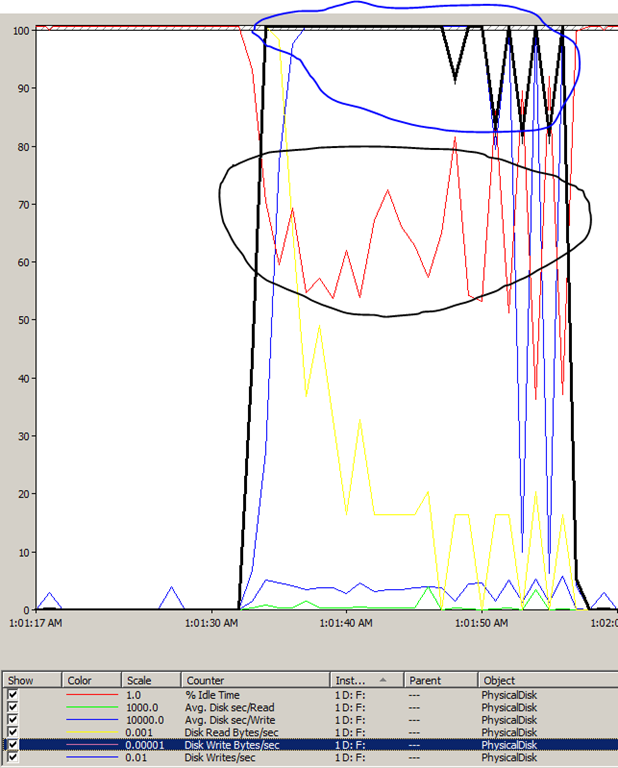
If you look at the Performance Monitor graphs for the disk statistics that I captured for a single run for Test 1 (screenshot above) and Test 2 (screenshot on the left), you will see that the %Idle Time for the disk, on which the database files resided on (in my case F: drive), shows was busy 50% of the time (see blue squiggly above) during the test and the value climbed back to ~100% after the test completed. On the contrary, the %Idle Time for the same disk has a very zig-zag pattern (see black squiggly on left) during Test 2 which indicates that the disk was sporadically busy and it was not a continuous pattern as observed in Test 1.

The Avg. Disk Sec/Write counter shows absolutely no latency which means that the there is no problem in terms of latency on the disks.

During Test 1, data was being written to the disk at the rate of 907 KB/s where as during Test 2, the write rate was 5MB/s which was determined by monitoring the Disk Write Bytes/sec counter.

The reason for this difference is that for every insert in Test 1 is followed by an autocommit. This means that you need to flush the log buffer for each insert. However in Test 2, the log buffer was being flushed much lesser but at the same time more data was being written to the disk for each log flush. Since SQL Server follows a WAL protocol, till the earlier log flush is completed, it cannot commit/move onto the next transaction.

If you are running a similar system with two different sets of hardware, then you would start having to chase down disk speeds/RPMs between the two servers. For servers which have disks performing optimally, this behavior is quite difficult to gather without the right set of data.

With SQL Server 2008, tracking down the waits for a single session is much, much easier with the help of XEvents. But that shall be a story for another day… errrr.. post!!

Moral of the story: If you are using a test query similar to the one shown above to test/benchmark performance and the query batch is not indicative of your actual workload, then you would probably not be able to gauge or establish an accurate performance benchmark for the queries executing on your system. And REMEMBER that SQL Server runs in auto-commit mode by default!

HAPPY TESTING! Smile

The case of the obnoxious locks value

Yesterday I worked with Argenis [Blog | Twitter] regarding an interesting startup failure for a SQL Server standalone instance.

The error in the SQL Errorlog was:

2011-03-30 14:43:18.46 Server      Large Page Extensions enabled.
2011-03-30 14:43:18.46 Server      Large Page Granularity: 2097152
2011-03-30 14:43:18.46 Server      Large Page Allocated: 32MB
2011-03-30 14:43:18.55 Server      Large Page Allocated: 32MB
2011-03-30 14:43:18.56 Server      Large Page Allocated: 32MB
2011-03-30 14:43:38.07 Server      Error allocating 16777216 lock owner blocks on startup

After trying the removal of the trace flags that were enabled, we still couldn’t get the SQL instance to startup. The next thing we did was to start the SQL instance from command prompt using the following parameters:

sqlservr.exe –c –m -T3608 -f

The above started the SQL Server instance in minimal configuration mode without any errors. Now the above lock block allocation seemed a bit too large. So we checked the sp_configure output for the configured value of the “locks” configuration option. And voila, we had our answer! The value of “locks” was set to 16777216. We then changed this value to 0 (ZERO) which is the default using sp_configure and restarted SQL instance. This time the SQL instance came online!

Takeaway:

If the SQL instance fails to start, try starting the SQL instance using minimal configuration. If SQL comes online, check the configuration settings for any untoward configuration values.

Reference:

Wiki: SQL Database Engine Startup Failures

https://troubleshootingsql.com/2010/11/23/wiki-sql-database-engine-startup-failures/

Wiki: Demystifying SQL Server Exception Dumps

Recently, I had replied to a MSDN post regarding an Access Violation reported by a SQL Server instance. In this post, I shall elucidate on troubleshooting memory dumps generated by SQL Server exceptions and what can be done without the availability of private symbols for debugging.

I had written a post earlier on when a memory dump is generated in SQL Server. If a single Errorlog has multiple stack dumps from multiple exceptions, then the first thing to do is to investigate the first access violation reported in the series of dumps reported. It is also possible that an exception (eg:access violation) could be followed by another exception/assertion or a non-yielding condition which may be a side effect of the earlier access violation.

When SQL encounters an access violation, there will be  SQLDumpXXXX.mdmp, SQLDumpXXXX.txt and SQLDumpXXXX.log files created in the LOG folder associated with the exception. The SQL Errorlog will report the occurrence of the exception as well.

  1. The .mdmp file is the memory dump which would be required by CSS to troubleshoot the issue.
  2. The .txt file is the symptom dump file which contains environment information along with other information depending on the nature of the exception.
  3. The .log file contains an extract from the SQL Errorlog when the exception was encountered. This helps in looking at what messages were reported in the Errorlog prior to the issue. Helps during post-mortem analysis if the current Errorlogs have already been recycled.

There can be two types of exceptions: one that is fatal enough to cause a SQL service termination or one that encounters the exception which terminates the thread which was encountered the issue.

Now what can be done in such a situation without having to look into memory dump file. The first step would be to check if the issue is a recurring behavior due to a particular operation to establish some pattern or if there is not identifiable pattern at all. If you look into the SQL Errorlog, you might be able to identify the input buffer which cause the exception (unless it’s an exception which terminated the SQL service, one such example is shown below).

Server * BEGIN STACK DUMP:
Server * spid 5728
Server * ex_handle_except encountered exception C0000005 – Server terminating

If the above snippet contains the T-SQL query which raised the exception, then you would want to execute the same query from a Management Studio query window and check if the exception re-occurs. If yes, then you have a valid repro scenario.

Example snippet from an Errorlog where the Access Violation didn’t cause a service termination:

*   Exception Address = 0042B866
*   Exception Code    = c0000005 EXCEPTION_ACCESS_VIOLATION
*   Access Violation occurred writing address 67192000
* Input Buffer 38 bytes –
*  exec sp_updatestats

Next check if you can spot any external components loaded into SQL Server address space. I shall revert back to my MSDN post where I had spotted an anti-virus filter DLL loaded in SQL Server process address space.

Server * bcrypt 000007FEFC900000 000007FEFC921FFF 00022000
Server * PCTLsp64 000000000B1E0000 000000000B251FFF 00072000
Server * mswsock 000007FEFC840000 000007FEFC893FFF 00054000

Based on a few Bing searches, I was able to determine that the PCTLsp64 was part of a virus monitoring program from PC Tools. The next step would be to check if this external component can be moved out of SQL Server process address space. The fact that the DLL is loaded in SQL process address space doesn’t make the DLL a culprit. However, when troubleshooting such issues, it is important to eliminate all unknown or third party elements that could prevent us from narrowing down to the culprit. Other DLLs which can be commonly found in SQL Server process address space would be provider DLLs when linked servers are being used on the SQL Server instance. Additionally execution of Extended Stored Procedures (XSPs) could also load external DLLs into SQL Server process address space depending on the way the XSP DLL was coded. An easy way to identifying a XSP dll is searching for the word “using” in the SQL Server Errorlog. SQL Server reports the first instance of a XSP dll being loaded into SQL Server process address space.

Using ‘xpstar.dll’ version ‘2009.100.1600’ to execute extended stored procedure ‘xp_readerrorlog’

If you do find an external component loaded in SQL process address space, check the callstack reported in the Errorlog below the list of modules printed below to determine if the functions of the exception stack are associated with external component that you identified. For the issue reported in the MSDN post, I did find this:

Module(sqlservr+00000000017A954C)
Module(kernel32+0000000000099380)
Module(ntdll+0000000000096228)
Module(ntdll+0000000000014F48)
Module(ntdll+0000000000034F6D)
Module(ntdll+0000000000015B2C)
Module(ntdll+000000000004F638)
Module(ntdll+000000000004C8F4)
Module(ntdll+000000000004C822)
Module(PCTLsp64+00000000000040AD)
Module(PCTLsp64+0000000000004701)
Module(PCTLsp64+0000000000005434)

Now this makes my story a bit more compelling of removing the external component out of SQL Server process address space. Once that is done and if you have a repro condition which causes the issue, then it would be good to re-run your repro and check if the issue is actually resolved. Not all the exceptions are the same even though they are reported in the same manner.

If all the above hasn’t helped in narrowing down the issue, then check if you are on the latest available cumulative update for the version of  SQL Server that you are using. If not, then it might be a good idea to update your instance to the latest available build to ensure that you are not hitting a known issue. If this is possible, then apply the latest cumulative update package and check if the issue re-occurs. I am cognizant of the fact that this might be an easy option due to change management restrictions on production environments. For such a dependency, my recommendation would be engage CSS to assist with a thorough investigation of the root cause of the issue.

As you can see from the steps outline above, you can look into a few things before you need to start poking into the exception memory dump using a Debugging tool.

Happy debugging!

Two starts, one recompile and a confusing place

I used to be regular viewer of the TV Series “Two Guys, A Girl and A Pizza Place” co-starring Ryan Reynolds. The blog post title is a play on that name. In the past week, I have heard about this phenomenon of “one ghost Stmt: Starting” event more than thrice which is what triggered this blog post.

When you are analyzing such a trace file using RML Utilities, you will find an entry in the tblStatements table showing a Statement for a particular Batch Sequence (Column name: BatchSeq) which has a Start Time but no End Time. Additionally the AttnSeq column for that row would have a NULL value indicating that the statement didn’t timeout nor was it cancelled due to a Server/Client side error.

So what is this ghost entry all about. If you manually dig through the profiler trace, you will find that that the Statement in question has a Recompile event associated with it. This is by-design. When a Stored Procedure statement encounters a Recompile event, it would have a SP: StmtStarting event associated with it but no corresponding SP: StmtCompleted event. This can lead to confusion during trace file analysis.

Here is an example illustrating the same. I have a Stored Procedure whose definition is as follows:

CREATE PROC usp_recompile
AS
SELECT * FROM tbl1 OPTION (RECOMPILE)

The Recompile hint is added to forcefully induce a Recompile for the Stored Procedure when it is executed. If you look into the profiler events captured below during the Stored Procedure execution, you will see that there is a SP:StmtStarting event followed by a SP:Recompile and a SP:StmtRecompile event. Then there is another SP:StmtStarting event indicating that the recompile operation is complete and the start of the execution of the SP statement.

image

Hope this helps clear up the confusion around this topic.

Wiki: SQL Database Engine Startup Failures for Clusters

I had recently written a Wiki article on my blog for a troubleshooting startup methodology for SQL Server startup failures for Standalone instances. In this article, I shall cover a similar roadmap for troubleshooting database engine startup failures for clustered SQL Server instances. Some of the steps are going to be the same as troubleshooting start-up failures for stand-along instance but there are some minute differences. So here goes…

The first thing that you need to do is to try and bring the SQL Server resource online from the Failover Cluster Administrator in case you are using a Windows Server 2003 cluster or below. If you are using a Windows Server 2008 or above, you would need to use the Failover Cluster Management Snap-in. If the SQL Server resource fails to come online, then check the SQL Server Errorlogs for any errors that were reported.

Locate the SQL Server Errorlog location and check if any errors were observed in the SQL Server Errorlog. This can be done by looking up the –e startup parameter value for the SQL Server instance in question. If you are using SQL Server 2005 and above, then right-click on the Service Name in Configuration Manager –> Properties –> Advanced Tab. Alternatively, you can use a VBScript (or Powershell) to fetch this information. Here is an example for obtaining the Startup Parameters using WMI and VBScript.

Verify that the files pointed to by the –d (master data file location), –e (Errorlog location) and –l (master log file location) actually exist and have the correct file paths. Starting from SQL Server 2005, the Errorlog will have the startup parameters printed in it when the SQL instance starts up. If you find no errors in the SQL Errorlogs, look into the Windows Application Event logs and ensure that there are no errors related to the cluster resource for the SQL instance or the cluster group (applicable for Windows 2003 clusters) that the SQL resource is a part of.

If the Windows Application Event logs, don’t provide any useful errors, then look at any warnings or errors pertaining to the SQL Server resource in the Windows Cluster logs.

Refer the following post to generate the Cluster log on a Windows Server 2008 Failover cluster or higher. For a Windows Server 2003 Cluster, the default location of the cluster logs is: <system driver>:\<windows folder>\Cluster\Cluster.log.

Now try to start the SQL Server instance using command prompt using the sqlservr.exe to check if the service comes online without bringing any user database online using -T3608.

For a default SQL Server instance:

sqlservr.exe –c –m –T3608

For a named instance of SQL Server:

sqlservr.exe –c –m –T3608 –s<instance name>

If the above fails, then the console window should provide you with an error message as to why the SQL instance fails to start. If the above succeeds, then try and start the service using the Configuration Manager.

Note: Make sure that you are not falling prey to a Desktop Heap exhaustion issue.

If you determine that the SQL Server registry entries have an erroneous entry, then you would need to follow the steps mentioned in the KB Article below to rectify the problem (due to Registry Synch operations that happen on a cluster):
http://support.microsoft.com/kb/953504

You might also find that the SQL Server resource entries in the Cluster Registry hive (HKLM\Cluster\Resources\GUID) are missing. You would then have to re-create the same using the steps mentioned in the KB Article below (applicable for SQL Server 2000 and SQL Server 2005 only):
http://support.microsoft.com/kb/810056

NOTE: Remember that modifying registry keys incorrectly on a Windows Server can have disastrous effects. Make sure that you take a registry backup before making any registry modifications.

Apart from the following common startup failure root causes, there are an additional few which are applicable to clustered SQL Server instances only (in BOLD below):

The most common root causes for service startup failures are:

  1. Access denied on the folders for the SQL Server Service Account on the DATA folder which contains the SQL Server system databases or due to some other process (like anti-virus holding a lock on the SQL database files)
  2. Insufficient permissions granted to the SQL Server Service account.
  3. File not found errors due to either accidental deletion of files or disk failures.
  4. System database files having inconsistencies prevent SQL Server startup.
  5. Password of the service account was changed but not updated on the server that has the SQL instance installed.
  6. Startup parameters have incorrect file path locations
  7. The dependent resources for the SQL Server clustered instance are failing to come online. (Eg. Shared disks on which the database files reside on)
  8. Incorrect (read:messed up) Registry entries in the CLUSTER registry hive for the concerned SQL instance which have been checkpointed already and due to which the instance fails to start.
  9. Operating system/Resource crunch/Environment related issues on one or more nodes due to which the instance comes online on one node but not on the other.

Additional references:
T-SQL Tuesday: Common SQL Server myths – Series I–Setup and Services
SQL SERVER 2000 CLuster FAILS TO COME ONLINE ON OTHER NODE
SQL SERVER 2005 RESOURCE FAILS TO COME ONLINE ON CLUSTER AFTER CHANGING THE SAN DRIVE TO ADD MORE DISK SPACE
Sql Server 2005 Resource Taking long time to come online on Windows Cluster with Resource Manager Creation Failed reported in Errorlog
Sql Server Resource Fails to come online on Cluster with Error Error Locating Server/Instance Specified [xFFFFFFFF]
SQL Server 2008 service fails to start, after applying Service Pack 1

Versions that this roadmap applies to:
SQL Server 2000, SQL Server 2005, SQL Server 2008, SQL Server 2008 R2