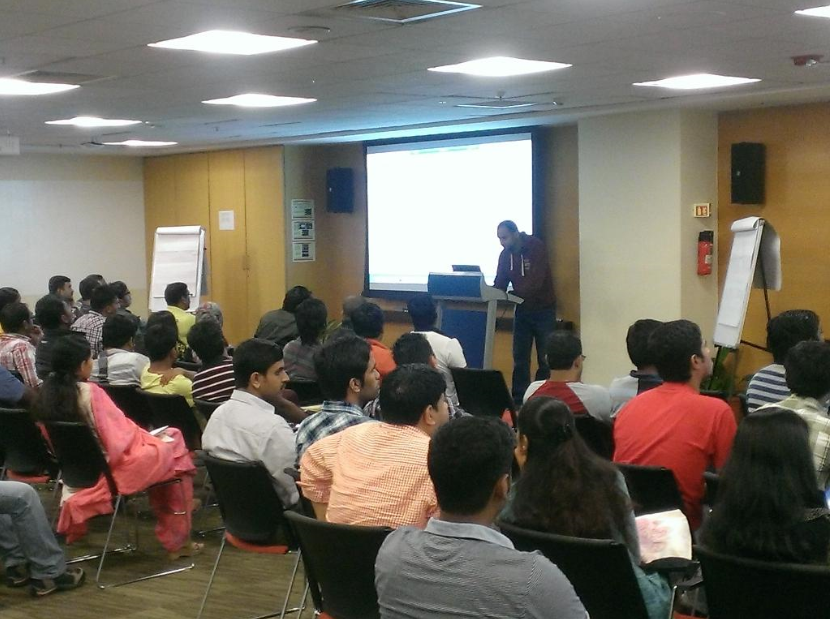
MICROSOFT TECHED INDIA 2014: Azure and SQL Server

image

I had really enjoyed presenting at an earlier TechEd and this time I have the privilege of presenting again.

TechEd India is Microsoft’s premier technology conference for Developers, Technology Enthusiasts and IT Professionals providing opportunities to learn, connect and explore. Join us to increase your technical expertise through deep hands-on learning, sharing of best practices and interactions with Microsoft and industry experts on November 5 & 6 at Bangalore. This year our agenda is bigger than ever! There are a number of special sessions including Microsoft Women in Tech and an exclusive CIO roundtable. We also bring you an extensive Tech Expo that will showcase the latest solutions from Microsoft and Partners.

If you are interested in Azure (Cloud), SQL Server, Data Center trends and all the things that keep today, then this is definitely the event for you. Find out more about the complete agenda from the TechEd site.

This year I will be speaking with Sourabh Agarwal [B | T] on “SQL Performance: Demystified in Azure VMs“. The session abstract is as follows:

This session will give an overview of how to harness the power of Microsoft Azure Virtual Machines for SQL Server database. A few tips and tricks is all it requires to keep a SQL Server database healthy on an Azure Virtual Machine. What’s more, we will even slip in few tricks to automate the entire deployment with the performance best practices enabled.

What can you expect from this session?

1. We will talk about how managing performance for a SQL Server instance deployed on an Azure Virtual Machine can be slightly different from maintaining an on-premise environment

2. We will demonstrate how to ensure that your Azure virtual machine and your SQL Server instance are configured optimally for performance using concepts that you use regularly for managing on-premise SQL Server instances

3. And we will also show some PowerShell magic for accomplishing common tasks related to performance

There will be other known speakers like Vinod Kumar [B | T], Balmukund Lakhani [B | T] and Arvind Shyamsundar [B | T] who will not only help you gain knowledge but also have amazing demos in their presentations!

If you haven’t already registered for TechEd yet, then you can do so by visiting the TechEd site. The Facebook event for my session is available here.

Subscribe now to stay updated with what is happening at TechEd India 2014. I look forward to meeting you at the event!

The slide deck of our presentation is embedded below.

Lessons learnt while using the Cloud Adapter

During the last week of August, I had blogged about how to get your on-premise database to your SQL Server instance running on an Azure virtual machine. I had run into a few issues while trying to run the wizard provided by Management Studio.

The First Stumble

This error is easy to circumvent and pretty much mentioned in the online documentation. The error message would read as:

Failed to locate a SQL Server of version 12.0.2000 or later installed on the remote machine. Please verify that a SQL Server of the same or higher version than the source SQL Server is installed on the remote machine.

The above error is self-explanatory. There is a requirement that the source database engine version be lower or equal to the version of the SQL Server instance running on Azure. Eg. You cannot deploy a database from a SQL Server 2014 instance to a SQL Server 2012 instance running on an Azure VM.

The Second Stumble

The second common error that you might run into is:

The Cloud Adapter port configuration is not valid. Verify the virtual machine endpoint configurations.

The above error will be encountered when the endpoint is not configured for the Azure virtual to accept connections from the outer realm! This can be easily rectified by adding a TCP endpoint to your Azure virtual machine for 11435 which is the port that the SQL Server Cloud Adapter Service is listening on. This is also mentioned in the online documentation. Once you have created the endpoint for your Azure virtual for your on-premise server to connect with the Cloud Adapter service, your endpoint configuration should look like the one in the screenshot below:

image

The Third Stumble

The next issue could be with permissions/authentication or it might not be as easy as it seems.

Cloud Adapter operation failed due to invalid authentication. Verify the virtual machine name, user name, and password.

So the first thing to check if you have the correct account name and password. If it is due to an authentication error, then the application event log of the Azure Virtual Machine will show the following error with the source as SQL Server Cloud Adapter service as shown in Screenshot 2. The text of the error message is mentioned below.

Access denied for user <user name>

image

The other error that you might encounter is when the SQL Server Cloud Adapter service tries to enumerate the database engines installed on the virtual machine. The error would still be talking about the authentication which is reported by the management studio wizard but a little investigation into the application event logs of the virtual machine will show the following error:

[Error] <ip address> Exception in GetSqlInstances(): SQL Server WMI provider is not available on <machine name>.. Stack trace:    at Microsoft.SqlServer.Management.Smo.Wmi.ManagedComputer.TryConnect()
   at Microsoft.SqlServer.Management.Smo.Wmi.WmiSmoObject.get_Proxy()
at Microsoft.SqlServer.Management.Smo.Wmi.WmiSmoObject.EnumChildren(String childTypeName, WmiCollectionBase coll)
at Microsoft.SqlServer.Management.Smo.Wmi.ServerInstanceCollection.InitializeChildCollection()
at Microsoft.SqlServer.Management.CloudAdapter.Tasks.GetSqlInstances()
at Microsoft.SqlServer.Management.CloudAdapter.CloudAdapter.GetSqlInstances(String username, String password). Inner Exception: Invalid namespace .

The above error clearly states that the GetSqlInstances() method failed. Microsoft.SqlServer.Management.Smo.Wmi namespace contains classes that provide programmatic access to the Windows Management Instrumentation (WMI) from an SMO application. I had talked about needing the shared management objects in an earlier post. The SQL Server 2014 WMI provider is also required which is available by installing the client connectivity components from any SQL Server 2014 setup including SQL Server Express. The components that I had installed were:

a. Client Tools Connectivity

b. Client Tools Backwards Compatibility

If you are not sure if you have the WMI provider, then look for the file “C:\Program Files (x86)\Microsoft SQL Server\120\Shared\sqlmgmproviderxpsp2up.mof“. This is the SQL Server 2014 MOF file. Another way to test if the WMI provider is working without running the wizard every time and have it fail is to run the PowerShell commands below on your Azure Virtual Machine. This script will tell you where the instance enumeration being performed by the deployment wizard will work or fail.

[System.reflection.assembly]::LoadWithPartialName("Microsoft.SqlServer.Smo")
[System.Reflection.Assembly]::LoadWithPartialName("Microsoft.SqlServer.SqlWmiManagement")
$m = New-Object ('Microsoft.SqlServer.Management.Smo.Wmi.ManagedComputer') '.'
foreach ($svi in $m.ServerInstances)
{
	$svi.Name;
}

This post was intended to document that common issues that you might run into while deploying a database from an on-premise SQL Server instance to a SQL Server instance running on an Azure Virtual Machine.

Exporting Data to a SQL Server on an Azure VM

If you have played around with a SQL Server installation on an Azure Virtual Machine, then you will invariably have the need to move a database from an on-premise environment to your Azure Virtual Machine for testing, deployment and a host of other activities which you are involved with on a regular basis at work!

Books Online has complete documentation on this wizard. In this post, we will attempt to understand what happens under the hood. Read on to find out more.

Continue reading

Configuring the Azure VM for SQL Server connectivity

In the last SQL Bangalore UG meeting, I had talked about how to use the Custom Scripting component in Azure to run the post configuration operations on an Azure VM which was hosting a SQL Server instance. The post configuration options that I am going to talk about in this post are necessary for you to be able to connect to your SQL Server instance on an Azure VM from a Management Studio running on your on-premise machine.

Before you can connect to the instance of SQL Server from the Internet, the following tasks must be completed:

  • Configure SQL Server to listen on the TCP protocol and restart the Database Engine.
  • Open TCP ports in the Windows firewall.
  • Configure SQL Server for mixed mode authentication.
  • Create a SQL Server authentication login.
  • Create a TCP endpoint for the virtual machine. This would normally be done while providing the endpoint configuration if you are using the Azure Management Portal wizard.

If you had used an Image from the Image gallery, then you will get a default database engine installed with the TCP/IP port configured as 1433. I had written a post earlier which walks through an Azure VM creation using a SQL Server image from the image gallery.

Here I am going to talk about how to automate the bulleted points mentioned above using PowerShell and the Custom Script extension that the Azure provides. This is going to be a long read… So I suggest you get a coffee before you start reading further!

Continue reading

August SQLBangalore UG Meet: It was a cloudy day

imageI am always amazed by the turnout on Saturdays for the SQLBanglaore UG Meetings. This time around it was an all Azure day where we had four sessions talking about different features that Azure offers.

The first session as about Machine Learning by Govind. He showed us how Machine Learning can make the machines smarter. It doesn’t mean that the machines are taking over but they can become your assistants with a bit of training. He went on to demo what Azure Machine Learning (in Preview) has to offer in this space.

This was followed by Angshuman’s session on Azure Redis Cache (in Preview). It gives you access to a secure, dedicated Redis cache, managed by Microsoft. A cache created using Azure Redis Cache is accessible from any application within Microsoft Azure.

The next session by Pranab was on the Smart Backup Feature in SQL Server 2014 which allows you to backup your SQL Server databases directly to Windows Azure Storage accounts. This enables you to pull down those backups for restore from anywhere in the world!

I had the last session and I was the one who was standing between attendees and their lunch! Not an enviable position to be in on a Saturday afternoon! This time around I had attempted to do things a bit differently. I started with the demo and moved onto my presentation. I used a video from PowToon to create a story line for provisioning a SQL Server virtual machine in a short span of time! That is available below. Lately, I have been using animation videos for a few of my presentations. And the view below is the one that I used for this session.

The presentation that I had used for my session is available below:

If you want the PowerShell script which performed the magic after creating the Azure SQL VM, you can from the files section of the SQLBangalore Facebook Group. Look forward to further posts on this blog detailing additional possibilities for that script.

Once again, a big THANK YOU to all the attendees as without them, these sessions will never be a success!

If you want to get notified about future posts, then you can follow me on one of these channels: Facebook | Twitter or simply subscribe to this blog (Available in the side-bar on the left).