Sysdatabases is empty–You say Whaaat?

While trying to backup a SQL Server database using SQL Writer (snapshot backups using VSS framework), then you might notice the following error in the application event logs.

Log Name: Application
Source: SQLWRITER
Event ID: 24581
Task Category: None
Level: Error
Description:
Sqllib error: System table sys.sysdatabases in SQL Server instance <SQL Server Name> is empty.

The above error is a bit misleading because it doesn’t literally mean that all your databases on the SQL Server instance reported have disappeared. If you scour the application event logs, you will find that another error is reported along with this error during the same timeframe.

Log Name: Application
Source: SQLWRITER
Event ID: 24583
Level: Error
Description:
Sqllib error: OLEDB Error encountered calling IDBInitialize::Initialize. hr = 0x80040e4d. SQLSTATE: 28000, Native Error: 18456
Error state: 1, Severity: 14
Source: Microsoft SQL Server Native Client 10.0
Error message: Login failed for user ‘NT AUTHORITY\SYSTEM’.
DBPROP_INIT_DATASOURCE: <SQL Server Name>
DBPROP_INIT_CATALOG: master
DBPROP_AUTH_INTEGRATED: SSPI

Now it is clear that the SYSTEM account is unable to log into the SQL Server instance mentioned in the error message above. If you look into the SQL Errorlog, you will find the following error message:

Error: 18456, Severity: 14, State: 11.
Login failed for user ‘NT AUTHORITY\SYSTEM’. Reason: Token-based server access validation failed with an infrastructure error. Check for previous errors. [CLIENT: <local machine>]

State 11 is basically telling you that the account doesn’t have access to the SQL Server instance. The reason for the login failure is available on SQL Server 2008 instances and above. There is a catch here the Login Failed error message is only reported in the SQL Errorlogs and Application Eventlogs only if the System account is granted access to the SQL Server instance but not granted the right permissions to get the database list from the sys.databases catalog. The hex code 0x80040e4d corresponds to an authentication failure.

So why does this happen? When you initiate a backup of a SQL Server database through SQLWriter (VSS Framework), SQLWriter will try to connect to all online instances to build a list of files associated with each database. SQLWriter/VSS needs this information to create the exclusion list. The account that the SQLWriter service uses is the NT AUTHORITY\SYSTEM account. So if you have multiple instances of SQL Server online on the same server, then the SYSTEM account needs to have SYSADMIN permissions OR the necessary permissions to run a query against the sys.databases catalog on the instance. This is a by-design requirement and documented in the KB Article mentioned below. However, if the SQL Server instance is not started, then you SQLWriter is not bothered about the instance(s) as I/O need not be frozen for database files for an instance which is shutdown.

919023    SQL Server 2005 connectivity and Volume Shadow Copy Service (VSS)
http://support.microsoft.com/default.aspx?scid=kb;EN-US;919023

Excerpt from above article:

Additionally, because of the types of operations that the writer must perform, we recommend that you do not remove the NT AUTHORITY\SYSTEM login from the sysadmin server role.

Now if you do not want to grant sysadmin permission to the System account, then you need to do the following to prevent the above error:

1. Grant db_datareader role to the SYSTEM account on the master database. This is required for other queries that the SQLWriter may need to executed during the course of the backup.
2. Grant ALTER ANY DATABASE or VIEW ANY DATABASE server-level permission, or CREATE DATABASE permission in the master database to the SYSTEM account. These are the minimum permissions required to query sys.databases table.

Normally the SYSTEM account is part of Built-in Administrators group on the box if it is not removed due to security hardening. You would need to grant the above permissions to the System account on all SQL Server instances that are installed and online on the server where you are trying to perform the VSS backup.

Another symptom of the problem manifests itself when you execute the command: vssadmin list writers. You will find that the above error message(s) are reported and the SQLWriter is not listed in the list of available writers.

One you have granted the SYSTEM account the necessary permissions, a quick way to verify that everything is working as expected is to run the vssadmin list writers command again. You might get the following output:

Writer name: ‘SqlServerWriter’
Writer Id: <GUID>
Writer Instance Id: <GUID>
State: [1] Stable
Last error: Non-retryable error

If you find that a non-retryable error is reported, then you need to restart the SQL Server VSS Writer service. Once this is done, run the command again and if there are no problems encountered, then you will get the following output for the SQLWriter.

Writer name: ‘SqlServerWriter’
Writer Id: <GUID>
Writer Instance Id: <GUID>
State: [1] Stable
Last error: No error

NOTE: If a SQL Server VSS (Snapshot) Backup is in progress for any instance on the server, then a restart of the SQL Server VSS Writer service should be deferred till the backup is completed or fails.

Easing in the trace FILTER for SQLDIAG

Now that the Diag Manager is available online and you can use configured custom PSSDIAG/SQLDIAG configuration files to collect data from SQL Server instances, you might want to configure your data collection packages in such a manner that profiler traces are setup correctly with trace filters if needed.

Note: Trace filtering can dramatically reduce trace (.TRC file size) and the I/O cost of tracing, but you should be aware that it can actually increase the CPU burden of tracing. To minimize the extra CPU use, filtering should be performed on an integer column (dbid, duration, etc.) instead of a text column (database name, textdata, etc) whenever possible. If a filter doesn’t remove a significant portion of the trace events (example >10%), it probably isn’t worth it, and might actually introduce more overhead than it prevents. While configuring PSSDIAG/SQLDIAG for SQL Server, you cannot add Profiler Trace Filters. Even if you do so from the GUI, it would not be included in the configuration file so that the filters are honored when  the server side trace starts up.

imageTo set filters for profiler traces collected with PSSDIAG/SQLDIAG, you need to:

1. Initialize PSSDIAG/SQLDIAG on the server. By this I mean start the PSSDIAG/SQLDIAG.
2. Find out the Trace ID of the profiler trace running using fn_trace_getinfo function or sys.traces view.
3. Use the Trace ID obtained from the above step, and use the sp_trace_setfilter stored procedure to set the filter. Refer "SQL Profiler Data Columns" under SQL Server Books Online for the Data Column numbers and "sp_trace_setfilter" topic for finding out the values of the logical and comparison operators.
4. To verify that the filter is active, use the fn_trace_filterinfo function. 

I shall demonstrate in this blog post how this works. As you can see in the see in the screenshot that the TraceID 2 is what I want to customize. Now that I have trace id, I will stop the profiler trace using sp_trace_setstatus stored procedure. Status value 0 will stop the trace.

Once I stop the trace, I use the sp_trace_setfilter function with the appropriate Data Column ID for setting a filter on SPID 52 to set a filter on SPID 52. Then I start the trace again. When I look into the profiler trace, I find that before the trace was stopped it was collecting data for all SPIDs but after setting the filter data is being collected ONLY for SPID 52 (see highlighted sections screenshot below).

imageOnce the filter is set. You can use the fn_trace_getfilterinfo function to verify that the trace filter is active.

If you are not using SQLDIAG to collect profiler traces, then it is as simple as configuring a server side trace. The only additional thing that you need to in this case is add the column filters while configuring the profiler trace. The above exercise is required only when you are collecting traces using SQLDIAG/PSSDIAG.

Reference:
How to: Filter Events in a Trace (SQL Server Profiler)
http://msdn.microsoft.com/en-us/library/ms175520.aspx

/*T-SQL commands used*/

select * from sys.traces — To get the trace id
EXEC sp_trace_setstatus 2,0 — Stops the trace but doesn’t delete the trace definition from the server
EXEC sp_trace_setfilter 2, 12, 0, 0, 52 — Add a filter for SPID = 52
EXEC sp_trace_setstatus 2,1 — Start the trace again
select * from fn_trace_getfilterinfo(2) — Get information about the filters set for the trace

image

Hope the above information helps in setting up trace filter for a profiler trace collected using SQLDIAG.

Visual Studio 2010: Are you being cordial to Report Viewer

imageIf you are using Visual Studio 2010 and a Windows Forms Application which uses the Report Viewer control, then might have probably been scratching your head when you suddenly lost the capability of using any of the drill-through options in your reports.

The problem happens only after you install Visual Studio Service Pack 1! So, what is the solution… Install an update released for Visual Studio 2010 Service Pack 1 (KB2549864).

If you are using only the Microsoft Report Viewer 2010 SP1 Redistributable Package, then you need to install the file named “ReportViewer.exe”. If you use Microsoft Visual Studio 2010 Service Pack 1, install the file that is named “VS10SP1-KB2549864-x86.exe.” I saw yet another question on this being raised on this again this week… So I thought that a quick blog post on this would be definitely worth the effort!

Reference: Update fixes several Report Viewer issues after you install Visual Studio 2010 Service Pack 1 http://support.microsoft.com/kb/2549864

Brian Hartman’s Blog
http://blogs.msdn.com/b/brianhartman/archive/2011/03/31/visual-studio-2010-sp1.aspx

Addition: 10/22/2014: A number of people have reported that the above link does not work anymore for downloading the hotfix files. You will need to download the hotfix files from the link mentioned below:

Update for Microsoft Visual Studio 2010 Service Pack 1 Report Viewer (KB2549864)
http://www.microsoft.com/en-us/download/details.aspx?id=27231

Hello Analytic Functions

SQL Server 2012 CTP 3, formerly known as SQL Server Code Name “Denali”, introduces a new set of T-SQL functions called Analytic functions. Analytic functions now open up a new vista for business intelligence where in you can calculate moving averages, running totals, percentages or top-N results within a group. I find this very useful while analyzing performance issues while traversing information present in a SQL Server trace file.

I was looking into a performance issue where in an application module executing a series of T-SQL functions was taking a long time to complete it’s operation. When I looked into the total duration of the T-SQL queries executed by the application, I couldn’t account for the total duration that the application was reporting. On tracking some of the statement executions done by the SPID which was being used by the application to execute the queries, I found a difference between the start time of a batch and the completed time of the previous batch. Now I needed to see the complete time difference between two subsequent query completion and start accounted for the difference in duration that I was seeing between the duration reported by the application and sum of duration of all the queries executed by the application. And BINGO… I was finally able to make the co-relation. Till SQL Server 2008 R2, I would have to write a query which involved a self-join to get the comparative analysis that I required:

;WITH cte AS
(SELECT b.name, a.starttime, a.endtime, a.transactionid, a.EventSequence, ROW_NUMBER() OVER(ORDER BY eventsequence) AS RowIDs
FROM trace a
INNER JOIN sys.trace_events b
ON a.eventclass = b.trace_event_id
WHERE spid = 83
AND b.name IN ('RPC:Starting','RPC:Completed','SQL:BatchStarting','SQL:BatchCompleted'))
SELECT TOP 1000 b.name, b.starttime, b.endtime, b.transactionid, DATEDIFF(S,a.endtime,b.starttime) as time_diff_seconds
FROM cte a
LEFT OUTER cte b
ON a.RowIDs = b.RowIDs-1

The output of the above query is shown in the screen shot below:

image

As you can see that there is a 4-second delay between the endtime of the statement in Row# 783 and the next execution shown in Row# 784. With the help of Analytic functions, I can simply use the LEAD function to get the above result and avoid a self-join.

SELECT  TOP 1000 a.name,b.StartTime,b.EndTime,b.TransactionID,
DATEDIFF(s,(LEAD(b.EndTime,1,0) OVER (ORDER BY EventSequence DESC)),b.StartTime) as TimeDiff
FROM sys.trace_events a
INNER JOIN dbo.trace b
on a.trace_event_id = b.EventClass
WHERE b.SPID = 83
and a.name in ('RPC:Starting','RPC:Completed','SQL:BatchStarting','SQL:BatchCompleted')

The output as you can see is the same the previous query:

image

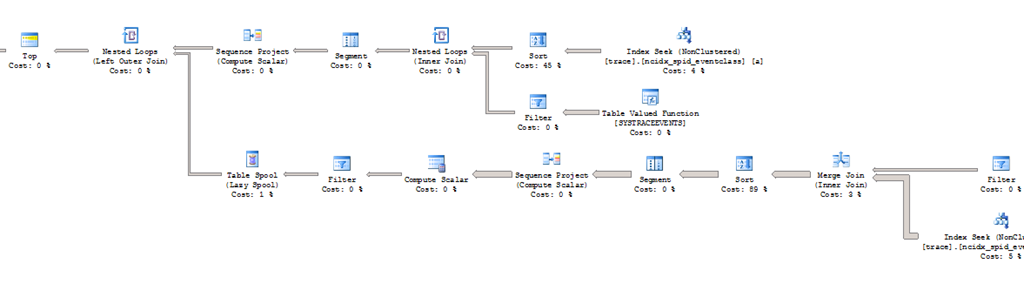
I had imported the data from the profiler trace into a SQL Server database table using the function: fn_trace_gettable. Let’s see what the query plans look like. For the first query which uses the common table expression and a self-join, the graphical query plan is as follows:

image

Now let’s see what the query plan looks like with the new LEAD function in action:

image

As you can see above a new Window Spool operator is the one which performs the analytical operation to calculate the time difference between the subsequent rows using the EventSequence number. As you can see that I have eliminated the need for a self-join with a temporary table or a common table expression and therefore simplifying my query in the process.

In the above example I am using the LEAD function to get value that I am interested in the following row. If you are interested in the values from a preceding row then you can use LAG function.

One gotcha that you need to remember here is that if you don’t take care of the start and end values of the dataset which you are grouping, you could run into the following error due to an overflow or underflow condition.

Msg 535, Level 16, State 0, Line 1
The datediff function resulted in an overflow. The number of dateparts separating two date/time instances is too large. Try to use datediff with a less precise datepart.

This is a small example of how analytic functions can help reduce T-SQL complexity when calculating averages, percentiles for grouped data. Happy coding!!

Disclaimer: This information is based on the SQL Server 2012 CTP 3 (Build 11.0.1440), formerly known as SQL Server Code Name “Denali” documentation provided on MSDN which is subject to change in later releases.

SSAS: I will add you to the existing SQL cluster

You have an existing SQL Server 2005 Failover Cluster which has Database Engine and Full-text Search as the clustered components. Now you suddenly decide that this SQL Server cluster group requires a clustered Analysis Services instance. This will then lead you down a rabbit hole trying to figure out what to do to achieve this unless and until you know where to look.

There is a note in the Books Online content stating the following:

You cannot install Analysis Services to the same cluster group as the Database Engine. You must install Analysis Services to its own group and then, after installation, you can move Analysis Services to the same group as SQL Server.

However the above information is incorrect!!

You CANNOT add a failover cluster instance of Analysis Services to an existing SQL Server failover cluster instance using the Setup GUI!

Adding an Analysis Services failover cluster instance to an existing SQL Server cluster group has probably been a point of consternation for a person attempting SQL setup if you ran into the above mentioned scenario.

Now to the interesting part… achieving the objective using setup parameters and command line setup!! Sounds like fun, eh? The setup command would need to use the following parameters:

start /wait <CD or DVD Drive>\setup.exe
/qb VS=<VSName> – Virtual Server name should be the same as the existing database engine virtual server name
INSTALLVS=
Analysis_Server
INSTANCENAME=<InstanceName> – Instance name should also be the same as the instance name of the database engine. For default instances, use MSSQLSERVER.
ADDLOCAL=Analysis_Server
ADDNODE=<NodeName1, NodeName2,… NodeNameN>
GROUP=<SQL Diskgroup>
IP=<IP,Networkname> – Network name here is the cluster network name. See Gotcha#2 below.
ADMINPASSWORD=<StrongPassword>
SAPWD=<StrongPassword
INSTALLSQLDIR=<InstallationPath>
INSTALLASDATADIR=<Sharedrivepath>
SQLACCOUNT=<domain\user>
SQLPASSWORD=<DomainUserPassword>
AGTACCOUNT=<domain\user>
AGTPASSWORD=<DomainUserPassword>
ASACCOUNT=<domain\user>
ASPASSWORD=<DomainUserPassword>
SQLBROWSERACCOUNT=<domain\user>
SQLBROWSERPASSWORD=<DomainUserPassword>
SQLREPORTING=1
ASCLUSTERGROUP=<YourDomain \ YourDomainGroupName>

There are few gotchas here.

1. If you specify a Virtual Server name other than your existing SQL Server virtual server name for the VS parameter, then you will get a failure while trying to create a new IP resource:

Error Code: -2147019839
Windows Error Text: The cluster IP address is already in use

2. If you specify incorrect parameters for the IP parameter, you could encounter a"network name not found" error. The network name value in the IP parameter is the name of the cluster network that shows up in the Failover Cluster Manager snap-in or Cluster Administrator snap-in. The network name is NOT the name of the Windows Network Interface.

3. You need an additional shared disk. If your Database Engine is using G: drive for the existing instance, you cannot use the G: drive to install the Analysis Services instance even though you are installing into the same cluster group.

References

SQL Server 2005 Setup Parameters
http://technet.microsoft.com/en-us/library/ms144259(SQL.90).aspx