Awesomesauce SQL Server 2012: System Health Session

There have been a spate of new features and enhancements to existing functionality in SQL Server 2012. The System Health Extended Events session is one of the benefactors. I had previously blogged about the usage of the System Health Session data using custom SSMS Reports in a four part series. Now it is time to talk about the enhancements to the System Health Session’s predecessor.

The SQL Server 2012 health session adds additional events to the default extended event health session running on the instance which is listed below to collect data for the following:

  • Out of memory errors for CLR and the database engine using the events:
    • sqlclr.clr_allocation_failure
    • sqlclr.clr_virtual_alloc_failure
    • sqlos.memory_broker_ring_buffer_recorded
    • sqlos.memory_node_oom_ring_buffer_recorded
  • Scheduler health issues using the events:
    • sqlos.scheduler_monitor_deadlock_ring_buffer_recorded
    • sqlos.scheduler_monitor_non_yielding_iocp_ring_buffer_recorded
    • sqlos.scheduler_monitor_non_yielding_ring_buffer_recorded
    • sqlos.scheduler_monitor_non_yielding_rm_ring_buffer_recorded
    • sqlos.scheduler_monitor_stalled_dispatcher_ring_buffer_recorded
    • sqlos.scheduler_monitor_system_health_ring_buffer_recorded
  • The results of the sp_server_diagnostics component
  • Security and connectivity errors encountered using the events:
    • sqlserver.connectivity_ring_buffer_recorded
    • sqlserver.security_error_ring_buffer_recorded

imageAdditional wait types are also tracked which adds to the existing list of waits captured by this session. Since SQL Server 2012 Management Studio allows you to view the configured Extended Events session on the SQL Server 2012 instance, you can get to the system_health session using the following steps from Object Explorer (see Screenshot 1):

Expand Management –> Extended Events –> system_health.

The Script Session as option now provides you with a way to view the session definition. Another enhancement made to this session is the target for this session is now also a .xel file which by default is located in your SQL Server LOG folder. The target definition for the System Health session are now:

a. Ring Buffer (as was in SQL Server 2008) 
b. XEL file – With a maximum size of 5 MB and a file retention policy of 4 files.

So now you can leverage the management studio XEvent UI to view the results. You can right-click on the ring buffer target in the UI and click on the View Target Data option which will give you an XML document. image

The coolest thing that I like here is the viewer’s capability to show you all the data from all the .xel files. Once you have the events loaded, you should see a view as shown in Screenshot 2. This gives you a list of all the events that were generated. You can sort on the event columns by clicking on them. The progress of the sorting will be visible towards the top right hand corner of SSMS as shown in Screenshot 3. Now that you have the basic view, let’s find out what more can we do with the System Health Session data displayed.

image

You can click on the Choose Columns option in the toolbar, select the columns that you want to view additionally apart from the name and timestamp by using the Available Columns list. See Screenshot 4 for an example.

image

Now that you have selected the additional columns, you can also set grouping (using the Grouping button) to view each of the event name categories, the number of events reported and aggregations on the column values (using the Aggregations button). So finally, I landed up with a view as shown below in Screenshot 5. What’s more, you can save the view settings using the Display Settings button!

image

I am currently writing a series on SSWUG for designing SSRS reports for viewing the events reported by the System Health Session. You can following the series here. If you have SQL Server 2012 RTM installed, then you need to download the T-SQL script attached to Mike Wachal’s blog post to address the wait type information captured.

Monitoring just got a whole lot easier!!

SQLDIAG and SQL Server 2012

SQLDIAG is a data collection utility that is used for collecting T-SQL script output, perfmon data and profiler traces in a consolidated manner. This allows the database administrators for collect a single output without having to configure multiple data collection utilities for capturing the required data.

SQLDIAG has been shipping with the SQL Server product since SQL Server 2005. Now the reason I am writing this post is to talk about a specific issue that you can encounter when you already have a previous version of SQLDIAG installed on your machine along with SQL Server 2012.

Using the command below I am trying to execute a SQLDIAG data collection using a specific SQL Server 2012 SQLDIAG configuration file. The command that I used was to specify the output folder and the default SQLDIAG configuration file available at C:\Program Files\Microsoft SQL Server\110\Tools\Binn\SQLDiag.XML:

C:\>sqldiag /O "F:\Temp\SQLDIAG Output" /I "C:\Program Files\Microsoft SQL Server\110\Tools\Binn\SQLDiag.XML"

The output that I got was:

SQLDIAG Output path: F:\Temp\SQLDIAG Output\

SQLDIAG Invalid SQL Server version specified.  SQL Server version 11 is not supported by this version of the collector

SQLDIAG . Function result: 87. Message: The parameter is incorrect.

The reason for the above issue is that my environment PATH variable has the path for a previous version of SQLDIAG listed before the path of the SQL Server 2012 SQLDIAG. My path variable has the directory “C:\Program Files\Microsoft SQL Server\100\Tools\Binn\” listed before “C:\Program Files (x86)\Microsoft SQL Server\110\Tools\Binn\” which is the default location of the SQLDIAG utility. The PATH variable is updated with the SQL specific directories during a SQL Server installation. In my case, I have a SQL Server 2008 R2 instance installed on my box. So the configuration file which specifies a data collection for a SQL Server 2012 is failing because I am using a SQLDIAG from a SQL Server 2008 R2 installation.

If I executed the following command, then my SQLDIAG initialization will work correctly:

"C:\Program Files\Microsoft SQL Server\110\Tools\Binn\sqldiag.exe" /O "F:\Temp\SQLDIAG Output" /I "C:\Program Files\Microsoft SQL Server\110\Tools\Binn\SQLDiag.XML"

To summarize, you need to full qualify your SQLDIAG executable path when collecting SQLDIAG data from a machine which has multiple versions of SQLDIAG installed on the machine.

Awesomesauce SQL Server 2012: Performance Dashboard

I had written an article on SSWUG on how to track performance problems using Performance Dashboard. So, I thought it would be a good idea to blog about the new enhancements to the toolset for SQL Server 2012. The Performance Dashboard has been enhanced for SQL Server 2012 and is available for download on the Microsoft Download site.

And with this I also start the Awesomesauce series on my blog where I will keep posting about new features of SQL Server 2012 which I think are just plain awesomesauce!!

Once you install the Performance Dashboard, you need to do the following:

1. Each SQL Server instance you plan to monitor must contain the procedures and functions used by the queries in the reports.  Using SQL Server Management Studio (SSMS), open the setup.sql script from your installation directory (default of %ProgramFiles(x86)%\Microsoft SQL Server\110\Tools\Performance Dashboard) and run the script.  Close the query window once it completes.

2. In the Object Explorer pane in SSMS, right mouse click on the SQL Server instance node, then choose Reports-Custom Reports.  Browse to the installation directory and open the performance_dashboard_main.rdl file.  Explore the health of your server by clicking on the various charts and hyperlinks in the report.

3. All of the remaining reports are accessed as drill through operations from the main page or one of its children.  For a detailed explanation of all installation requirements and guidance on how to use the reports, please see the help file, PerformanceDashboardHelp.chm

Now that the nitty gritty details are out of the way, what will you get when you view the dashboard and you will notice the dashboard having a new entry for XEvent sessions currently active on the instance.

image


Continue reading

XML Plans Saga–Breaking Dawn Part 2

I just completed this series and now there are four posts which points out four different ways of tracking down XML plans for troubleshooting or monitoring query performance:

XML Plans Saga –Twilight – A gist of what graphical execution plans look like.
XML Plans Saga –New Moon – Getting your hands dirty with the actual XML document representing the query plan
XML Plans Saga – Eclipse – Retrieving information about query plans using profiler trace events
XML Plans Saga – Breaking Dawn Part 1 – Fetching information from the cached plans in the SQL Server procedure cache

In this blog post (Breaking Dawn Part 2), I shall talk about the latest release in the SQL family… SQL Server 2012. With the new avatar of the Management Studio, you now have an Extended Event (XEvents) configuration wizard. Even though Extended Events have been around since SQL Server 2008, there wasn’t a wizard available for the configuration of the same. I am going to explain how XEvents can be used to capture execution plans and the existing XEvent Viewer in SQL Server 2012 Management Studio (SSMS) gives you a nice view.

I configured a XEvent trace with an asynchronous ring buffer target and captured only the query_post_execution_showplan event. The XEvent defition is shown below:

CREATE EVENT SESSION [QueryPlanCapture]
ON SERVER ADD EVENT sqlserver.query_post_execution_showplan(SET collect_database_name=(1)
ACTION(sqlos.cpu_id, sqlos.scheduler_id, sqlos.worker_address, sqlserver.database_name, sqlserver.is_system, sqlserver.nt_username, sqlserver.plan_handle, sqlserver.request_id, sqlserver.server_principal_name, sqlserver.session_id, sqlserver.session_nt_username, sqlserver.sql_text, sqlserver.transaction_id, sqlserver.tsql_frame, sqlserver.tsql_stack, sqlserver.username))
ADD TARGET package0.ring_buffer WITH (MAX_MEMORY=4096 KB, EVENT_RETENTION_MODE=ALLOW_SINGLE_EVENT_LOSS, MAX_DISPATCH_LATENCY=30 SECONDS, MAX_EVENT_SIZE=0 KB, MEMORY_PARTITION_MODE=NONE, TRACK_CAUSALITY=ON, STARTUP_STATE=OFF)
GO

image_thumb10I used the Watch Live Data option in SSMS (Screenshot 1) to view the data being captured by the configured XEvent session active on the server. Now the XEvent viewer gives you a lot of options to aggregate and group data collect by the XEvent session. There are three things that I did with the GUI:

1. I first used the Choose Columns option to pick the columns that I wanted to be available in the events pane.

2. Then I picked the Grouping option to group on the object_name column value. You can only group on events which are visible in the events pane.

3. Then I picked the Aggregation option to provide me with a SUM of duration and cpu_time values for each of the event occurrences.

You can see the final output in Screenshot 2 below.

You can now see that I have all the execution plans for the execution of the stored procedure sp_helpdb. The Details pane actually gives you the option to view the graphical query plan. Another tip is that if you double-click on any of the events in the details pane, then either open up in a new pop-up window or a new query window depending on the field (eg. showplan_xml).

image_thumb18

As you see from the Screenshot below, there is hordes of information I can pickup from the output without having to start a profiler trace. Since you get the plan_handle and the actual query plan, you can use the queries from the previous posts in the series to get the set options, missing indexes, compilation and execution statistics for the query as well. However, the aggregation option in the XEvent Viewer gives you a head start on a lot of this activity already. image_thumb12

Hope all of you have some fun reading these posts on XML plans and put all this info to good use in your SQL environments!

Till next time Ciao and happy query plan spotting!!

Hello Analytic Functions

SQL Server 2012 CTP 3, formerly known as SQL Server Code Name “Denali”, introduces a new set of T-SQL functions called Analytic functions. Analytic functions now open up a new vista for business intelligence where in you can calculate moving averages, running totals, percentages or top-N results within a group. I find this very useful while analyzing performance issues while traversing information present in a SQL Server trace file.

I was looking into a performance issue where in an application module executing a series of T-SQL functions was taking a long time to complete it’s operation. When I looked into the total duration of the T-SQL queries executed by the application, I couldn’t account for the total duration that the application was reporting. On tracking some of the statement executions done by the SPID which was being used by the application to execute the queries, I found a difference between the start time of a batch and the completed time of the previous batch. Now I needed to see the complete time difference between two subsequent query completion and start accounted for the difference in duration that I was seeing between the duration reported by the application and sum of duration of all the queries executed by the application. And BINGO… I was finally able to make the co-relation. Till SQL Server 2008 R2, I would have to write a query which involved a self-join to get the comparative analysis that I required:

;WITH cte AS
(SELECT b.name, a.starttime, a.endtime, a.transactionid, a.EventSequence, ROW_NUMBER() OVER(ORDER BY eventsequence) AS RowIDs
FROM trace a
INNER JOIN sys.trace_events b
ON a.eventclass = b.trace_event_id
WHERE spid = 83
AND b.name IN ('RPC:Starting','RPC:Completed','SQL:BatchStarting','SQL:BatchCompleted'))
SELECT TOP 1000 b.name, b.starttime, b.endtime, b.transactionid, DATEDIFF(S,a.endtime,b.starttime) as time_diff_seconds
FROM cte a
LEFT OUTER cte b
ON a.RowIDs = b.RowIDs-1

The output of the above query is shown in the screen shot below:

image

As you can see that there is a 4-second delay between the endtime of the statement in Row# 783 and the next execution shown in Row# 784. With the help of Analytic functions, I can simply use the LEAD function to get the above result and avoid a self-join.

SELECT  TOP 1000 a.name,b.StartTime,b.EndTime,b.TransactionID,
DATEDIFF(s,(LEAD(b.EndTime,1,0) OVER (ORDER BY EventSequence DESC)),b.StartTime) as TimeDiff
FROM sys.trace_events a
INNER JOIN dbo.trace b
on a.trace_event_id = b.EventClass
WHERE b.SPID = 83
and a.name in ('RPC:Starting','RPC:Completed','SQL:BatchStarting','SQL:BatchCompleted')

The output as you can see is the same the previous query:

image

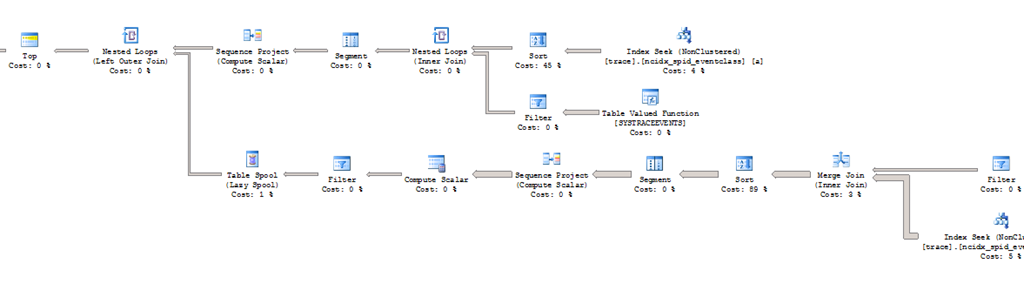
I had imported the data from the profiler trace into a SQL Server database table using the function: fn_trace_gettable. Let’s see what the query plans look like. For the first query which uses the common table expression and a self-join, the graphical query plan is as follows:

image

Now let’s see what the query plan looks like with the new LEAD function in action:

image

As you can see above a new Window Spool operator is the one which performs the analytical operation to calculate the time difference between the subsequent rows using the EventSequence number. As you can see that I have eliminated the need for a self-join with a temporary table or a common table expression and therefore simplifying my query in the process.

In the above example I am using the LEAD function to get value that I am interested in the following row. If you are interested in the values from a preceding row then you can use LAG function.

One gotcha that you need to remember here is that if you don’t take care of the start and end values of the dataset which you are grouping, you could run into the following error due to an overflow or underflow condition.

Msg 535, Level 16, State 0, Line 1
The datediff function resulted in an overflow. The number of dateparts separating two date/time instances is too large. Try to use datediff with a less precise datepart.

This is a small example of how analytic functions can help reduce T-SQL complexity when calculating averages, percentiles for grouped data. Happy coding!!

Disclaimer: This information is based on the SQL Server 2012 CTP 3 (Build 11.0.1440), formerly known as SQL Server Code Name “Denali” documentation provided on MSDN which is subject to change in later releases.