Tools Tips and Tricks #10: Caching PDB files locally

When you are debugging a SQL Server memory dump, you would need the PDB files associated with the sqlservr.exe that you are debugging to get the call stacks. The PDB files can be downloaded from the Microsoft Symbol Server. Paul Randal [Blog | Twitter] in a previous blog post showed how to do this using symchk.exe. If you want to download symbols for multiple EXEs then you either need to create a script file or you could use the method mentioned below provided you have a dump file that you are interested in.

Today I am going to explain how to download PDB files using CDB (Command Line Debugger) and command script file. The first ingredient for this is a memory dump file (.mdmp or .dmp). Once you have the dump and the Windows Debugging Tools installed on your local machine, you use the following command to cache the symbols to a local folder:

C:\Program Files\Debugging Tools for Windows (x64)>cdb -y srv*D:\PublicSymbols*http://msdl.microsoft.com/download/symbols -z “D:\SQLDump0134.mdmp” -cfr “D:\ExecuteSymbolFetch.txt” > D:\DebuggingExample.txt

The –y parameter specifies the local folder into which the symbols need to be cached and the –z parameter is the path to the memory dump file. The –cfr parameter takes the path to the script file which contains the script file to be executed. The contents of my script file are:

!sym noisy
.reload /f
lmvm sqlservr
qd

When you look into the DebuggingExample.txt file once the download has completed, you will find the output of the lmvm command which will show you that the PDB file was cached locally:

0:031> lmvm sqlservr
sqlservr   (pdb symbols)          d:\publicsymbols\sqlservr.pdb\389EF554D94A4947846D85FCDC4233382\sqlservr.pdb

Alternatively, you could load the dump using WinDBG and then using the commands from the script file mentioned above to cache the symbols. You would need to set the symbol file path using File->Symbol File Path or CTRL+S option or using the debugger command .sympath. Once that is done, you can executed .reload /f to download the PDB files from the Microsoft Symbol Server. This is helpful when you need symbol files while capturing certain debugging diagnostic data like generating the XML file with the callstacks from a Process Monitor trace as shown here or if you want to perform an analysis using the existing scripts provided with the Debug Diagnostic tool.

Debugging Download location:
64-bit Debugging Tools
32-bit Debugging Tools

References:
Using Script files for Windows Debugger
Command line CDB options

Tools, Debugging, Tools Tips and Tricks

Tools Tips and Tricks #8 – Debug Diagnostic and Crash Rules

Screenshot 1There are multiple instances where you might need to collect a dump for a process which generates an Access Violation or just setup a crash rule for an application that crashes and that doesn’t generate a dump to investigate further. So today I am going to imagedemonstrate a way to capture a crash dump of a process using the Debug Diagnostic Tool. The example shown here can be extended to SQL Server as well. Once you launch the Debug Diagnostic Tool, you will notice that the tool has 3 different tabs namely Rule, Advanced Analysis and Processes.

I am now going to walkthrough setting up of a Crash Rule for an EXE called DebugDiag_CrashRule.exe which I had written to generate an Access Violation and then no exception handler written in the code which would result in a termination of the EXE.

The steps that you can use to setup the Crash Rule are:

1. Use the Rule tab and click on the Add Rule button. Select the option “Crash” in the Select Rule Type window and click on Next. (see screenshot on the left)
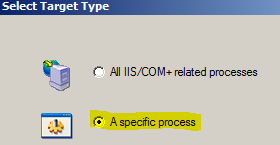
2. Then select “A specific process” option in the Select Target Type window and click on Next. (see screenshot on the right)
3. Next you are presented with an option to select a process from the list of active processes. imageI gave the process name in the Selected Processes text-box and didn’t select the “This process instance only” option. If you select this option, then the monitoring will be setup for only the particular instance that you have selected. If left unchecked, then the monitoring will be setup for any instance of the process spawned on the machine. (see screenshot on the right). Click on Next after you have given the appropriate process name or selected the process ID.
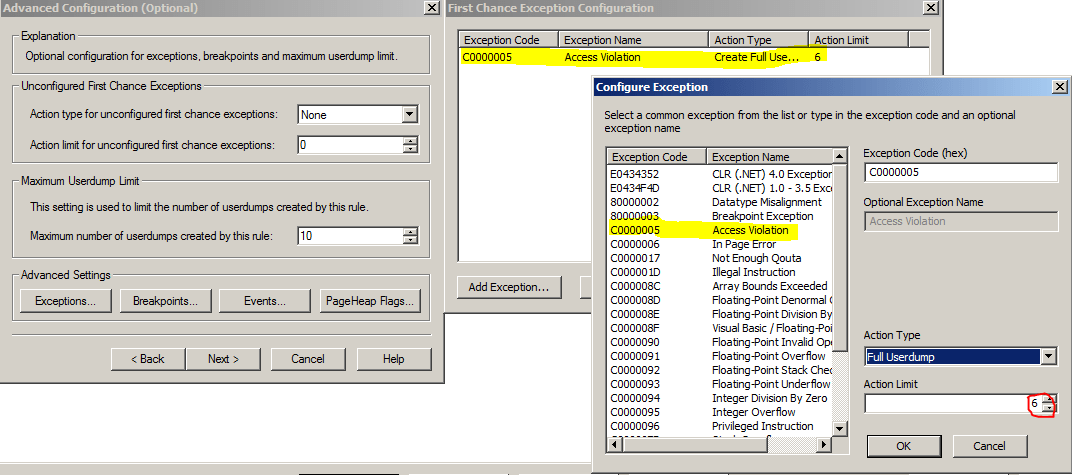
4. In the next screen “Advanced Configuration”, I clicked on the Exceptions button which lets you configure actions for First Chance Exceptions for the process being monitored. Click on the Add Exception button on the First Chance Exception Configuration window. Select Access Violation for the exception name and for the Action Type, select Full User Dump. The Action Limit that I have set in this case is 6 which means that after 6 dumps captured by this rule, no further dumps will be generated. This is a good way of limiting the number of dumps that will be generated for the process that you are monitoring. Notice that that Action type for unconfigured first chance exceptions is set to None. This means that for any first chance exception that is generated apart from the one that you have configured, no action will be taken by the rule. (see screenshot below).

imageimageimage

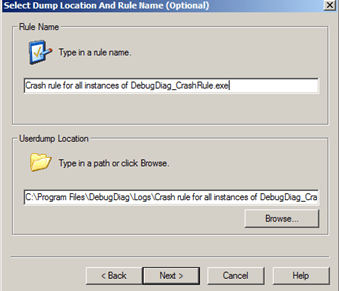
5. Next you get the “Select Dump Location and Rule Name” window where you can changed the rule name and the location of the dumps generation. By default the dumps are generated at <Debug Diagnostic Install Path>\Logs\<Rule Name> folder. (see screenshot on the left)
6. In the last window, use the Activate option to enable the rule.

Now that the rule is active, when I launch my EXE, I can find that the Being Debugged column has the value “Yes” for DebugDiag_CrashRule.exe under the Processes tabs. I launched my application once and this generated 2 dumps. The Rules tab will show you the rule configured, status of the rule and the number of dumps captured by the rule and the location of the dump. (see screenshot above)

Now that the data is captured, the tool allows you to perform Crash Analysis using the Advanced Analysis tab. Using the Analyze Data button, you can analyze the dump files together and get a HTML report of the dumps captured. The Analysis of the dumps generated should be done on a non-production machine to prevent an overhead of downloading symbols and performing the analysis. The symbol search path can be provided using the Tools –> Options and Settings –> Folders and Search Path tab. The symbol search path would be: SRV*<local folder>*http://msdl.microsoft.com/download/symbols. A local folder is always good to have so that the symbols used are cached locally if required later. This prevents having to connect to the Microsoft Symbol Server everytime you analyze a dump.

This is what I see in the DebugDiag_CrashRule__PID__3576__Date__05_24_2011__Time_12_59_56AM__612__First Chance Access Violation.dmp file. It tells me that Thread 0 generated the dump. As you can see in the screenshot below, the report gives you the call stack as well. The Exception information shows that an Access Violation was raised while trying to write to a memory location by a sprintf function called by the DebugDiag_CrashRule EXE.

Exception Information

In DebugDiag_CrashRule__PID__6476__Date__05_24_2011__Time_12_08_12AM__341__First Chance Access Violation.dmp the assembly instruction at msvcr100!vcwprintf_s+2f07 in C:\Windows\System32\msvcr100.dll from Microsoft Corporation has caused an access violation exception (0xC0000005) when trying to write to memory location 0x3f9721d0 on thread 0
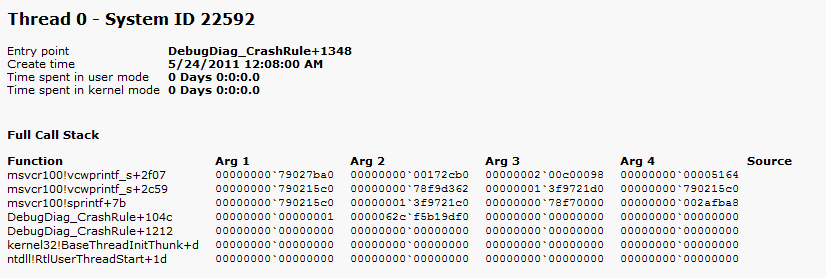
image

The HTML report has a similar output for the DebugDiag_CrashRule__PID__3576__Date__05_24_2011__Time_12_59_57AM__647__Second_Chance_Exception_C0000005.dmp file as well. An additional file DebugDiag_CrashRule__PID__3576__Date__05_24_2011__Time_12_59_56AM__612__ProcessList.txt is also generated which contains a list of processes running on the machine when the dump was generated. All the reports are saved in the <Debug Diagnostic install path>\Reports folder by default.

Hope this makes it easier to capture crash dumps for processes which are terminating without giving you much information in the Windows event logs or the logs generated by the application. This is a tool that is commonly used by CSS to configure crash rules on a machine and capture crash dumps.

Once you have collected the required data, you can go to the Rules tab, right click on the rule and click on De-activate rule. Once the rule status shows up as Not Active, you can choose to remove the rule by right-clicking on the rule and selecting the Remove Rule option.

The Debug Diagnostic Tool v1.1 available on the Microsoft Downloads site doesn’t have a x64 version which lets you configure rules and monitor processes for Windows Server 2008/R2/Windows 7/Windows Vista. The 64-bit version of the tool only has Advanced Analysis option. The Debug Diagnostic Tool v1.2 available from here has a 64-bit download (Beta version) which allows to configure rules and monitor processes for Windows Server 2008/R2/Windows 7/Windows Vista.

TIP: Let’s talk about a quick tip about taking dumps of a SQL Server process using Debug Diagnostic tool. In case you find that your SQL Server process is hung and you cannot log into the SQL instance using Dedicated Administrator Connection (DAC) or don’t have DAC enabled for the instance, then you can take a mini-dump using the Processes tab.

Steps
1. Click on the Processes tab.
2. Right-click on the process name sqlservr.exe. If you have multiple instances, you can identify the correct instance using the Active Services column which will give you the instance name. (see screenshot below)
3. Right-click on the process name, click on Create Full Userdump or Create Mini Userdump option to generate a full or mini memory dump of the selected process. The dump location will be default location configured for the dump under Tools –> Options and Settings –> Folders and Search Path tab –> Manual Userdump Save Folder. By default it is <Debug Diagnostic install path>\Logs\Misc.image

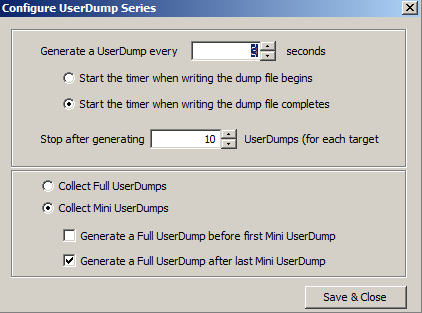
imageYou might also encounter a situation where you are required to take a dump of a process every n seconds/minutes. This can be done by right clicking on the process name and selecting the Create Userdump series… option. This will give you a window with the set of options as seen in the screenshot on the left. As you can see, it lets you configure a number of options for the process namely:

1. Time interval between each dump created
2. When to start the timer, before or after the dump file writing completes.
3. When to stop generating the dumps
4. Whether to collect Full or Mini dumps
5. Option to collect a single Full user dump when a Mini-dump series is created for a process before or after the series is completed.

Tess Ferrandez [Blog], an Escalation Engineer in CSS, also has a pretty detailed blog post on how to setup a crash rule for ASP.NET applications.

Note: For a 64-bit process (eg. 64-bit SQL Server instance) which has a large process address space, it would be advisable to configure a User Mini Dump as the Exception action instead of a full-user dump. When a dump file is generated, the process threads are frozen to take a snapshot. For a large dump generation on a system with a slow Disk IO, you might end up with SQL outages and on a cluster it can result in a failover during the dump generation period.

Wiki: Demystifying SQL Server Exception Dumps

Recently, I had replied to a MSDN post regarding an Access Violation reported by a SQL Server instance. In this post, I shall elucidate on troubleshooting memory dumps generated by SQL Server exceptions and what can be done without the availability of private symbols for debugging.

I had written a post earlier on when a memory dump is generated in SQL Server. If a single Errorlog has multiple stack dumps from multiple exceptions, then the first thing to do is to investigate the first access violation reported in the series of dumps reported. It is also possible that an exception (eg:access violation) could be followed by another exception/assertion or a non-yielding condition which may be a side effect of the earlier access violation.

When SQL encounters an access violation, there will be  SQLDumpXXXX.mdmp, SQLDumpXXXX.txt and SQLDumpXXXX.log files created in the LOG folder associated with the exception. The SQL Errorlog will report the occurrence of the exception as well.

  1. The .mdmp file is the memory dump which would be required by CSS to troubleshoot the issue.
  2. The .txt file is the symptom dump file which contains environment information along with other information depending on the nature of the exception.
  3. The .log file contains an extract from the SQL Errorlog when the exception was encountered. This helps in looking at what messages were reported in the Errorlog prior to the issue. Helps during post-mortem analysis if the current Errorlogs have already been recycled.

There can be two types of exceptions: one that is fatal enough to cause a SQL service termination or one that encounters the exception which terminates the thread which was encountered the issue.

Now what can be done in such a situation without having to look into memory dump file. The first step would be to check if the issue is a recurring behavior due to a particular operation to establish some pattern or if there is not identifiable pattern at all. If you look into the SQL Errorlog, you might be able to identify the input buffer which cause the exception (unless it’s an exception which terminated the SQL service, one such example is shown below).

Server * BEGIN STACK DUMP:
Server * spid 5728
Server * ex_handle_except encountered exception C0000005 – Server terminating

If the above snippet contains the T-SQL query which raised the exception, then you would want to execute the same query from a Management Studio query window and check if the exception re-occurs. If yes, then you have a valid repro scenario.

Example snippet from an Errorlog where the Access Violation didn’t cause a service termination:

*   Exception Address = 0042B866
*   Exception Code    = c0000005 EXCEPTION_ACCESS_VIOLATION
*   Access Violation occurred writing address 67192000
* Input Buffer 38 bytes –
*  exec sp_updatestats

Next check if you can spot any external components loaded into SQL Server address space. I shall revert back to my MSDN post where I had spotted an anti-virus filter DLL loaded in SQL Server process address space.

Server * bcrypt 000007FEFC900000 000007FEFC921FFF 00022000
Server * PCTLsp64 000000000B1E0000 000000000B251FFF 00072000
Server * mswsock 000007FEFC840000 000007FEFC893FFF 00054000

Based on a few Bing searches, I was able to determine that the PCTLsp64 was part of a virus monitoring program from PC Tools. The next step would be to check if this external component can be moved out of SQL Server process address space. The fact that the DLL is loaded in SQL process address space doesn’t make the DLL a culprit. However, when troubleshooting such issues, it is important to eliminate all unknown or third party elements that could prevent us from narrowing down to the culprit. Other DLLs which can be commonly found in SQL Server process address space would be provider DLLs when linked servers are being used on the SQL Server instance. Additionally execution of Extended Stored Procedures (XSPs) could also load external DLLs into SQL Server process address space depending on the way the XSP DLL was coded. An easy way to identifying a XSP dll is searching for the word “using” in the SQL Server Errorlog. SQL Server reports the first instance of a XSP dll being loaded into SQL Server process address space.

Using ‘xpstar.dll’ version ‘2009.100.1600’ to execute extended stored procedure ‘xp_readerrorlog’

If you do find an external component loaded in SQL process address space, check the callstack reported in the Errorlog below the list of modules printed below to determine if the functions of the exception stack are associated with external component that you identified. For the issue reported in the MSDN post, I did find this:

Module(sqlservr+00000000017A954C)
Module(kernel32+0000000000099380)
Module(ntdll+0000000000096228)
Module(ntdll+0000000000014F48)
Module(ntdll+0000000000034F6D)
Module(ntdll+0000000000015B2C)
Module(ntdll+000000000004F638)
Module(ntdll+000000000004C8F4)
Module(ntdll+000000000004C822)
Module(PCTLsp64+00000000000040AD)
Module(PCTLsp64+0000000000004701)
Module(PCTLsp64+0000000000005434)

Now this makes my story a bit more compelling of removing the external component out of SQL Server process address space. Once that is done and if you have a repro condition which causes the issue, then it would be good to re-run your repro and check if the issue is actually resolved. Not all the exceptions are the same even though they are reported in the same manner.

If all the above hasn’t helped in narrowing down the issue, then check if you are on the latest available cumulative update for the version of  SQL Server that you are using. If not, then it might be a good idea to update your instance to the latest available build to ensure that you are not hitting a known issue. If this is possible, then apply the latest cumulative update package and check if the issue re-occurs. I am cognizant of the fact that this might be an easy option due to change management restrictions on production environments. For such a dependency, my recommendation would be engage CSS to assist with a thorough investigation of the root cause of the issue.

As you can see from the steps outline above, you can look into a few things before you need to start poking into the exception memory dump using a Debugging tool.

Happy debugging!

How to generate an Automatic Failover for a Mirrored Database

I have heard this question multiple times:

How do I generate a condition which will cause an Automatic Failover of a SQL Server Mirrored database?

First of all, you would need to setup mirroring under Full Safety mode with a Witness instance.

The only condition that triggers an automatic database failover would be if the Mirror and Witness instance are unable to connect to the Principal server instance.

Figure 1

Figure: Synchronized database mirroring session

As per the TechNet article, Automatic Failover would be under the following condition:

When safety is FULL, if neither the mirror nor the witness can see the principal, the mirror server can form a quorum with the witness and change its role to become a new principal server, assuming a the mirroring session was SYNCHRONIZED when the principal went away.

So, the condition above is self explanatory.

How can this be done?

1. If your Witness and Mirror are on different boxes or on the same box and the Principal instance is on a different box. Then:

  • Stop the Database Mirroring endpoint using the following command on the Principal instance: ALTER ENDPOINT <mirroring endpoint name> STATE = STOPPED. Note: This would put the database mirroring into a disconnected state. To bring database mirroring out of disconnected state, you need to start the endpoint using the following command: ALTER ENDPOINT <mirroring endpoint name> STATE = STARTED
  • Plug out the network cable for the Principal box provided the Principal and (Mirror & Witness) instances are on two different boxes.
  • Block all TCP traffic on the port that the server has established the Mirroring session.
  • Pause the Principal Instance service (Have not tried this one yet but theoretically it should work!)

2. Attach a Visual Studio Debugger or Windows Debugger to the Principal Server instance. Do not hit GO to continue the execution of the process being debugged.

THE ABOVE METHODS SHOULD ONLY BE TRIED ON A TEST ENVIRONMENT. THESE ARE NOT SOMETHING THAT SHOULD BE ATTEMTPED ON A PRODUCTION BOX.

This is just an informational article for simulating automatic database failover for testing any alert jobs or any other business logic that you need to kick off during an automatic failover.

What messages would be present in the SQL Server Errorlogs?

When the Automatic Failover is initiated, it would have the following messages printed in the SQL Server Errorlog of the Mirror instance:

2010-04-19 22:08:03.590 spid15s      Error: 1479, Severity: 16, State: 1.
2010-04-19 22:08:03.590 spid15s      The mirroring connection to “TCP://<FQDN>:5022” has timed out for database “dbMirror” after 10 seconds without a response.  Check the service and network connections.
2010-04-19 22:08:03.590 spid15s      Database mirroring is inactive for database ‘dbMirror’. This is an informational message only. No user action is required.
2010-04-19 22:08:03.590 spid15s      The mirrored database “dbMirror” is changing roles from “MIRROR” to “PRINCIPAL” due to Auto Failover.
2010-04-19 22:08:03.720 spid15s      Recovery is writing a checkpoint in database ‘dbMirror’ (15). This is an informational message only. No user action is required.

The Witness instance would have the following messages in the Errorlog:

2010-04-19 22:08:03.360 spid25s      Error: 1479, Severity: 16, State: 1.
2010-04-19 22:08:03.360 spid25s      The mirroring connection to “TCP://<FQDN>:5022” has timed out for database “dbMirror” after 10 seconds without a response.  Check the service and network connections.

On the Principal server, the system event logs might report that the SQL Server service is unresponsive based on the Service Timeout value configured on the machine (Default is 30 seconds):

Log Name:      System
Source:        Service Control Manager
Date:          4/19/2010 10:04:02 PM
Event ID:      7011
Task Category: None
Level:         Error
Keywords:      Classic
Description:
A timeout (30000 milliseconds) was reached while waiting for a transaction response from the MSSQLSERVER service.

After the Principal instance comes back online, the following messages would be printed in it’s Errorlog:

2010-04-19 22:28:19.190 spid26s      Error: 1474, Severity: 16, State: 1.
2010-04-19 22:28:19.190 spid26s      Database mirroring connection error 4 ‘An error occurred while receiving data: ’64(The specified network name is no longer available.)’.’ for ‘TCP://<FQDN>:5023’.
2010-04-19 22:28:19.200 spid27s      Error: 1474, Severity: 16, State: 1.
2010-04-19 22:28:19.200 spid27s      Database mirroring connection error 4 ‘An error occurred while receiving data: ’64(The specified network name is no longer available.)’.’ for ‘TCP://<FQDN>:5024’.
2010-04-19 22:28:19.360 spid20s      Database mirroring is inactive for database ‘dbMirror’. This is an informational message only. No user action is required.
2010-04-19 22:28:19.490 spid35s      Starting up database ‘dbMirror’.
2010-04-19 22:28:19.530 spid20s      The mirrored database “dbMirror” is changing roles from “PRINCIPAL” to “MIRROR” due to Role Syncronization.
2010-04-19 22:28:19.590 spid35s      Bypassing recovery for database ‘dbMirror’ because it is marked as a mirror database, which cannot be recovered. This is an informational message only. No user action is required.
2010-04-19 22:28:19.810 spid20s      Database mirroring is active with database ‘dbMirror’ as the mirror copy. This is an informational message only. No user action is required.
2010-04-19 22:28:45.440 spid20s      Database mirroring is inactive for database ‘dbMirror’. This is an informational message only. No user action is required.

If you notice above, you will see that even though the Principal was not available during the failover, it assumed the role of the Mirror after it came back online. This Role Synchronization is what keeps the Principal and the Mirror database status updated to prevent Split Brain scenarios.

References:

SQL Server Best Practices Article

Database Mirroring Best Practices and Performance

When are memory dumps generated in SQL Server

If your SQL Server instance encounters the following conditions, a mini-dump is created in the SQL Server LOG folder:

  1. Non-yielding scheduler (SQL Server 2005 and above for the first occurrence. This is equivalent to a 17883 dump in SQL Server 2000.)
  2. Non-yielding resource monitor (SQL server 2005 and above for the first occurrence)
  3. Non-yielding IOCP listener (SQL server 2005 and above for the first occurrence)
  4. Deadlocked Schedulers (SQL server 2005 and above. This is equivalent to a 17884 in SQL Server 2000.)
  5. Exceptions/Assertions
  6. Database Corruption
  7. Latch Timeout
  8. Other conditions (eg: when DUMPTRIGGER is used to generate a dump for a particular exception)

The first 4 conditions are documented under the following whitepaper:

How To Diagnose and Correct Errors 17883, 17884, 17887 and 17888

In the SQL Server Errorlogs, you will see a message which will indicate which of the following conditions listed above resulted in the generation of the dump. You can use the KB Article mentioned below to list the stack using the Public Symbols with the help of WinDbg:

Use the Microsoft Symbol Server to obtain debug symbol files

http://support.microsoft.com/kb/311503

Addendum: April 14, 2011

Paul Randal wrote a blog post on how to download a PDB file using symchk utility which is installed along with Windows Debugging Tools:

http://www.sqlskills.com/BLOGS/PAUL/post/How-to-download-a-sqlservrpdb-symbol-file.aspx

Technorati Tags: ,