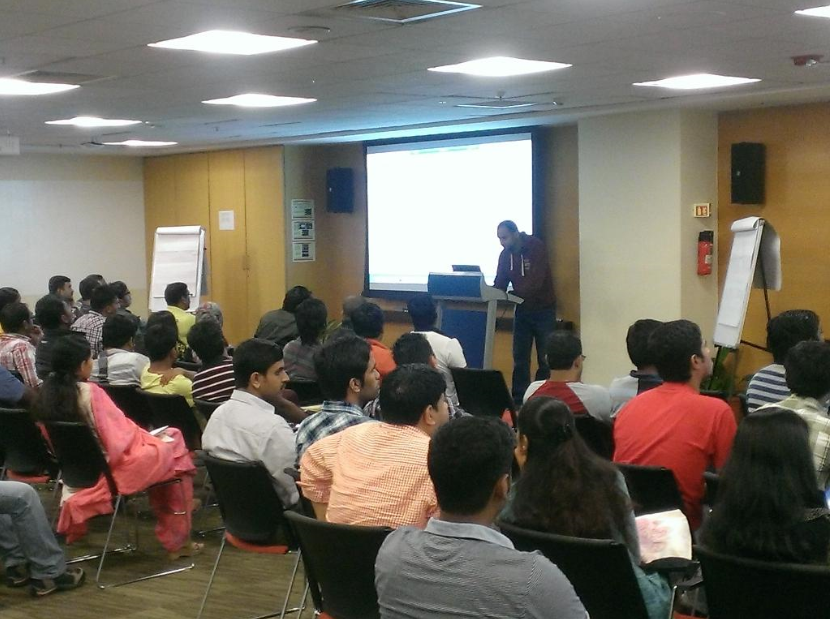
Come join us on Saturday, September 6th for another SQL Bangalore User Group meeting to learn more about Azure Backups, SQL Server 2014 In-memory OLTP, Hybrid cloud scenarios and Power BI.
The session line up is available below.
14:00PM 14:45PM – Azure Backup by Ravikanth
14:45PM 15:30PM – Performance Improvement and In-memory – Balmukund Lakhani
15:45PM 16:30PM – Hybrid Cloud Scenario with SQL Server – Vinod Kumar
16:30PM 17:15PM – Power BI Overview – by yours truly
I will show you how you can use Power BI and Excel can be used to analyze your Facebook data and much more. Register for the event here. As usual, I will post the content used during that day on this blog. Stay tuned in case you are not able to attend in person. And don’t forget to spread the word! Hope to see in person on the 6th!
Venue:
Microsoft Corporation, Signature Building,
Embassy Golf Links Business Park,
Intermediate Ring Road,
Domlur, Bangalore – 560071
The slide deck that I used for this session is available below.
If you have played around with a SQL Server installation on an Azure Virtual Machine, then you will invariably have the need to move a database from an on-premise environment to your Azure Virtual Machine for testing, deployment and a host of other activities which you are involved with on a regular basis at work!
Books Online has complete documentation on this wizard. In this post, we will attempt to understand what happens under the hood. Read on to find out more.
The Cloud Adapter is a stateless, synchronous service that receives messages from the on-premise instance of SQL Server. This service is required when you are deploying a database from your on-premise SQL Server instance to a SQL Server deployed on an Azure Virtual Machine.
Cloud Adapter is supported with SQL Server 2012 and higher. On SQL Server 2012, the Cloud Adapter for SQL Server requires SQL Management Objects.
For your SQL Server 2012 installation, you will need the SQL Server Cloud Adapter to be installed. This is available for download from the SQL Server 2014 Feature Pack. The filename that you need to download is SqlCloudAdapter.msi.
When you try to install this on your Azure VM, you might end up with the error message below:
Service cannot be started. System.IO.FileNotFoundException: Could not load file or assembly ‘Microsoft.SqlServer.SqlEnum, Version=12.0.0.0, Culture=neutral, PublicKeyToken=89845dcd8080cc91’ or one of its dependencies. The system cannot find the file specified. File name: ‘Microsoft.SqlServer.SqlEnum, Version=12.0.0.0, Culture=neutral, PublicKeyToken=89845dcd8080cc91′ at Microsoft.SqlServer.Management.CloudAdapter.Service.CloudAdapterService.ReadConfigurationParameters() at Microsoft.SqlServer.Management.CloudAdapter.Service.CloudAdapterService.OnStart(String[] args) at System.ServiceProcess.ServiceBase.ServiceQueuedMainCallback(Object state)
The above error message clearly states that the version number that the installer is looking for is SQL Server 2014 i.e. version = 12.0.0.0. You can install this assembly when Microsoft® SQL Server® 2014 Shared Management Objects (SharedManagementObjects.msi) is installed from SQL Server 2014 Feature Pack.
In the last SQL Bangalore UG meeting, I had talked about how to use the Custom Scripting component in Azure to run the post configuration operations on an Azure VM which was hosting a SQL Server instance. The post configuration options that I am going to talk about in this post are necessary for you to be able to connect to your SQL Server instance on an Azure VM from a Management Studio running on your on-premise machine.
Before you can connect to the instance of SQL Server from the Internet, the following tasks must be completed:
Configure SQL Server to listen on the TCP protocol and restart the Database Engine.
Open TCP ports in the Windows firewall.
Configure SQL Server for mixed mode authentication.
Create a SQL Server authentication login.
Create a TCP endpoint for the virtual machine. This would normally be done while providing the endpoint configuration if you are using the Azure Management Portal wizard.
If you had used an Image from the Image gallery, then you will get a default database engine installed with the TCP/IP port configured as 1433. I had written a post earlier which walks through an Azure VM creation using a SQL Server image from the image gallery.
Here I am going to talk about how to automate the bulleted points mentioned above using PowerShell and the Custom Script extension that the Azure provides. This is going to be a long read… So I suggest you get a coffee before you start reading further!
I am always amazed by the turnout on Saturdays for the SQLBanglaore UG Meetings. This time around it was an all Azure day where we had four sessions talking about different features that Azure offers.
The first session as about Machine Learning by Govind. He showed us how Machine Learning can make the machines smarter. It doesn’t mean that the machines are taking over but they can become your assistants with a bit of training. He went on to demo what Azure Machine Learning (in Preview) has to offer in this space.
This was followed by Angshuman’s session on Azure Redis Cache (in Preview). It gives you access to a secure, dedicated Redis cache, managed by Microsoft. A cache created using Azure Redis Cache is accessible from any application within Microsoft Azure.
The next session by Pranab was on the Smart Backup Feature in SQL Server 2014 which allows you to backup your SQL Server databases directly to Windows Azure Storage accounts. This enables you to pull down those backups for restore from anywhere in the world!
I had the last session and I was the one who was standing between attendees and their lunch! Not an enviable position to be in on a Saturday afternoon! This time around I had attempted to do things a bit differently. I started with the demo and moved onto my presentation. I used a video from PowToon to create a story line for provisioning a SQL Server virtual machine in a short span of time! That is available below. Lately, I have been using animation videos for a few of my presentations. And the view below is the one that I used for this session.
The presentation that I had used for my session is available below:
If you want the PowerShell script which performed the magic after creating the Azure SQL VM, you can from the files section of the SQLBangalore Facebook Group. Look forward to further posts on this blog detailing additional possibilities for that script.
Once again, a big THANK YOU to all the attendees as without them, these sessions will never be a success!
If you want to get notified about future posts, then you can follow me on one of these channels: Facebook | Twitter or simply subscribe to this blog (Available in the side-bar on the left).