Awesomesauce SQL Server 2012: System Health Session

There have been a spate of new features and enhancements to existing functionality in SQL Server 2012. The System Health Extended Events session is one of the benefactors. I had previously blogged about the usage of the System Health Session data using custom SSMS Reports in a four part series. Now it is time to talk about the enhancements to the System Health Session’s predecessor.

The SQL Server 2012 health session adds additional events to the default extended event health session running on the instance which is listed below to collect data for the following:

  • Out of memory errors for CLR and the database engine using the events:
    • sqlclr.clr_allocation_failure
    • sqlclr.clr_virtual_alloc_failure
    • sqlos.memory_broker_ring_buffer_recorded
    • sqlos.memory_node_oom_ring_buffer_recorded
  • Scheduler health issues using the events:
    • sqlos.scheduler_monitor_deadlock_ring_buffer_recorded
    • sqlos.scheduler_monitor_non_yielding_iocp_ring_buffer_recorded
    • sqlos.scheduler_monitor_non_yielding_ring_buffer_recorded
    • sqlos.scheduler_monitor_non_yielding_rm_ring_buffer_recorded
    • sqlos.scheduler_monitor_stalled_dispatcher_ring_buffer_recorded
    • sqlos.scheduler_monitor_system_health_ring_buffer_recorded
  • The results of the sp_server_diagnostics component
  • Security and connectivity errors encountered using the events:
    • sqlserver.connectivity_ring_buffer_recorded
    • sqlserver.security_error_ring_buffer_recorded

imageAdditional wait types are also tracked which adds to the existing list of waits captured by this session. Since SQL Server 2012 Management Studio allows you to view the configured Extended Events session on the SQL Server 2012 instance, you can get to the system_health session using the following steps from Object Explorer (see Screenshot 1):

Expand Management –> Extended Events –> system_health.

The Script Session as option now provides you with a way to view the session definition. Another enhancement made to this session is the target for this session is now also a .xel file which by default is located in your SQL Server LOG folder. The target definition for the System Health session are now:

a. Ring Buffer (as was in SQL Server 2008) 
b. XEL file – With a maximum size of 5 MB and a file retention policy of 4 files.

So now you can leverage the management studio XEvent UI to view the results. You can right-click on the ring buffer target in the UI and click on the View Target Data option which will give you an XML document. image

The coolest thing that I like here is the viewer’s capability to show you all the data from all the .xel files. Once you have the events loaded, you should see a view as shown in Screenshot 2. This gives you a list of all the events that were generated. You can sort on the event columns by clicking on them. The progress of the sorting will be visible towards the top right hand corner of SSMS as shown in Screenshot 3. Now that you have the basic view, let’s find out what more can we do with the System Health Session data displayed.

image

You can click on the Choose Columns option in the toolbar, select the columns that you want to view additionally apart from the name and timestamp by using the Available Columns list. See Screenshot 4 for an example.

image

Now that you have selected the additional columns, you can also set grouping (using the Grouping button) to view each of the event name categories, the number of events reported and aggregations on the column values (using the Aggregations button). So finally, I landed up with a view as shown below in Screenshot 5. What’s more, you can save the view settings using the Display Settings button!

image

I am currently writing a series on SSWUG for designing SSRS reports for viewing the events reported by the System Health Session. You can following the series here. If you have SQL Server 2012 RTM installed, then you need to download the T-SQL script attached to Mike Wachal’s blog post to address the wait type information captured.

Monitoring just got a whole lot easier!!

Missing indexes and Create Index command from the procedure cache

Recently I was working on a performance issue for SQL Server where I needed to identify the missing indexes on the database instance. This was quite easy since I have a T-SQL script to do this which I have already blogged about before. Now the next task was to identify the SQL statements for which these indexes were suggested. Now this was also easy since my friend Jonathan Kehayias [B | T] had already blogged about this. The next ask now was to get the Create Index command for the list of missing indexes received! Well…. this time I ended up with a strike as I didn’t have any options with me. So I got down to modifying Jonathan’s T-SQL script to add to new commands to provide the CREATE INDEX statement in a separate column of the temporary table #MissingIndexInfo which his script creates.

ALTER TABLE #MissingIndexInfo ADD CreateIndexStatement varchar(8000)

UPDATE #MissingIndexInfo
SET CreateIndexStatement = ‘CREATE INDEX <index name>’ + ‘ ON ‘ + statement + ‘ (‘ + ISNULL (equality_columns,”) + CASE WHEN equality_columns IS NOT NULL AND inequality_columns IS NOT NULL THEN ‘,’ ELSE ” END + ISNULL (inequality_columns, ”) + ‘)’ + ISNULL (‘ INCLUDE (‘ + include_columns + ‘)’, ”)


Before you go ahead and start deploying these scripts to your environments, you need to be cognizant of the fact that the procedure cache may or may not have all the cached plans for all the queries that you want to examine. You would want to find out the missing indexes using the query here and compare it with the list that you retrieved using Jonathan’s query with the modification listed above. This sample script is an attempt to provide you with a list of indexes which may prove beneficial for your queries based on the Missing Indexes feature which was introduced in SQL Server 2005 and above. As always, you would still need to test before implementing these indexes onto a production server instance.

What IP are you listening on SQL

This is probably the easiest question to answer for any SQL Server DBA. And this is one of those scenarios where the adage “There are multiple ways to skin a cat” holds true. You could look into the SQL Server Errorlog and quickly look up the phrase “is listening on” and find lines of the following nature:

Server is listening on [ ‘any’ <ipv6> 1433].
Server is listening on [ ‘any’ <ipv4> 1433].

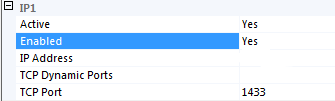
imageOr you could even use SQL Server Configuration Manager (SQL Server 2005 and above) to figure out the TCP/IP settings of the SQL instance. Now there is a catch here! If you see the screenshot, you will notice that the Listen All property is set to YES. This means that the SQL Server instance will listen on all the IP Addresses that the server/machine is configured to listen on. If this property was set to NO, then you moved over the IP Addresses tab (see screenshot), you would have see one of the IPs listed there which was Active and Enabled. (IP Address hidden in screenshot). All this seems simple enough, right? Then why am I taking the time to mention all these facts that you are already know and are probably questioning my sanity about writing such a post. Well…. If you had a let’s say a few hundred SQL Server instances from which you needed to fetch this information, then I can imagine how much you would relish the manual task of fetch this information. Both the options mentioned above, Errorlog and Configuration Manager, will not help you in this endeavor. Which is why I decided to leverage two of my best friends in the scripting world…. WMI and Powershell.

image

Using the namespace for SQL Server 2008: root\Microsoft\SqlServer\ComputerManagement10 and the class ServerNetworkProtocolProperty, you can fetch the TCP/IP settings for any SQL instance. The script illustrated below can be used to fetch the IP Address(es) that one SQL instance is listening on. You could write an outer loop to fetch the SQL Server instance names from a database or XML file and then use the script below to get the relevant data. If you want to SQL Server 2005 specific code, then the namespace to be used is root\Microsoft\SqlServer\ComputerManagement. Unfortunately for SQL Server 2000 and below, there are no WMI namespaces available to retrieve this information. In case you have SQL Server 2000 instances in your shop, then you would have to write Powershell code to fetch this information from the instance specific registry keys or using Select-String cmdlet to traverse the SQL Errorlog to retrieve this information. Note that the Errorlog approach has caveats in environments where the Errorlog is regularly recycled.

Addition: January 30, 2012: If you have specific IPs that a SQL Server failover cluster is listening on with the Listen All property set to TRUE, then the script can be modified such that only the Active and Enabled IP Addresses are reported by the script below. The part of the script which reports the IP Config output for the server can be omitted.

# This Sample Code is provided for the purpose of illustration only and is not intended to be used in a production environment. THIS SAMPLE CODE AND ANY RELATED INFORMATION ARE PROVIDED "AS IS" WITHOUT WARRANTY OF ANY KIND, EITHER EXPRESSED OR IMPLIED, INCLUDING BUT NOT LIMITED TO THE IMPLIED WARRANTIES OF MERCHANTABILITY AND/OR FITNESS FOR A PARTICULAR PURPOSE. We grant You a nonexclusive, royalty-free right to use and modify the Sample Code and to reproduce and distribute the object code form of the Sample Code, provided that You agree: (i) to not use Our name, logo, or trademarks to market Your software product in which the Sample Code is embedded; (ii) to include a valid copyright notice on Your software product in which the Sample Code is embedded; and (iii) to indemnify, hold harmless, and defend Us and Our suppliers from and against any claims or lawsuits, including attorneys’ fees, that arise or result from the use or distribution of the Sample Code.
# Author: Amit Banerjee
# Description: Powershell code to fetch the IP Addresses that the SQL instance is listening on.
# Notes:
# root\Microsoft\SqlServer\ComputerManagement10 - This namespace is applicable for SQL Server 2008 and above.
# For SQL Server 2005 the namespace is root\Microsoft\SqlServer\ComputerManagement
# There is no equivalent WMI namespace for SQL Server 2000 instance

# Provide the computer name that you want to query
$vComputerName = "."
# Provide the SQL instance name that you want the information for
# MSSQLSERVER for default instance
$vInstanceName = "MSSQLSERVER"

Write-Host "IP Address(es) that the SQL instance " $vComputerName "\" $vInstanceName " is listening on are listed below: "

$vListenAll = 0
$vTCPProps = get-WMIObject ServerNetworkProtocolProperty -ComputerName $vComputerName -NameSpace "root\Microsoft\SqlServer\ComputerManagement10" | Where-Object {$_.PropertyName  -eq "ListenOnAllIPs" -and $_.InstanceName -eq $vInstanceName}
foreach ($vTCPProp in $vTCPProps)
{
$vListenAll = $vTCPProp.PropertyNumVal
}

if($vListenAll -eq 1)
{
Write-Host "Is instance configured to listen on All IPs (Listen All property): TRUE"
# Get Networking Adapter Configuration
$vIPconfig = Get-WmiObject Win32_NetworkAdapterConfiguration -ComputerName $vComputerName

# Iterate and get IP address on which the SQL is listening
foreach ($vIP in $vIPconfig)
{
if ($vIP.IPaddress)
{
foreach ($vAddr in $vIP.Ipaddress)
{
$vAddr
}
}
}
}
else
{
# If SQL is configured to listen for specific IP addresses (eg. SQL clusters), then this else block will fetch those IP Addresses
# The Sort-Object ensures that the for-each loop below doesn't break while reporting the active and enabled IPs
$vIPProps = get-WMIObject ServerNetworkProtocolProperty -ComputerName $vComputerName -NameSpace "root\Microsoft\SqlServer\ComputerManagement10" | Where-Object {$_.InstanceName -eq $vInstanceName -and $_.ProtocolName  -eq "Tcp"} | Sort-Object IPAddressName,PropertyName
$vActive = 0
$vEnabled = 0

Write-Host "Is instance configured to listen on All IPs (Listen All property): FALSE"

foreach ($vIPProp in $vIPProps)
{
# Check if the IP is active
if ($vIPProp.Name -ne "IPAll" -and ($vIPProp.PropertyName -eq "Active"))
{
$vActive =  $vIPProp.PropertyNumVal
}
# Check if the IP is enabled
if ($vIPProp.Name -ne "IPAll" -and ($vIPProp.PropertyName -eq "Enabled"))
{
$vEnabled = $vIPProp.PropertyNumVal
}
# Report the IP if active and enabled
if ($vIPProp.Name -ne "IPAll" -and $vIPProp.PropertyName -eq "IPAddress" -and $vEnabled -eq 1 -and $vActive -eq 1)
{
# Get the IP addresses that SQL is configured to listen on
$vTCPProp.PropertyStrVal
}
}
}
Technorati Tags: ,,

System Health Session: Part 4

This is the last post for the System Health Session series. In this post, I shall show you how to extract deadlock related information from the deadlock graph captured by the System Health Session.

The deadlock graph captured typically has three distinct nodes:

victim-list – Deadlock victim’s process identifier
process-list – Information pertaining to all the processes involved in the deadlock
resource-list – Information about the resources involved in the deadlock

The query below will provide you with the time stamp when the deadlock was reported along with victim process identifier.

 -- Fetch the Health Session data into a temporary table

SELECT CAST(xet.target_data AS XML) AS XMLDATA
INTO #SystemHealthSessionData
FROM sys.dm_xe_session_targets xet
JOIN sys.dm_xe_sessions xe
ON (xe.address = xet.event_session_address)
WHERE xe.name = 'system_health'
-- Gets the Deadlock Event Time and Victim Process
SELECT C.query('.').value('(/event/@timestamp)[1]', 'datetime') as EventTime,
CAST(C.query('.').value('(/event/data/value)[1]', 'varchar(MAX)') AS XML).value('(<a>/deadlock/victim-list/victimProcess/@id)[1]','varchar(100)'</a>) VictimProcess
FROM #SystemHealthSessionData a
CROSS APPLY a.XMLDATA.nodes('/RingBufferTarget/event') as T(C)
WHERE C.query('.').value('(/event/@name)[1]', 'varchar(255)') = 'xml_deadlock_report'
-- Drop the temporary table
DROP TABLE #SystemHealthSessionData 

The next query (when provided with an event time from the above query output)
will provide you a parsed version of the process list in a tabular format which
can be easier to read when you have a large number of sessions involved in the
deadlock.

 -- Fetch the Health Session data into a temporary table

SELECT CAST(xet.target_data AS XML) AS XMLDATA
INTO #SystemHealthSessionData
FROM sys.dm_xe_session_targets xet
JOIN sys.dm_xe_sessions xe
ON (xe.address = xet.event_session_address)
WHERE xe.name = 'system_health'

-- Parses the process list for a specific deadlock once provided with an event time for the deadlock from the above output

;WITH CTE_HealthSession (EventXML) AS
(
SELECT CAST(C.query('.').value('(/event/data/value)[1]', 'varchar(MAX)') AS XML) EventXML
FROM #SystemHealthSessionData a
CROSS APPLY a.XMLDATA.nodes('/RingBufferTarget/event') as T(C)
WHERE C.query('.').value('(/event/@name)[1]', 'varchar(255)') = 'xml_deadlock_report'
AND C.query('.').value('(/event/@timestamp)[1]', 'datetime') = '2011-09-28 06:24:44.700' -- Replace with relevant timestamp
)
SELECT DeadlockProcesses.value('(@id)[1]','varchar(50)') as id
,DeadlockProcesses.value('(@taskpriority)[1]','bigint') as taskpriority
,DeadlockProcesses.value('(@logused)[1]','bigint') as logused
,DeadlockProcesses.value('(@waitresource)[1]','varchar(100)') as waitresource
,DeadlockProcesses.value('(@waittime)[1]','bigint') as waittime
,DeadlockProcesses.value('(@ownerId)[1]','bigint') as ownerId
,DeadlockProcesses.value('(@transactionname)[1]','varchar(50)') as transactionname
,DeadlockProcesses.value('(@lasttranstarted)[1]','varchar(50)') as lasttranstarted
,DeadlockProcesses.value('(@XDES)[1]','varchar(20)') as XDES
,DeadlockProcesses.value('(@lockMode)[1]','varchar(5)') as lockMode
,DeadlockProcesses.value('(@schedulerid)[1]','bigint') as schedulerid
,DeadlockProcesses.value('(@kpid)[1]','bigint') as kpid
,DeadlockProcesses.value('(@status)[1]','varchar(20)') as status
,DeadlockProcesses.value('(@spid)[1]','bigint') as spid
,DeadlockProcesses.value('(@sbid)[1]','bigint') as sbid
,DeadlockProcesses.value('(@ecid)[1]','bigint') as ecid
,DeadlockProcesses.value('(@priority)[1]','bigint') as priority
,DeadlockProcesses.value('(@trancount)[1]','bigint') as trancount
,DeadlockProcesses.value('(@lastbatchstarted)[1]','varchar(50)') as lastbatchstarted
,DeadlockProcesses.value('(@lastbatchcompleted)[1]','varchar(50)') as lastbatchcompleted
,DeadlockProcesses.value('(@clientapp)[1]','varchar(150)') as clientapp
,DeadlockProcesses.value('(@hostname)[1]','varchar(50)') as hostname
,DeadlockProcesses.value('(@hostpid)[1]','bigint') as hostpid
,DeadlockProcesses.value('(@loginname)[1]','varchar(150)') as loginname
,DeadlockProcesses.value('(@isolationlevel)[1]','varchar(150)') as isolationlevel
,DeadlockProcesses.value('(@xactid)[1]','bigint') as xactid
,DeadlockProcesses.value('(@currentdb)[1]','bigint') as currentdb
,DeadlockProcesses.value('(@lockTimeout)[1]','bigint') as lockTimeout
,DeadlockProcesses.value('(@clientoption1)[1]','bigint') as clientoption1
,DeadlockProcesses.value('(@clientoption2)[1]','bigint') as clientoption2
FROM (select EventXML as DeadlockEvent FROM CTE_HealthSession) T
CROSS APPLY DeadlockEvent.nodes('//deadlock/process-list/process') AS R(DeadlockProcesses)

-- Drop the temporary table
DROP TABLE #SystemHealthSessionData

The script file for the above queries can be downloaded from here.

A sample output of the above two queries is shown below:

The second dataset which shows the parsed process list from the deadlock graph is for the timestamp highlighted above.

As mentioned in one of my previous posts, the custom reports used in the previous posts can be downloaded from here (Filename: System_Health_Session_Custom_Reports.zip).

Modification April 20th, 2012: Just updated the .sql files and added the Deadlock Report to the SkyDrive location.

Note: To make use of the deadlock graph captured by the System Health Session, you need to have the required update applied to avoid the issue mentioned in KB978629. The issue is addressed in:
981355    Cumulative Update package 1 for SQL Server 2008 R2
http://support.microsoft.com/default.aspx?scid=kb;EN-US;981355
977443    Cumulative update package 6 for SQL Server 2008 Service Pack 1
http://support.microsoft.com/default.aspx?scid=kb;EN-US;977443

If you don’t have the updates installed, then Jonathan (Blog | Twitter) has shown in his article Retrieving Deadlock Graphs with SQL Server 2008 Extended Events how to workaround the issue. Michael Zilberstein’s (Blog) article, Parsing Extended Events xml_deadlock_report, has an updated/corrected version of the T-SQL to fetch the deadlock information.

References:

Bart Duncan’s Weblog:
Deadlock Troubleshooting, Part 1
Deadlock Troubleshooting, Part 2
Deadlock Troubleshooting, Part 3

System Health Session: Part 3

In my last post, I had demonstrated how to fetch the waits information captured by the System Health session. In this post, I shall show the custom reports that can be built using the waits information fetched.

image

The above report gives a summary of all the waits recorded by the health session. I have a second level drill-down available which allows me to get specific information for each of the distinct waits reported above and lets me get the SQL Query that experienced the wait.

image

As you can see above, that I have the SQL query, the time when the wait was reported along with duration statistics of the wait.

Another category of events that are tracked by the System Health session are non-yielding scheduler conditions (reported using the error number 17883) in SQL Server. So if your SQL Server instance encountered a non-yielding scheduler condition, then this information can be tracked using System Health session. The query below will give you the information of all the non-yielding conditions detected by the SQL Server instance subject to condition that the ring buffer storing this information has not been overwritten.

-- Query to fetch non-yielding errors captured by the System Health Session
SET NOCOUNT ON

SELECT CAST(xet.target_data AS XML) AS XMLDATA
INTO #SystemHealthSessionData
FROM sys.dm_xe_session_targets xet
JOIN sys.dm_xe_sessions xe ON (xe.address = xet.event_session_address)
WHERE xe.name = 'system_health'

;WITH CTE_HealthSession (EventXML) AS
( SELECT C.query('.') EventXML
FROM #SystemHealthSessionData a
CROSS APPLY a.XMLDATA.nodes('/RingBufferTarget/event') as T(C)
WHERE C.query('.').value('(/event/@name)[1]', 'varchar(255)') = 'scheduler_monitor_non_yielding_ring_buffer_recorded' )
SELECT EventXML.value('(/event/@timestamp)[1]', 'datetime') as EventTime,
EventXML.value('(/event/data/value)[4]', 'int') as NodeID,
EventXML.value('(/event/data/value)[5]', 'int') as SchedulerID,
CASE EventXML.value('(/event/data/value)[3]', 'int') WHEN 0 THEN 'BEGIN' WHEN 1 THEN 'END' ELSE '' END AS DetectionStage,
EventXML.value('(/event/data/value)[6]', 'varchar(50)') as Worker,
EventXML.value('(/event/data/value)[7]', 'bigint') as Yields,
EventXML.value('(/event/data/value)[8]', 'int') as Worker_Utilization,
EventXML.value('(/event/data/value)[9]', 'int') as Process_Utilization,
EventXML.value('(/event/data/value)[10]', 'int') as System_Idle,
EventXML.value('(/event/data/value)[11]', 'bigint') as User_Mode_Time,
EventXML.value('(/event/data/value)[12]', 'bigint') as Kernel_Mode_Time,
EventXML.value('(/event/data/value)[13]', 'bigint') as Page_Faults,
EventXML.value('(/event/data/value)[14]', 'float') as Working_Set_Delta,
EventXML.value('(/event/data/value)[15]', 'bigint') as Memory_Utilization
FROM CTE_HealthSession
ORDER BY EventTime,Worker

DROP TABLE #SystemHealthSessionData

The .sql file for the above script is available here.

image

A sample output of the above query is shown on the left. An important information in this output is the worker address. Using this worker address, I can get the relevant messages pertaining to the non-yielding condition.

2011-09-27 21:57:51.560 Server       Process 0:0:0 (0x18c0) Worker 0x000000000606A1A0 appears to be non-yielding on Scheduler 5. Thread creation time: 12961597452926. Approx Thread CPU Used: kernel 0 ms, user 0 ms. Process Utilization 0%. System Idle 98%. Interval: 70077 ms.
2011-09-27 21:58:51.660 Server       Process 0:0:0 (0x18c0) Worker 0x000000000606A1A0 appears to be non-yielding on Scheduler 5. Thread creation time: 12961597452926. Approx Thread CPU Used: kernel 0 ms, user 0 ms. Process Utilization 0%. System Idle 97%. Interval: 133017 ms.
2011-09-27 21:59:51.760 Server       Process 0:0:0 (0x18c0) Worker 0x000000000606A1A0 appears to be non-yielding on Scheduler 5. Thread creation time: 12961597452926. Approx Thread CPU Used: kernel 0 ms, user 0 ms. Process Utilization 2%. System Idle 94%. Interval: 193116 ms.
2011-09-27 22:00:51.860 Server       Process 0:0:0 (0x18c0) Worker 0x000000000606A1A0 appears to be non-yielding on Scheduler 5. Thread creation time: 12961597452926. Approx Thread CPU Used: kernel 0 ms, user 0 ms. Process Utilization 3%. System Idle 93%. Interval: 253215 ms.

If you look at the Errorlog snippet above, you will notice that there are entries for the highlighted worker address are same as the one reported in the management studio output screen shot above. The time reported in the Errorlog is the server time (in my case it is UTC+5:30) where as the time stamps reported by the health session is UTC time which means that the timestamps reported also match. Using the events from the System Health Session and the Errorlog entries, I will be able to figure out when a non-yielding condition occurred on the server instance.

The non-yielding condition report is quite plain and has a table output showing the different columns returned by the query above:

image

In the last post for this series, I shall provide the set of queries that can be used to parse a deadlock graph collected by the System Health session along with the .rdl files for the custom reports used in this series.