Tools Tips and Tricks #2: SQL Express RANU instances

Recently I had worked on an issue with Run As User Instances a.k.a. RANU. The user instance, also known as a child or client instance, is an instance of SQL Server that is generated by the parent instance (the primary instance running as a service, such as SQL Express edition) on behalf of a user. The user instance runs as a user process under the security context of that user. The user instance is isolated from the parent instance and any other user instances running on the machine. The user instance feature is also referred to as “Run As Normal User” (RANU). This is not a feature of SQL Server that is common knowledge to most people in the SQL realm. Note the following mention in BOL for the topic “User Instances for Non-Administrators”:

This feature will be removed in a future version of Microsoft SQL Server. Avoid using this feature in new development work, and plan to modify applications that currently use this feature.

Why did I decide to talk about a SQL Server feature in a series that I am running on my blog related to tools. Well, this post is about connecting to a RANU instance and the tools available to do this. But this is a lesser known beast, I had to set some context first. Smile

User instances are created when the “User Instance option” is set in the SQL Client connection string. Following is a section of a Visual Basic configuration file that shows the User Instance option:

<connectionStrings>
<add name=”TestVB1.Settings.Database1ConnectionString” connectionString=”Data Source=.\SQLEXPRESS; AttachDbFilename=|DataDirectory|\Database1.mdf; Integrated Security=True; User Instance=True” providerName=”System.Data.SqlClient” />
</connectionStrings>

How can I find out if there are RANU/User Instances running on the machine?

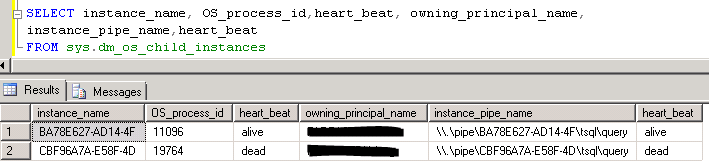
On the SQLEXPRESS instance, the configuration option “user instances enabled” in should be enabled. Then execute the query shown in the screenshot below against the SQLEXPRESS instance:
image

The heart_beat column value will tell you is the instance is online or not. For an online instance, the heart_beat will have a value set to alive. RANU instances allow only local Named Pipe connections. So there are three ways how you can connect to a RANU instance:

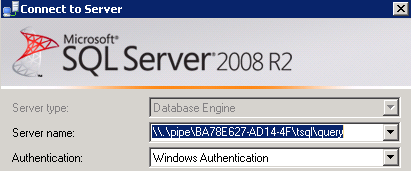
1. Using Management Studio
image

a. Launch a Management Studio on the machine where the SQL Express instance is running.
b. In the Connect to Server dialog box, you will have to specify the instance_pipe_name value obtained from the above output as the Server Name.

2. Using SQLCMD

Using the sqlcmd utility, you can also connect using the pipe name in the following manner:

sqlcmd -Snp:\\.\pipe\BA78E627-AD14-4F\tsql\query -E

3. Using SQL Server Express Utility

This is a utility available on the Microsoft Downloads site but is not supported by CSS. One of the tasks that can be performed by this utility is to connect to User Instances. The SSEUtil.exe –childlist command will list all the RANU instances on the machine. The output is the same as the one shown above which was retrieved using sys.dm_os_child_instances. Refer screenshot below.

image

The ReadMe.htm available with the installation of the utility has information on what can be done with this utility other than connecting to a user instance.

You can then connect to the instance using the following command:

SSEUtil.exe -c –child <domain>\<user name>

How do I shutdown a RANU/User Instance?

A RANU instance has a defined timeout value of 60 minutes; after 60 minutes without activity, RANU shuts itself down. The RANU timeout is configurable at the parent instances through the ‘User Instance Timeout’ setting. If you want to shutdown a RANU instance before the timeout is reached, then you can use one of the methods listed above to connect to the User Instance and issue the following command:

SHUTDOWN WITH NOWAIT

References:
Understanding SQL Express behavior: Idle time resource usage, AUTO_CLOSE and User Instances
Connecting to SQL Express User Instances in Management Studio

Now it’s time to shutdown this post… Adieu till the next post.

DBREINDEX and ALTER INDEX differences

I had written about update statistics a long time back and had been meaning to write a clarification on the difference in behavior w.r.t. table statistics being updated when rebuilding indexes using different T-SQL commands. I am sure all of you are aware of why statistics for a table need to be updated with a fullscan to ensure that the optimizer doesn’t fall prey to sub-optimal plans. However, there is a little known fact about how statistics get affected when a DBREINDEX is issued on a table versus an ALTER INDEX…REBUILD ALL.

I created a table with 4 integer columns and inserted 100,000 records into the table using the script below:

-- Create table
create table tblUpdStats (a int primary key,b int,c int, d int)
-- Insert 100,000 rows in the table
set nocount on
declare @var int = 1
while @var<=100000
begin
insert into tblUpdStats values(@var,@var+1,@var+2,@var+3)
set @var+=1
end
-- Create a non-clustered index on column b
create index idx_b on tblUpdStats(b)
-- Create a user-defined statistics on column c
create statistics stat_c on tblUpdStats(c)
-- Execute the following to query so that the database engine creates an auto-created stats on column d
select d from tblUpdStats where d > 50000
Name                            Updated              Rows    Rows Sampled
------------------------------- -------------------- ------- ------------
idx_b                           May 13 2011  8:03PM  100000  100000
PK__tblUpdSt__3BD0198E558AAF1E  May 13 2011  8:03PM  100000  100000
stat_c                          May 13 2011  8:03PM  100000  100000
_WA_Sys_00000004_53A266AC       May 13 2011  8:03PM  100000  100000

I took a snapshot of the DBCC SHOW_STATISTICS output for the statistics associated with the non-clustered index, clustered index, user created statistics and auto-created statistics. All the rows and rows sampled are equal which means that the statistics are updated with a fullscan. I then inserted another 100,000 rows into the same table. I then executed the following command to rebuild the indexes on the table:

alter index all on tblstats rebuild

I took a snapshot of the DBCC SHOW_STATISTICS command again and notice the difference below:

Name                            Updated              Rows     Rows Sampled
--------------------------------------------------------------------------
idx_b                           May 13 2011  8:19PM  200000   200000
PK__tblUpdSt__3BD0198E558AAF1E  May 13 2011  8:19PM  200000   200000
stat_c                          May 13 2011  8:03PM  100000   100000
_WA_Sys_00000004_53A266AC       May 13 2011  8:03PM  100000   100000

You will see that the user created and auto-created statistics do not reflect the change in the number of rows. However when I execute a DBREINDEX on the table, I see a different picture altogether. (See show_statistics output below)

dbcc dbreindex ('tblUpdStats','')
Name                               Updated              Rows      Rows Sampled
 ---------------------------------- -------------------- --------- --------------
 idx_b                              May 13 2011  8:31PM  200000    200000
 PK__tblUpdSt__3BD0198E558AAF1E     May 13 2011  8:31PM  200000    200000
 stat_c                             May 13 2011  8:31PM  200000    200000
_WA_Sys_00000004_53A266AC           May 13 2011  8:31PM  200000    200000

Now if I look at the rows sampled and rows column values, I see that the updated column shows the same date for all the objects. In this case the rows sampled and rows are the same indicating that a fullscan occurred for the user created/auto created statistics on the table.

To summarize, ALTER INDEX…REBUILD ALL will not update statistics which were manually created or were auto-created by the Database Engine. It will only update statistics associated with the indexes defined on the table columns. On the other hand, a DBCC DBREINDEX on the table will update statistics for the user created statistics and the auto-created statistics using the default sampling rate. The default sampling comes into play for very large tables. If you have a maintenance plan job which does an index rebuild operation on SQL Server 2005 or above, then that uses an ALTER INDEX…REBUILD command.

Tools Tips and Tricks #1: Process Monitor

I recently wrote about importing a Process Monitor trace into SQL Server database table and crunch up the data to extract the events and call stacks. This prompted me to think about capturing data with Process Monitor and some things I learnt along way while using this tool working at CSS.

imageThe first tip is to disable any activity that you don’t want to capture or are not required for the issue that you are troubleshooting. The capture tracks three classes of operations: File System, Registry and Process. In the toolbar show on the left in the screenshot, you can enable/disable the following captures:

a. Registry activity
b. File System activity
c. Network activity
d. Process and Thread activity
e. Profiling events

More information about the above is available in the Process Monitor help file. image

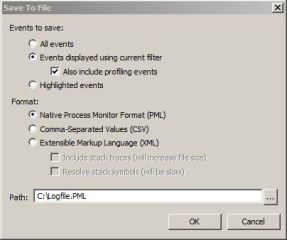
The command line options specified are immensely helpful if you are scripting the capture of a trace using a batch file or if you are generating an automation routine to load the captured data into another data source. I had used /OpenLog and /SaveAs1 option to generate the XML file from the saved .PML file.

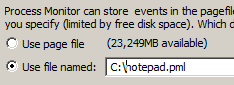
imageOne of the most useful options that I suggest using when capturing a Process Monitor trace is to use the backing file option (/BackingFile command line parameter or CTRL+B when using the GUI). This prevents using the page file as the backing store for trace capture and avoid running in unresponsive server issues while you are still capturing your trace and the paging file fills up. I normally point the backing file to a local drive on the machine which has sufficient amount of disk space.image

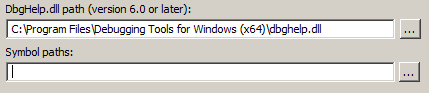
Process Monitor can use symbol information, if available, to show functions referenced on event stacks. You can point to the symbol path (local symbol cache or Microsoft Symbol Server: http://msdl.microsoft.com/download/symbols) using Options –> Configure Symbols. Additionally, you can specify the path to the source files for the application in the same dialog. This will help you resolve the function calls using the symbol path and if a source path is present, open a text viewer dialog with the source line highlighted which is being referenced. The symbol path is needed when /SaveAs2 option is used for converting the .PML file to .XML format. Note that this option considerably increases the export time due to symbol resolution time involved.

I am starting a series tagged with “Tools Tips and Tricks” which will document the various tweaks that I use for data collection for the various data collection/analysis tools that I use on a day-to-day basic.

T-SQL Tuesday #18: CTEs, XML and Process Monitor

T-SQL TuesdayThis month’s recurring SQL blog party a.k.a. T-SQL Tuesday started by Adam Machanic (blog | @AdamMachanic) is being hosted by Bob Pusateri (blog | @SQLBob). This month’s topic is about Common Table Expressions which was introduced for the first time in SQL Server 2005. CTEs can be thought of as a derived table which can be self-referenced within a query. With the advent of CTEs, a lot of T-SQL developers made full use of this feature. Personally, I have used CTEs for various data collection and parsing scripts that I use for daily for my day-to-day work. I am a big fan of CTEs and have introduced their usage in one of the blocking reports for SQL Nexus. As with any coding construct, the use of CTEs has it’s PROs and CONs but in this post, I shall not go down the path as there are a lot of depends on whether a particular scenario is fit for the use of CTE of a temporary table. That decision has to be made based on testing against the benchmarks that you have or response-time SLAs that have defined for your application.

Since my primary expertise lies with SQL Server, I examine every opportunity of data analysis with the intention of importing the data into a SQL Server database table and then writing an automation routine over it to help me save the repititive iterations when I am analyzing the same data or need to perform the same set of steps over and over again. Recently I have shifted over to Powershell due to affinity for scripting but that will be a story for some other blog post. CSS uses Process Monitor, a vastly popular tool from Sysinternals, to troubleshoot various problems that we encounter while working on SQL Server related issues. Some of our adventures with Process Monitor are mentioned below:

PRB: SQL Backups to a UNC path fail with OS Error 1 (Incorrect Function)
INF: Permissions required for SQL Server Service account to use SSL certificate

During my tenure here with CSS, I too have relied on the Process Monitor to troubleshoot some fairly complex issues. Sometimes the Process Monitor .pml files can be quite large if collected without adding appropriate filters and I am just interested in a particular process(es). By importing the .PML file into a database, I can not only query the imported data using T-SQL queries but I can also write quick automations to look for common stack traces that I know have known issues/problems associated with them. Yes with Process Monitor, you can use locally cached symbols to get the call stack of the function call as well. Note that saving a .PML into XML with resolved stack symbols is slow due to the time taken for symbol resolution. The .XML file that I will use as an example was saved using the “Extensible Markup Language (XML)” option with “Include stack traces (will increase file size)” option enabled. I captured a Process Monitor trace while trying to access a directory which was not present on my server.

I already have a stored procedure to import the saved .XML file into a database table, then parse that existing data and insert the parsed data into the two tables that I have created to stored the event and stack information.

How does the use of CTEs fit in here?

The .XML file has the following structure for the stack and the frames:

<ProcessIndex>2083</ProcessIndex>
<Time_of_Day>5:52:38.8471548 PM</Time_of_Day>
<Process_Name>Explorer.EXE</Process_Name>
<PID>6588</PID>
<Operation>NotifyChangeDirectory</Operation>
<Path>D:\Tools</Path>
<Result></Result>
<Detail>Filter: FILE_NOTIFY_CHANGE_FILE_NAME, FILE_NOTIFY_CHANGE_ATTRIBUTES, FILE_NOTIFY_CHANGE_LAST_WRITE</Detail>
<stack>
<frame>
<depth>0</depth>
<address>0xfffff880013ab027</address>
<path>C:\Windows\system32\drivers\fltmgr.sys</path>
<location>fltmgr.sys + 0x2027</location>
</frame>

<frame>
<depth>1</depth>
<address>0xfffff880013abbe9</address>
<path>C:\Windows\system32\drivers\fltmgr.sys</path>
<location>fltmgr.sys + 0x2be9</location>
</frame>
….
….
</stack>

Now each operation has a call-stack associated with it which I am interested in importing into my database. But with the existing schema above, I cannot get the information that I require . After exploring the use of multiple ways of parsing the data using temporary variables, temporary tables, recursive CTEs, XML indexes and blah.. blah.. , I found that that quickest way to do this was:

1. Get the event list imported into a temporary table
2. Using the event list generated above, create the call stacks from the <frame> nodes (see code snippet below)

The logic here is that the cteXML used below extracts all frames for a particular event using a counter variable and creates XML data for each of the frames which are parsed by referencing the cteXML in the INSERT INTO…SELECT query.

-- Extract events from the XML file and put them into a staging table

INSERT INTO #tblXMLstaging (event,fname)

SELECT C.query('.') as event,@fname

FROM dbo.tbl_XMLData

CROSS APPLY xmldata.nodes('/procmon/eventlist/event') as T(C)

WHERE fname = @fname

-- Fetch values from staging table, store parsed frames in an XML and parse them to insert data into procmon_stacks table

WITH ctexml as

(

SELECT TOP 15 eventid,C.query('.') as frames,fname

FROM #tblXMLstaging

CROSS APPLY event.nodes('/event/stack/frame') as T(C)

WHERE eventid = @counter

)

INSERT INTO dbo.tblProcMon_Stacks (StackID, FName, FrameDepth, [Address], [Path], Location)

SELECT

eventid as StackID,

fname,

frames.value ('(/frame/depth)[1]', 'int') as FrameDepth,

frames.value ('(/frame/address)[1]', 'varchar(50)') as [address],

frames.value ('(/frame/path)[1]', 'varchar(255)') as [Path],

frames.value ('(/frame/location)[1]', 'varchar(255)') as [location]

FROM ctexml

The output of

If you are curious as to how long it takes to import the data, it took me a little over a minute (84 seconds to be precise) to load a 100MB XML file, parse and shred it! I am sure that there are optimizations possible to this method. The screenshot on the left shows the load times. The system specifications on where the data import is being done is: 

Operating System: Microsoft Windows Server 2008 R2 Enterprise (x64)

Machine: Hewlett-Packard HP Z800 Workstation

Processor: 2 Quad Core [Intel(R) Xeon(R) CPU E5506  @ 2.13GHz, 2128 Mhz, 4 Core(s), 4 Logical Processor(s)]

RAM: 16.0 GB

Hard Disk: Barracuda 7200.12 SATA 3Gb/s 500GB Hard Drive

SQL Server: SQL Server 2008 R2
Now that the data is available in a database table, I can query the information using T-SQL queries. I had attempted to open the directory C:\Foo on my server using Windows Explorer. This information and the callstack can be visible using the following T-SQL queries:

-- Get the event information associated with the directory that I was looking up
select ProcessName, PID, Operation, Path, Result, Detail, StackID from dbo.tblprocmon_events

where fname = 'FileNotFound.xml'

and path like '%C:\Foo%'

order by StackID

-- Get information for the call-stack using the StackID obtained above
select FrameDepth, address, Path, Location

from tblProcmon_stacks

where fname = 'FileNotFound.xml' and StackID = 662

order by FrameDepth

Below is a screenshot showing me that the directory doesn’t exist and the call-stack associated with the function call that failed.

The options are now limitless, you can take this forward by creation for common callstacks in-case you are troubleshooting an application developed by you and have access to the private symbols. Or you could look for common results for certain operations like Operation = QueryDirectory and Result = NO SUCH FILE. My use of CTEs are for the following tasks:

1. Parsing XML data as shown here
2. Extracting useful information from Ring Buffers
3. Tracking available contiguous memory used and available in the SQL Server process address space

The scripts containing the Stored Procedure definitions and table schemas can be downloaded from here.

A shot in the arm for sp_purge_data

I had recently worked on a performance issue with the Management Data Warehouse job “mdw_purge_data”. This job calls a stored procedure sp_purge_data which was taking a long time to complete. This stored procedure just got a shot in the arm with an update to it released by the SQL Server Developer working on it. The T-SQL for the modified stored procedure is available on the SQL Agent MSDN blog. The actual Stored Procedure will be available in an upcoming update for SQL Server 2008 R2.

Addition: July 20th, 2011: SQL Server 2008 R2 Service Pack 1 has various updates for the purge process which doesn’t require modification of the procedure using the script mentioned in the aforementioned blog post.

A recent discussion on Twitter reminded me that I had this as one of the items to blog about so here it is. Now for some of the interesting technical details.

The poor performance of the stored procedure has been addressed through a refactoring of the Stored Procedure code but the issue doesn’t occur on all Management Database Warehouse databases.

The issue occurs when you have large amounts of data stored in the [snapshots].[query_stats] for each unique snapshot ID. If you have orphaned rows in the ‘ [snapshots].[notable_query_plan] ‘ and ‘ [snapshots].[notable_query_text] ‘ tables of the Management Data Warehouse. This was corrected in the builds mentioned in the KB Article below:

970014    FIX: The Management Data Warehouse database grows very large after you enable the Data Collector feature in SQL Server 2008
http://support.microsoft.com/default.aspx?scid=kb;EN-US;970014

The above KB Article also has a workaround mentioned which allows you to clean-up the orphaned rows using a T-SQL script.

The “Query Statistics” data collection set collects query statistics, T-SQL text, and query plans of most of the statements that affect performance. Enables analysis of poor performing queries in relation to overall SQL Server Database Engine activity. It makes use of DMVs sys.dm_exec_query_stats to populate the entries in the snapshots.query_stats table. If this DMV returns a large number of rows for each time the collection set runs, the number of rows in the actual Management Data Warehouse table “snapshots.query_text” can grow very quickly. This will then cause performance issues when the actual purge job executes on the MDW database.

In summary, if you are using Management Data Warehouse to monitor a highly active server where there are a lot of ad-hoc queries or prepared SQL queries being executed, then I would recommend you to modify you the sp_purge_data stored procedure using the MSDN blog link, I mentioned earlier in my post. I have seen significant performance improvement due to this on the specific environment that I was working on.