Azure Storage and SQL Server – Part 3

In the last post of this series, I had talked about how to determine the number of page blobs present in a particular storage account and if the limit for Azure storage service will be exceeded based on the current configuration. In this post, I shall talk about something a bit closer to your virtual machine which is running the SQL Server workload. The script shown below will determine the IOPS supported by the data disks attached to the virtual machine and determine if all the data disks belong to the same storage account. It is recommended that your data disks belong to a single Azure storage account. If they are not part of the same storage account, then a warning in flagged in the output as seen in the screenshot.

The first part of the PowerShell script is uses Get-AzureVM cmdlet to find out the details of the Azure virtual machine which is running your workload. The output of this cmdlet is used as an input for the Get-AzureDataDisk cmdlet which allows me to find out all the data disks that are attached to my Azure virtual machine. Then a simple calculation lets me understand how much I/O workload the virtual machine can handle.

The next part of the script performs an important task of determining if the data disks attached to the virtual machine belong to the same storage account. If not, then it flags a warning. Typically, for high performance VMs, it is recommended that a single storage account be used for hosting the data disks of the virtual machine.

The Powershell script and a screenshot of the output is shown below.


# Temporary variables

$AccountName = ""

$fail = 0

# Get the list of data disks for the Azure virtual machine

$DataDisks = Get-AzureVM -ServiceName "<Azure Service Name>" -Name "<Azure VM Name>" | Get-AzureDataDisk

Write-Host "INFO: This virtual machine has" $DataDisks.Count "data disks which can support a total of"($DataDisks.Count*500)" IOPS" -ForegroundColor Green

# Check if there is a data disk which belongs to a different storage account

foreach ($disk in $DataDisks)

{

if ($AccountName -eq "")

{

$AccountName = $disk.MediaLink.AbsoluteUri.Substring(8,$disk.MediaLink.AbsoluteUri.IndexOf(".")-8)

}

if ($AccountName -ne $disk.MediaLink.AbsoluteUri.Substring(8,$disk.MediaLink.AbsoluteUri.IndexOf(".")-8))

{

$fail = 1

}

}

# Show a warning if the data disks span across multiple storage accounts

if ($fail -eq 1)

{

Write-Host "WARNING: Mulitple storage accounts found for disks attached to the virtual machine" -ForegroundColor Red

}

else

{

Write-Host "PASSED: All disks attached to the virtual machine belong to a single storage account" -ForegroundColor Green

}

image

Previous post in the series

Azure Storage and SQL Server – Part 1
https://troubleshootingsql.com/2014/11/10/azure-storage-for-sql-server/

Azure Storage and SQL Server – Part 2
https://troubleshootingsql.com/2014/11/11/azure-storage-and-sql-server-part-2

References

Azure Storage
http://azure.microsoft.com/en-us/services/storage/

Azure Subscription and Service Limits, Quotas, and Constraints
http://azure.microsoft.com/en-us/documentation/articles/azure-subscription-service-limits/#storagelimits

* This blog post has been written based on the service details available on 10th November, 2014.

Azure Storage and SQL Server – Part 2

In the first post of this series, I had talked about the cheat sheet which documents the best practices for storage for SQL Server workloads running on Azure Virtual Machines. In this post, I am going to show how to automate additional checks for your virtual machine and your storage configuration. I am going to show how to determine if you have more than 40 disks in the storage account as they would not be able to sustain more than 20,000 IOPs as per the storage limits for Azure storage accounts.

The first part of the PowerShell script is used to find out the number of page blobs available in the storage account using the Get-AzureStorageContainer cmdlet. This allows me to fetch all the containers in a particular storage account which is specified as a parameter in the beginning of the script. The storage account context was created using the New-AzureStorageContext cmdlet. This is required for all the subsequent commands to ensure that the cmdlet executes against the correct storage account. This is required especially if you have more than one storage account associated with your subscription.

The next part of the script uses Get-AzureStorageBlob cmdlet to determine the number of blobs in a container. I used a foreach loop to determine the contents of each container. The reason I am using local variables to ensure that I minimize the network call to the Azure Storage service to get the filtering for both types of blobs in the storage container.

The last if-else block determines if you have more than 40 disks in the storage account. If yes, then it flags off an issue because if all the disks are active, they will not be able to scale to their potential of 500 IOPS. This is due to the fact that 20,000 IOPS per storage account limit will be divided across the disks available in the storage account.

The Powershell script and a screenshot of the output is shown below.

# Assign the storage account name

$StorageAccount = "<storage account name>"

 # Get the storage account key as this is needed for creating the storage context

$StorageKey = Get-AzureStorageKey $StorageAccount | %{ $_.Primary }

 # Create a new storage context for use in the next sections on the code block

$StorageContext = New-AzureStorageContext -StorageAccountName $StorageAccount -StorageAccountKey $StorageKey

 # Find out all the containers in the storage account

$Containers = Get-AzureStorageContainer -Context $StorageContext

 # Local variables for tracking the page and block blobs

$PageBlob = 0

$BlockBlob = 0

 # Get the disks in each container and count each type of blog present for the summary output

foreach ($name in $Containers)

{

$temp = Get-AzureStorageBlob -Container $name.Name -Context $StorageContext

$Blob = $temp | Where-Object {$_.BlobType -eq "PageBlob"}

$PageBlob += $Blob.Count 

$Blob = $temp | Where-Object {$_.BlobType -eq "BlockBlob"}

$BlockBlob += $Blob.Count 

}

Write-Host "INFO: There are" $Containers.Count "containers in the storage account:" $StorageAccount "which have" $PageBlob "Page Blob(s) and" $BlockBlob "Block Blob(s)" -ForegroundColor Green

 # Determine if 20K IOPS limit will be crossed due to having 40+ disks

if ($PageBlob -le 40)

{

Write-Host "INFO: This storage account has" $PageBlob "disk(s) which can support a total of" ($PageBlob*500) "IOPS" -ForegroundColor Green

 }

else

{

Write-Host "ISSUE: This storage account has" $PageBlob "disk(s) which can ONLY support a total of 20,000 IOPS" -ForegroundColor Red

 }

image

Previous post in the series

Azure Storage and SQL Server – Part 1
https://troubleshootingsql.com/2014/11/10/azure-storage-for-sql-server/


References

Azure Storage
http://azure.microsoft.com/en-us/services/storage/

Azure Subscription and Service Limits, Quotas, and Constraints
http://azure.microsoft.com/en-us/documentation/articles/azure-subscription-service-limits/#storagelimits

* This blog post has been written based on the service details available on 9th November, 2014.

Azure Storage for SQL Server

imageTo deploy a SQL Server instance on an Azure Virtual Machine, you will require the use of the Azure Storage service for your storage requirements. There are a few nuances of the Azure storage which requires prior knowledge so that your SQL Server instance runs without any glitches.

Before I start babbling about IOPs, data disks and regions, let’s first get a quick glimpse at what Azure storage offers. Azure storage offers blobs, tables and queues. The data disks that your database files would use are stored as blobs in Azure. One or more data disks are grouped into a single Azure Storage container. It is recommended that you store of all your data disks for a particular virtual machine in a single container. Each storage account has a limit of 500TB!


Here is the Cheat Sheet that we had shared during our session at the Microsoft India Teched 2014:

A maximum of 20,000 IOPs per storage account – Each storage account has a limit of 20k IOPs. It is recommended that your mission or business critical or virtual machines with high storage throughput requirements have their data disks residing in a single storage account. Additionally, this storage account should not be shared with another virtual machine or service. For the Standard tier, do not place more than 40 highly used VHDs in a storage account

• A maximum of 500 IOPs for each data disk – Each persistent data disk supports a maximum of 500 IOPs for the Standard Tier. It is advisable to

64-KB allocation unit size for data and log files as well as tempdb

• Use Storage Spaces on Windows Server 2012 and above – This allows you to group your data disks and leverage throughput greater than 500IOPs for the storage pool. For Windows 2008 R2 or earlier, you can use dynamic disks (OS striped volumes) and the stripe size is always 64 KB.

Do not store data on the temporary drive unless for tempdb and buffer pool extension on SSD drives (D-series VMs)

Separate data disks for data and log files – It is very important to determine your storage throughput requirements. As a best practice, having separate storage pools or data disks for your data and log files could go a long way in ensuring that you maintain optimal performance.

Caching policy = NONE – This needs to be set for all the data disks being used by the SQL Server instance

Backup to BLOB storage – When performing backups for SQL Server running in Azure virtual machines, you can use SQL Server Backup to URL. This feature is available starting with SQL Server SP1 CU2 and recommended for backing up to the attached data disks. Prior to SQL Server 2012, you can use SQL Server Backup to Azure Tool. This tool can help to increase backup throughput using multiple backup stripe targets.

Disable GEO-replication on storage account – It is advisable to use a locally redundant storage account for your SQL Server instance. The other benefit that you would get from a locally redundant storage is that the ingress and outgress limits (data moving in and out of the storage account) are higher.

In the next part of this blog post, I am going to use PowerShell magic to determine if the SQL Server instance that you have configured is following some of the best practices mentioned above.

Checking for geo-replication

The following PowerShell script used the Get-AzureStorageAccount cmdlet to get details of the storage account which hosts the virtual disks for the virtual machine. The script and the output is available below.

$StorageAccount = Get-AzureStorageAccount -StorageAccountName "<storage account name>"
if ($StorageAccount.GeoReplicationEnabled -eq $false)
{
    Write-Host "PASSED: Geo-replication is DISABLED" -ForegroundColor Green
}
else
{
   Write-Host "ISSUE: Geo-replication is ENABLED!" -ForegroundColor Green
}

image

Checking the caching policy

The PowerShell script below determines if the caching policy is enabled for the data disks using the Get-AzureVM cmdlet. This cmdlet fetches information about the virtual machine which is used to get the list of the data disks using the Get-AzureDataDisk cmdlet.

$DataDisks = Get-AzureVM -ServiceName "<service name>" -Name "<VM name>" | Get-AzureDataDisk
foreach ($disk in $DataDisks)
{
    if ($disk.HostCaching -eq "None")
    {
        Write-Host "PASSED: Disk caching is DISABLED for data disk: " $disk.DiskName "(" $disk.MediaLink ")" -ForegroundColor Green
    }
    else
    {
        Write-Host "ISSUE: Disk caching is ENABLED for data disk " $disk.DiskName "(" $disk.MediaLink ")" -ForegroundColor Red
    }
}


I will get a few more PowerShell scripts uploaded for automating the best practices checks for Azure VMs running SQL Server workloads.

References

Azure Storage
http://azure.microsoft.com/en-us/services/storage/

Azure Subscription and Service Limits, Quotas, and Constraints
http://azure.microsoft.com/en-us/documentation/articles/azure-subscription-service-limits/#storagelimits

* This blog post has been written based on the service details available on 9th November, 2014.

MICROSOFT TECHED INDIA 2014: Azure and SQL Server

image

I had really enjoyed presenting at an earlier TechEd and this time I have the privilege of presenting again.

TechEd India is Microsoft’s premier technology conference for Developers, Technology Enthusiasts and IT Professionals providing opportunities to learn, connect and explore. Join us to increase your technical expertise through deep hands-on learning, sharing of best practices and interactions with Microsoft and industry experts on November 5 & 6 at Bangalore. This year our agenda is bigger than ever! There are a number of special sessions including Microsoft Women in Tech and an exclusive CIO roundtable. We also bring you an extensive Tech Expo that will showcase the latest solutions from Microsoft and Partners.

If you are interested in Azure (Cloud), SQL Server, Data Center trends and all the things that keep today, then this is definitely the event for you. Find out more about the complete agenda from the TechEd site.

This year I will be speaking with Sourabh Agarwal [B | T] on “SQL Performance: Demystified in Azure VMs“. The session abstract is as follows:

This session will give an overview of how to harness the power of Microsoft Azure Virtual Machines for SQL Server database. A few tips and tricks is all it requires to keep a SQL Server database healthy on an Azure Virtual Machine. What’s more, we will even slip in few tricks to automate the entire deployment with the performance best practices enabled.

What can you expect from this session?

1. We will talk about how managing performance for a SQL Server instance deployed on an Azure Virtual Machine can be slightly different from maintaining an on-premise environment

2. We will demonstrate how to ensure that your Azure virtual machine and your SQL Server instance are configured optimally for performance using concepts that you use regularly for managing on-premise SQL Server instances

3. And we will also show some PowerShell magic for accomplishing common tasks related to performance

There will be other known speakers like Vinod Kumar [B | T], Balmukund Lakhani [B | T] and Arvind Shyamsundar [B | T] who will not only help you gain knowledge but also have amazing demos in their presentations!

If you haven’t already registered for TechEd yet, then you can do so by visiting the TechEd site. The Facebook event for my session is available here.

Subscribe now to stay updated with what is happening at TechEd India 2014. I look forward to meeting you at the event!

The slide deck of our presentation is embedded below.

PowerMap – Population of cities in India

In my last post During the September Bangalore UG meeting, I had presented on PowerBI, Power Query, Power Map and Online Search to be specific! In this post, I shall talk specifically about the Power Map feature.

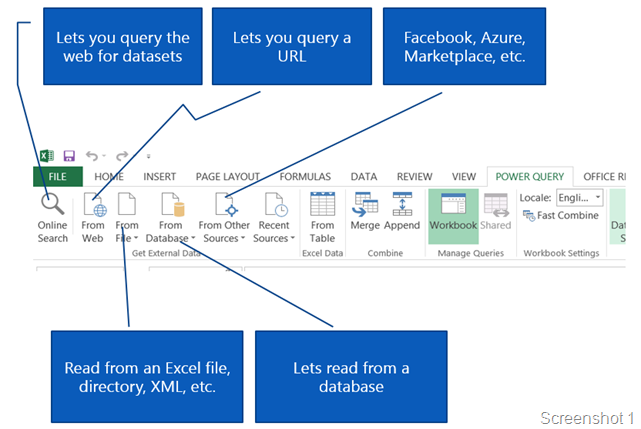
Online Search is an option available in the Power Query tab (screenshot 1) in Excel. Online Search allows you to search public datasets to import data from a large collection of public data sources. Displays the Online Search pane so you can search for public data from Wikipedia. Search results list items that contain the search term anywhere in the title, description, or key words.

image_thumb7

Using online search, I was able to search for a public dataset having the most populated cities in India during 2011. A screenshot of the data is shown below. I am not going to elaborate on how to get the dataset using online search as I had explained that in my earlier post.

image

Now that I had this data, I thought it would be a great idea to represent this in a format which forms an overlay on a map. You will need PowerMap installed before you can use this functionality. Power Map allows you to quickly visualize geospatial data that you have already brought into Excel with Power Query and mashed-up with Power Pivot. Power Map can now be found on the “Insert” tab in Excel for Office 365 ProPlus customers. Subscription customers will have access to all the new and upcoming features of Power Map. See screenshot below.

image

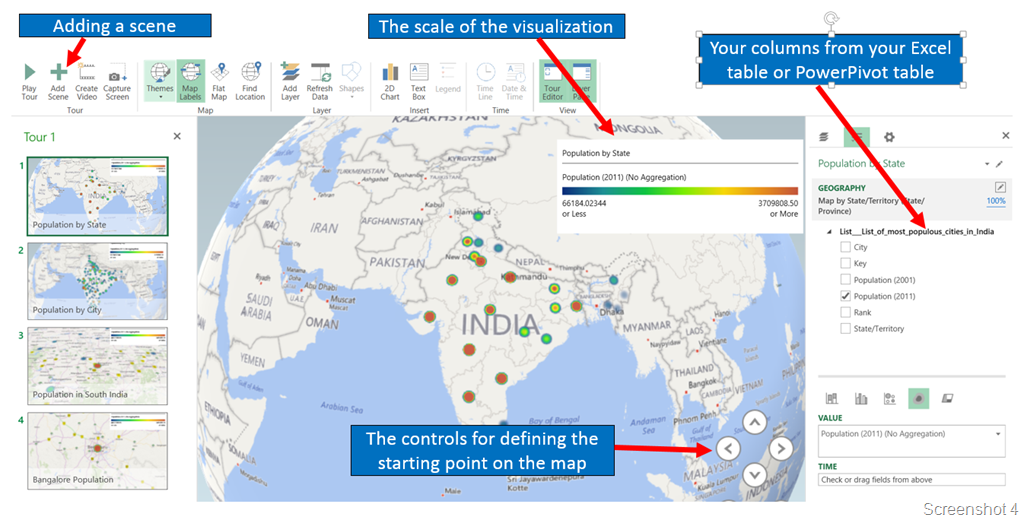
When you launch the Power Map add-in using the “Launch Power Map” drop-down option, you will have the option of creating a new tour or editing an existing tour. The new workspace will provide you options to:

1. Add a new layer and modify it

2. Modify the scene options and animations

3. Define the scale for the visualizations and the type of visualization

4. Define the type of maps being used

The screenshot below shows the work surface. You can see that I have multiple scenes added in my tour.

image

The final video of the PowerMap demo is available below. And all this took me less than 15 minutes! The file is available on OneDrive.

References:

PowerMap
http://blogs.msdn.com/b/powerbi/archive/2014/02/25/power-map-for-excel-now-generally-available-automatically-updated-for-office-365.aspx