Running SQL Nexus using Command Line Parameters

SQL Nexus is a tool that helps you identify the root cause of SQL Server performance issues. It loads and analyzes performance data collected by SQLDiag and PSSDiag. It can dramatically reduce the amount of time you spend manually analyzing data. One of the least commonly known facts is that the SQL Nexus tool also allows you to run it’s reports using command line arguments or even import diagnostic data automatically. The command line help reference is shown below. You can find more details on GitHub.

sqlnexus.exe [ [ /S [ /E | /Uuser /Ppwd ] [/D"database"] ] | [/C"connstr"] ] [/Iinputpath] [/Ooutputpath] [/Rreport] [/X]

sqlnexus.exe [ [ /S [ /E | /Uuser /Ppwd ] [/D"database"] ] | [/C"connstr"] ] [/Iinputpath] [/Ooutputpath] [/Rreport] [/X] [/Q] [/N]

/S"server"      Specifies a SQL Server name to connect to.
/D"database"    Database to connect to
/E              Log in to SQL using Windows/integrated security
/Uuser          Specifies a SQL (non-Windows) login name
/Ppassword      Specifies the password for a SQL (non-Windows) login
/C"connstring"  Specifies the SqlClient ConnectionString to use (can be used instead of /S /E).
/I"path"        Import SQL diagnostic data from this path
/R"report"      Specifies a report file name to run.
/O"path"        Specifies an export path for reports executed via /R. Also this is where the sqlnexus.000.log would get created
/X              Exit after importing (/I) or exporting (/O) the specified report (/R)
/Vparam=value   Specify the value of a form parameter
/Q              Quiet Mode - minimize windows in console mode
/N              Create a new SQLNexus database before importing (drop existing).

Automating Report Execution

The first scenario that I want to outline is the need to automate a report execution especially when you need to execute the reports repeatedly after activities like performance testing or during some other iterative activity which requires analysis of various sets of diagnostic data.

This can be achieved using the command line parameters shown below:

sqlnexus.exe /S"." /X /D"sqlnexus" /R"\Summary.rdl" /O""

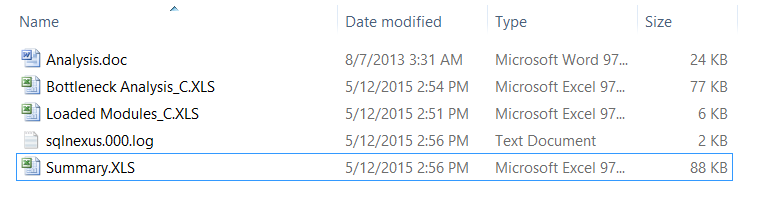
As you can see from the screenshot below, you can see that I have a standard report i.e. “Bottleneck Analysis_C.xls” that was exported and a non-standard report which I created Summary.xls in the same folder. This also gives additional opportunity to create your own performance reports and schedule them using the SQL Nexus executable.

Report Output

After you have the exported reports, you could also write additional automation to email the reports as required.

Automating Data Import

SQL Nexus also allows you to perform data imports automatically using the command line parameters. The command line shown below performs data import from the specified folder into a SQL Server database called sqlnexustest on the default SQL server instance installed on the machine.

sqlnexus.exe /S"." /X /D"sqlnexustest" /I"C:\temp\output"

If the database does not exist on the SQL Server instance, then it will be created. The settings for SQL Nexus utility will be used during the data import which were saved when the last time the UI was used. So if you have disabled the profiler trace import from the UI and saved your settings, then the command line execution will not import the profiler traces.

Azure Storage and SQL Server – Part 7

One of the recommendations of running SQL Server instances on Azure virtual machines is to ensure that default paths and directory setup is changed once the gallery image has been deployed. If you are performing a custom install of your SQL Server instance and not using an Azure Gallery Image, then you would want to instruct the setup program to install the system databases and the log directory in a separate folder other than the operating system drive or the temporary drive.

If you have used a virtual machine gallery image, then you will have a default instance of SQL Server with the binaries and system database  files on the C: drive. I had earlier blogged about how to find out the startup parameters using a WMI class and VBScript. I just use PowerShell to make the WMI query. Yes, even I have learnt a few new tricks over the years! Winking smile

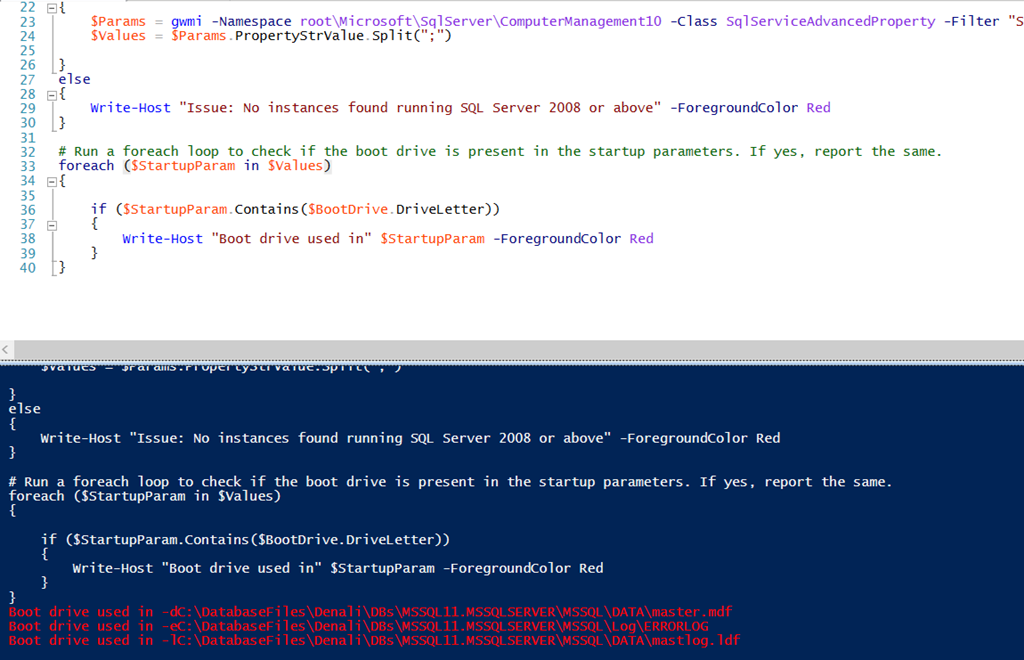
The PowerShell script below would let you check if the startup parameters which contains the location of the SQL Server Errorlog, the master data file and the master log file are placed on the OS drive. If yes, then it will report that you are doing something that we do not recommend! Time to change the files and the ERRORLOG to a data disk.


# Find out the boot drive on the virtual machine
$BootDrive = gwmi -Class Win32_Volume -Filter "BootVolume = 'True'" | Select-Object DriveLetter

# Get the startup parameters using the service name
# Depending on the version of SQL Server installed, the WMI Management namespace would vary
# The code block below checks the relevant WMI namespace
$Service = gwmi -Class Win32_Service -Filter "Name = 'MSSQLServer'" | Select-Object Name, PathName
if ($Service.PathName.ToString().Contains("MSSQL12"))
{
$Params = gwmi -Namespace root\Microsoft\SqlServer\ComputerManagement12 -Class SqlServiceAdvancedProperty  -Filter "SqlServiceType = 1 and PropertyName = 'STARTUPPARAMETERS' and ServiceName = 'MSSQLSERVER"
$Values = $Params.PropertyStrValue.Split(";")

}
elseif ($Service.PathName.ToString().Contains("MSSQL11"))
{
$Params = gwmi -Namespace root\Microsoft\SqlServer\ComputerManagement11 -Class SqlServiceAdvancedProperty -Filter "SqlServiceType = 1 and PropertyName = 'STARTUPPARAMETERS' and ServiceName ='MSSQLSERVER'"
$Values = $Params.PropertyStrValue.Split(";")

}
elseif ($Service.PathName.ToString().Contains("MSSQL10"))
{
$Params = gwmi -Namespace root\Microsoft\SqlServer\ComputerManagement10 -Class SqlServiceAdvancedProperty -Filter "SqlServiceType = 1 and PropertyName = 'STARTUPPARAMETERS' and ServiceName ='MSSQLSERVER'"
$Values = $Params.PropertyStrValue.Split(";")

}
else
{
Write-Host "Issue: No instances found running SQL Server 2008 or above" -ForegroundColor Red
}

# Run a foreach loop to check if the boot drive is present in the startup parameters. If yes, report the same.
foreach ($StartupParam in $Values)
{

if ($StartupParam.Contains($BootDrive.DriveLetter))
{
Write-Host "Boot drive used in" $StartupParam -ForegroundColor Red
}
}


image

Previous post in the series

Azure Storage and SQL Server – Part 1
https://troubleshootingsql.com/2014/11/10/azure-storage-for-sql-server/
Azure Storage and SQL Server – Part 2
https://troubleshootingsql.com/2014/11/11/azure-storage-and-sql-server-part-2
Azure Storage and SQL Server – Part 3
https://troubleshootingsql.com/2014/11/12/azure-storage-and-sql-server-part-3
Azure Storage and SQL Server – Part 4
https://troubleshootingsql.com/2014/11/13/azure-storage-and-sql-server-part-4/
Azure Storage and SQL Server – Part 5
https://troubleshootingsql.com/2014/11/18/azure-storage-and-sql-server-part-5
Azure Storage and SQL Server – Part 6
https://troubleshootingsql.com/2014/11/19/azure-storage-and-sql-server-part-6

References

Azure Storage
http://azure.microsoft.com/en-us/services/storage/
Azure Subscription and Service Limits, Quotas, and Constraints
http://azure.microsoft.com/en-us/documentation/articles/azure-subscription-service-limits/#storagelimits

* This blog post has been written based on the service details available on 23rd November, 2014.

Azure Storage and SQL Server – Part 6

In the last post of this series, I had described how to determine if any database files were hosted on the temporary drive on the Azure virtual machine. In this post, I shall check if any of the drives hosting the SQL Server database files have block sizes other than 64KB. As per best practice recommendations for SQL Server workloads running on Azure virtual machines, it is recommended that you use a 64-KB allocation unit size for data and log files as well as tempdb.

Determining the block size

In the first part, I will be talking about how to determine if the block size for the drives hosting the database files is 64KB or not. The first thing that needs to be done is to retrieve the volume details using the Win32_Volume class and use the BlockSize value to determine the block size of the volume. To avoid false positives, you will also need the disks on which the SQL Server database files are hosted on. This can be retrieved using the sys.master_files system catalog. Using both the sets of information, you can determine if any volume that is hosting a SQL Server database file has a block size other than 64KB.

The PowerShell script that I had used is available below. This script also makes use of PowerShell snippet that I had used to identify the temporary drive which I had blogged about last week.


# Script for discovering temporary drive is available in Part 4 of this series

# Hence, not re-writing the script here

$TempDrive = "D:\"

# Fetching the disks on which the SQL database files reside on

$sqldisks = Invoke-Sqlcmd -ServerInstance "." -Database "master" -Query "select distinct substring(physical_name,0,4) as disk from sys.master_files" | Select-Object disk

# Getting the block size for each volume

$volumes = gwmi -Class Win32_Volume -Filter "DriveType = 3" | select-object BlockSize, Name

# Foreach loop to determine if block size for SQL disk drives vary from 64K

foreach ($volumne in $volumes)

{

if ($volumne.BlockSize -ne "65536" -and $volumne.Name.ToString() -In $sqldisks.disk)

{

if ($volumne.Name.ToString() -ne $TempDrive)

{

Write-Host "WARNING:" $volumne.Name "has a block size =" $volumne.BlockSize "bytes" -ForegroundColor Red

}

else

{

Write-Host "INFO:" $volumne.Name "has a block size =" $volumne.BlockSize "bytes. This is the temporary drive and should only host the tempdb files" -ForegroundColor Green

}

}

}

You might want to also read the following articles about disk partition alignment for SQL Server:
Disk Partition Alignment Best Practices for SQL Server
http://technet.microsoft.com/en-us/library/dd758814(v=SQL.100).aspx

Disk Partition Alignment: It Still Matters–DPA for Windows Server 2012, SQL Server 2012, and SQL Server 2014
http://blogs.msdn.com/b/jimmymay/archive/2014/03/14/disk-partition-alignment-for-windows-server-2012-sql-server-2012-and-sql-server-2014.aspx

Data and log files on the same drive

This is quite a common recommendation and has been taught to DBAs when they were in DBA elementary school! But sometimes, these recommendations are not followed for various reasons… some known and some unknown. So I decided that while I was at it, I would write up a quick PowerShell script to determine if the data and log files are present in the same drive using information retrieved from the sys.master_files catalog view.

The PowerShell script is give below along with a screenshot of the output.


$sqldisks = Invoke-Sqlcmd -ServerInstance "." -Database "master" -Query "select distinct substring(physical_name,0,4) as disk, type_desc from sys.master_files"

$datafiles = $sqldisks | Where-Object {$_.type_desc -eq "ROWS" }

$logfiles = $sqldisks | Where-Object {$_.type_desc -eq "LOG" }

if ($datafiles.disk -contains $logfiles.disk)

{

Write-Host "ISSUE: Data and log files found on the same drive" -ForegroundColor Red

foreach($drive in $datafiles)

{

if ($drive.disk -contains $logfiles.disk)

{

Write-Host "ISSUE: Drive" $drive.disk "hosts data and log files" -ForegroundColor Red

}

}

}

image

Previous post in the series

Azure Storage and SQL Server – Part 1
https://troubleshootingsql.com/2014/11/10/azure-storage-for-sql-server/
Azure Storage and SQL Server – Part 2
https://troubleshootingsql.com/2014/11/11/azure-storage-and-sql-server-part-2
Azure Storage and SQL Server – Part 3
https://troubleshootingsql.com/2014/11/12/azure-storage-and-sql-server-part-3
Azure Storage and SQL Server – Part 4
https://troubleshootingsql.com/2014/11/13/azure-storage-and-sql-server-part-4/
Azure Storage and SQL Server – Part 5
https://troubleshootingsql.com/2014/11/18/azure-storage-and-sql-server-part-5

References

Azure Storage
http://azure.microsoft.com/en-us/services/storage/
Azure Subscription and Service Limits, Quotas, and Constraints
http://azure.microsoft.com/en-us/documentation/articles/azure-subscription-service-limits/#storagelimits

* This blog post has been written based on the service details available on 16th November, 2014.

Azure Storage and SQL Server – Part 5

In this post, we will start checking if the SQL Server files are following best practices for Azure storage recommendations. In Part 4 of this series, I had written about how to identify the temporary drive on an Azure Virtual Machine. I am going to use that snippet of code to perform the file layout test that I will perform here.

The script performs the following operations:

1. Finds out the temporary drive letter

2. The script first finds out if the Azure Virtual Machine is a D-series machine or not.

3. Then it fetches the file location from the SQL Server instance using the Invoke-Sqlcmd cmdlet.

4. Using the above information, it determines if files are present on the temporary drive or not.

If this is a D-Series virtual machine, then the script will not report a warning if it finds the tempdb files on the temporary drive as it is supported. For any other series, the script will report an issue since database files residing on the temporary drive are not supported on the temporary drive other than the D-Series.

The PowerShell script is available below:


# Find out the IDE drives on the machine which has a SCSI target = 1

$Name = Get-WmiObject -Class Win32_DiskDrive -Filter "InterfaceType = `"IDE`" and SCSITargetId = 1" | Select-Object Name

# Find the parition id corresponding to the IDE temporary drive

$Antecedent = "*" + $Name.Name.Replace("\","").Replace(".","") + "*"

$Dependent = Get-WmiObject -Class Win32_DiskDriveToDiskPartition | Where-Object {$_.Antecedent -like $Antecedent} | Select-Object Dependent

# Find the logical disk which corresponds to the temporary drive partition

$Antecedent = "*" + $Dependent.Dependent.Split("`"")[1] + "*"

$TempDrive = (Get-WmiObject -Class Win32_LogicalDiskToPartition | Where-Object {$_.Antecedent -like $Antecedent} | Select-Object Dependent).Dependent.Split("`"")[1]

Write-Host "INFO: Temporary drive on the machine is:" $TempDrive -Foregroundcolor Red

# Variable to track if this is a D-Series VM

[boolean] $DSeries = $false

# Using Get-AzureVM to get the instance size property

$InstanceSize = Get-AzureVM -ServiceName "<azure service name>" -Name "<azure vm name>" | Select-Object InstanceSize

# Find out if this is a D-Series VM

if ($InstanceSize.InstanceSize -like "*_D*")

{

$DSeries = $true

}

# Get the location of the database files from the system catalog

$dbfiles = Invoke-Sqlcmd -ServerInstance "." -Database "master" -Query "select physical_name, name, db_name(database_id) as dbname, type_desc from sys.master_files"

# Run a foreach loop to determine if any user or system database files are on the temporary drive other than the tempdb

foreach ($file in $dbfiles)

{

# Tempdb can be hosted on the temporary drive on D-Series VMs

if ($DSeries-eq $true)

{

if ($file.physical_name.substring(0,2) -eq $TempDrive -and $file.dbname -ne "tempdb")

{

Write-Host "ISSUE:" $file.dbname "(Filename:" $file.name " Location:" $file.physical_name") found on temporary drive" $TempDrive -ForegroundColor Red

}

}

# Report any databases on temporary drive for non-D-Series VMs

else

{

if ($file.physical_name.substring(0,2) -eq $TempDrive)

{

Write-Host "ISSUE:" $file.dbname "(Filename:" $file.name " Location:" $file.physical_name") found on temporary drive" $TempDrive -ForegroundColor Red

}

}

}

Please keep in mind that the above script has not been tested for mount points.

Previous post in the series

Azure Storage and SQL Server – Part 1
https://troubleshootingsql.com/2014/11/10/azure-storage-for-sql-server/
Azure Storage and SQL Server – Part 2
https://troubleshootingsql.com/2014/11/11/azure-storage-and-sql-server-part-2
Azure Storage and SQL Server – Part 3
https://troubleshootingsql.com/2014/11/12/azure-storage-and-sql-server-part-3
Azure Storage and SQL Server – Part 4
https://troubleshootingsql.com/2014/11/13/azure-storage-and-sql-server-part-4/

References

Azure Storage
http://azure.microsoft.com/en-us/services/storage/

Azure Subscription and Service Limits, Quotas, and Constraints
http://azure.microsoft.com/en-us/documentation/articles/azure-subscription-service-limits/#storagelimits

* This blog post has been written based on the service details available on 10th November, 2014.

GOTCHA: Executing powershell scripts using scheduled tasks

This is another gotcha for setting up scheduled tasks which execute PowerShell scripts. I have a SQL Server instance installed on an Azure virtual machine. I am using a D-Series machine which allows me to store my tempdb files on the D: drive which is a SSD drive. However, the D: drive on Azure virtual machines is not a persistent drive. If you have change the drive letters on your Azure VM, then you can use the PowerShell script in my earlier blog post to identify the temporary drive. So, when the Azure virtual machine restarts the D: drive is re-created and all my folder structure is lost. I already have a scheduled task created on my Azure virtual machine which re-creates the folder structure on the D: drive. The blog post in the reference section has more details on how to achieve this.

However, when the scheduled task executes, the following error is reported in the Task Scheduler logs.

image

The last run result is reported as 0xFFFD0000 and the task history would show the following message:

Task Scheduler successfully completed task “\Tempdb Folder Creation” , instance “{35ec7a4f-6669-437f-b12f-40b95689896c}” , action “C:\Windows\System32\WindowsPowerShell\v1.0\powershell.EXE” with return code 4294770688.

First, let us find out why this error message gets reported. If you have setup a PowerShell script to execute the script in the following manner using single quotes, then this issue occurs.

powershell -file ‘C:\Automation\TempdbFolder.ps1’

If you have not used an output file, then you will find that this might not be an easy thing to troubleshoot. If you execute the above command from a command prompt window, you will find the following error reported:

Processing -File ”C:\Automation\TempdbFolder.ps1” failed: The given path’s format is not supported. Specify a valid path for the -File parameter.

Changing the command to use double quotes would make it execute without any issues.

Some other things to keep in mind when creating the scheduled task would be:

1. Using a full qualified path to the script file rather than a relative path.

2. Ensuring that the account running the script has the correct privileges.

3. The task should be configured to run without having the user logged in.

Reference:
Using SSDs in Azure VMs to store SQL Server TempDB and Buffer Pool Extensions
http://blogs.technet.com/b/dataplatforminsider/archive/2014/09/25/using-ssds-in-azure-vms-to-store-sql-server-tempdb-and-buffer-pool-extensions.aspx