SQL Bangalore UG Meeting–July 13

sponsor-bangaloreUGEven though the 13th is considered unlucky by a lot of individuals, this 13th happened to be a good one! The SQL Bangalore UG meeting had another successful event today!

It always surprises me with the number of SQL community folks that turn up to attend the sessions on a Saturday morning! Thank you to all the attendees! Without you this event would not have been possible.

There were some fun filled, technical and interactive sessions delivered by Olga Medvedeva [T] on Pagination Methods in SQL Server, Vinod Kumar [B|T] on SQL Server 2014 CTP1: In-memory OLTP and Sourabh Agarwal [B|T] on SQL Server Memory Basics.

I had the privilege of presenting on SQL Server Scheduling Basics at this user group meeting. The slide deck used for this session is available on Slide Share and the embedded copy of the PPT is available below.

As usual it was good fun to meet the SQL Server community members. In case you have any questions regarding my session, please send a tweet to @banerjeeamit or post your question on the TroubleshootingSQL Facebook page or on the SQLBangalore Facebook group.

PowerView and System Health Session–CPU health

Over the past few months, I spent a lot of time using Excel 2013 and the Power View add-in for completing various kinds of analysis on System Health Session data for SQL Server 2012. I thought it would be a good idea to create an Excel sheet with a template which would allow me to do these activities at the click of a button. I had recently written a post on how to retrieve Report Server execution statistics using Power Pivot and Power View. I will use the same philosophy to generate the CPU usage statistics using the System Health Session.

Now, you may ask why not query the data directly into an Excel sheet. The reason I do not do this is because it allows me to add calculated fields. Additionally, it allows me to write a query to fetch the data from the System Health Session that runs on SQL Server 2012 and above instances.

I had written an article on SSWUG on how to parse the scheduler_monitor_system_health_ring_buffer_recorded data and retrieve the CPU usage statistics using a SSRS report. This time around I fetched the data into a PowerPivot table. Then I added a new column for retrieving the day of the month using the DAY function. I also created a new calculated column for tracking the CPU usage of other processes using the SQL process utilization and system idle values. The new column is named “CPU usage (other processes)”.

Now that the PowerPivot table is ready, I used the created table as the source for a PowerView sheet in Excel 2013.

I created clustered column chart to track the following information:

  • Max CPU utilization for the SQL Server instance
  • Max CPU usage of all other processes
  • Average CPU utilization for the SQL Server instance
  • Average CPU usage of all other processes
  • Minimum CPU utilization for the SQL Server instance
  • Minimum CPU usage of all other processes

The clustered column chart uses the calculated Day field to make the chart more reader friendly. The second chart in the sheet is a line graph which tracks the average CPU usage for the SQL Server instance and other processes across a timeline. The slider at the bottom of the chart allows you to zoom in and out interactively of a time window that you are interested in.

Here is a screenshot of the final output as shown in screenshot 1. The Excel file with this visualization is available on SkyDrive at http://sdrv.ms/10O0udO

CPU usage statistics

Stay tuned to TroubleshootingSQL.com for more such visualizations!

Report Server Analytics with PowerPivot

I recently needed to query report execution statistics for a SQL Server Reporting Services instance where the number of rows were quite large. So I decided to use Excel 2013 and PowerPivot to analyze the data. This would allow me to directly pull all of the data into an Excel sheet and then perform analysis on the extracted data without having to query the Report Server database repeatedly.

The first thing to do is to create a connection to your Report Server database table. That can be done using the PowerPivot tab in Excel 2013. Click on the Manage button (Screenshot 1).

image

Once you are PowerPivot window, you will need to establish a connection with your Report Server database. This can be done using the From Database drop-down list with the From SQL Server option (Screenshot 2).

image

Create a connection to your SQL Server instance which hosts the Report Server database using the Table Import Wizard. In the Choose How to Import Data screen, select the second option i.e. Write a query that will specify the data to import. Once you click Next, provide a friendly name for the query and copy-paste the query shown below.

 select
b.Name,a.UserName,
CASE(a.RequestType)
WHEN 0 THEN 'Interactive'
WHEN 1 THEN 'Subscription'
WHEN 2 THEN 'Refresh Cache'
ELSE 'Unknown'
END AS RequestType,
a.Format, a.InstanceName,
CASE(a.ReportAction)
WHEN 1 THEN 'Render'
WHEN 2 THEN 'BookmarkNavigation'
WHEN 3 THEN 'DocumentMapNavigation'
WHEN 4 THEN 'DrillThrough'
WHEN 5 THEN 'FindString'
WHEN 6 THEN 'GetDocumentMap'
WHEN 7 THEN 'Toggle'
WHEN 8 THEN 'Sort'
WHEN 9 THEN 'Execute'
WHEN 10 THEN 'RenderEdit'
ELSE 'Unknown'
END AS ItemAction,
a.TimeStart,a.TimeEnd,a.TimeDataRetrieval,a.TimeProcessing,a.TimeRendering,a.[Status],a.ByteCount,a.[RowCount]
from dbo.ExecutionLogStorage a
inner join dbo.[Catalog] b
on a.ReportID = b.ItemID 

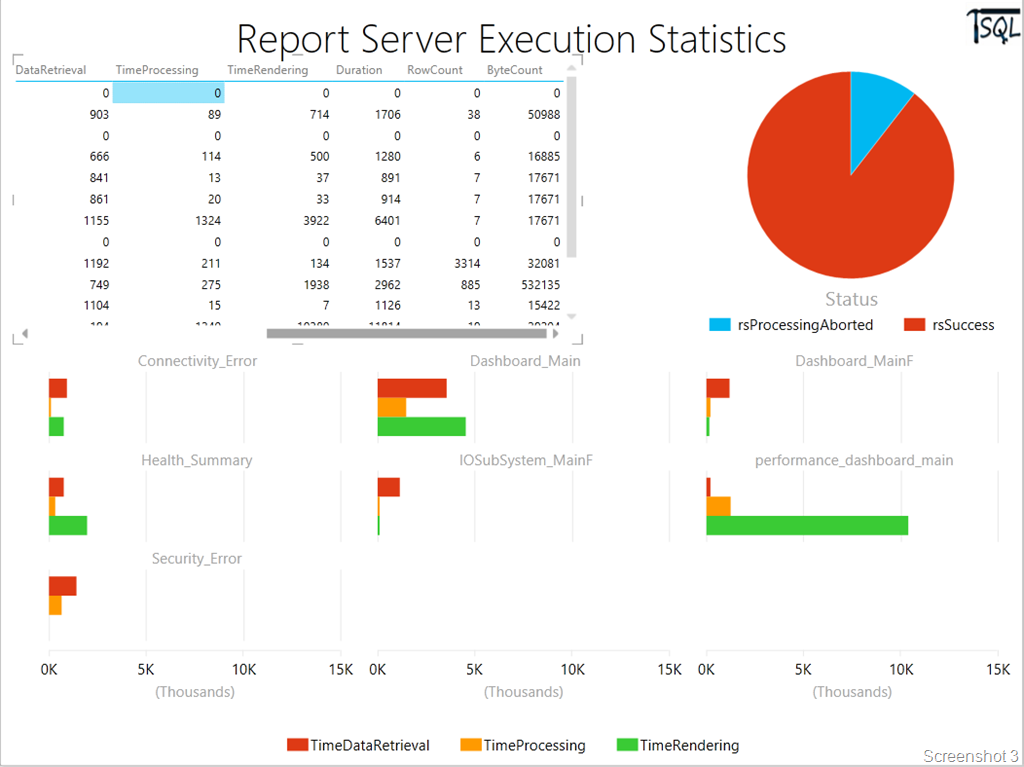
Now data obtained from the query will be imported into the PowerPivot table. Now I create a new PowerView sheet in the Excel workbook. Add a new column to add the TimeDataRetrieval, TimeProcessing and TimeRendering columns so that the total report duration is available at a single glance.

Now save the PowerPivot data and add a new PowerView Excel sheet called “Execution Stats”. This would allow you to create a view as shown in Screenshot 3.

image

Leverage PowerView’s interactive capabilities to view the Report execution statistics, the report processed status (failure or success) and the processing, rendering and data retrieval times for each report.

I have uploaded the file to SkyDrive which would allow you to connect to your own Reporting Services database and use the same report format for analysis. Stay tuned for additional PowerView sheets to give you various slicing and dicing options on report execution statistics.

Excel File Download Link: http://sdrv.ms/17ZmbK0 (Filename: SSRS_Exec_Stats.xlsx) Works with Excel 2013 only.

Twitter Hashtag analysis using Excel 2013

Recently I had written a blog post on my non-SQL Server blog on an event that was being organized world wide to raise awareness to help end violence against women. As with today’s events, the social media was used to garner support and spread the word. There was even a live twitter feed that was running for the #RingTheBell hashtag!

The campaign’s name is Bell Bajao, which in Hindi literally means Ring the Bell started with showing how domestic violence can be prevented by simply ringing the door bell.

The event at Delhi took place at the British council on 8th March, 2013. I used the Tweet Archivist service to start a Tweets archive so that I could do analysis of the tweets received after the event. The archive created can be downloaded as an Excel/CSV file.

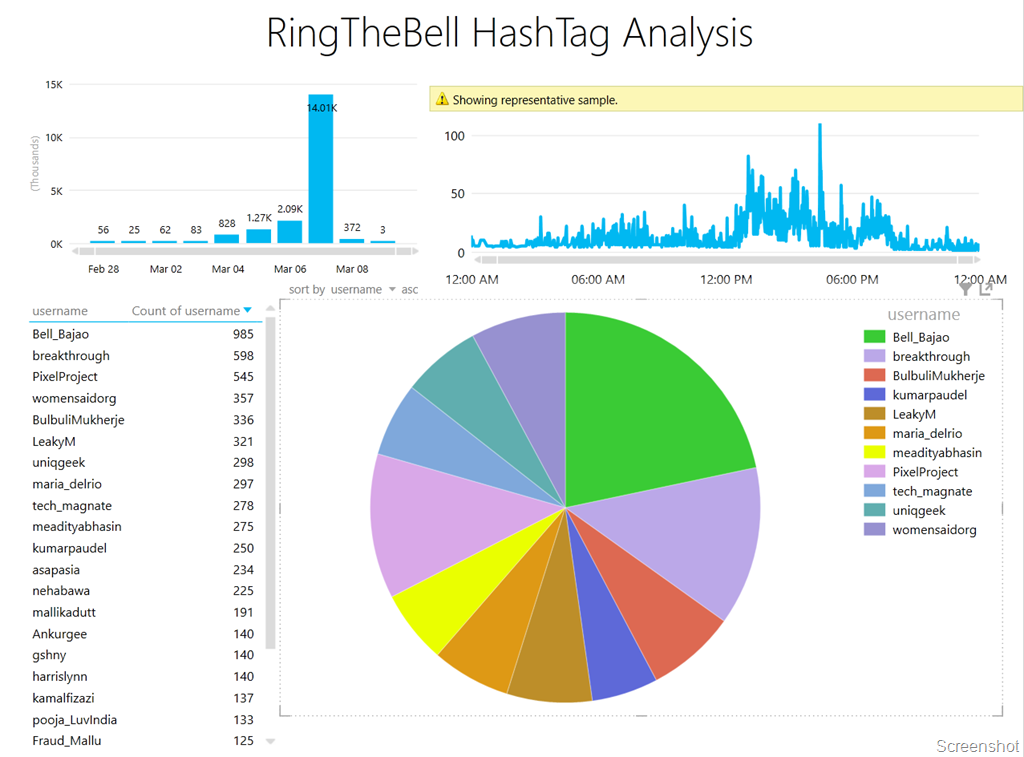
This blog post is to show how the Power View option in Excel 2013 can be utilized for performing analysis of Tweets. Once I had the tweets exported to an Excel file, I used the Power View report option to create a new Power View report. See screenshot below.

image

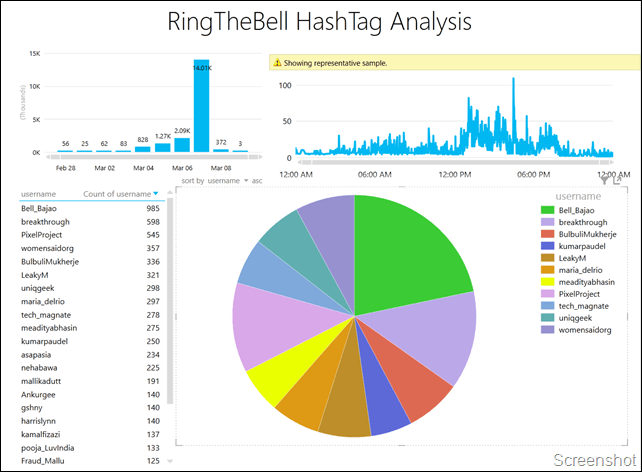
I added a bar chart, a table, a line chart and a pie chart to create a dashboard of sorts in the design area with the following properties:

1. The bar chart shows all the tweets between 28th February, 2103 to 9th March, 2013
2. The line chart shows the tweets from 6th-7th March, 2013 with a 24-hour period
3. The table shows all the users who have tweeted using this hashtag and with a tweet count of over 100.
4. The pie chart shows the percentage of tweets by each user for the period being analyzer with a tweet count over 250.

As it is clear from the above, information present in each of the four components have a different set of filters applied to them.
image
What makes it interesting is that the above report has interactivity built into it. So if I click on any one of the charts or table, the rest of the table/charts also change to reflect the data for the selection made. This is evident from the video at the bottom of this post.

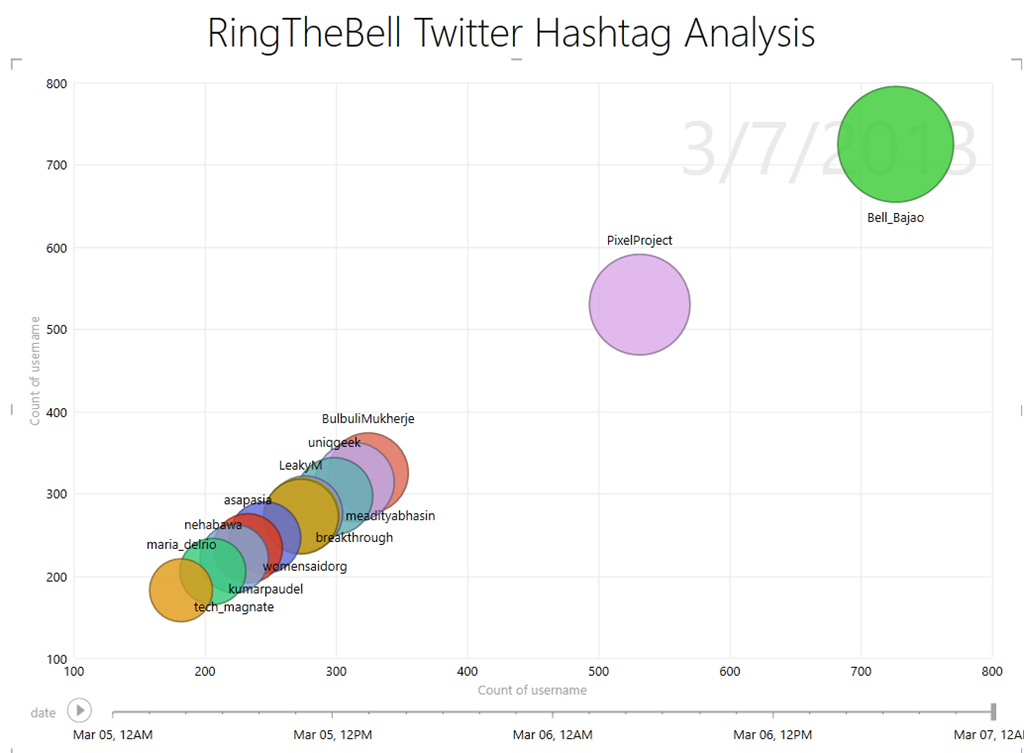
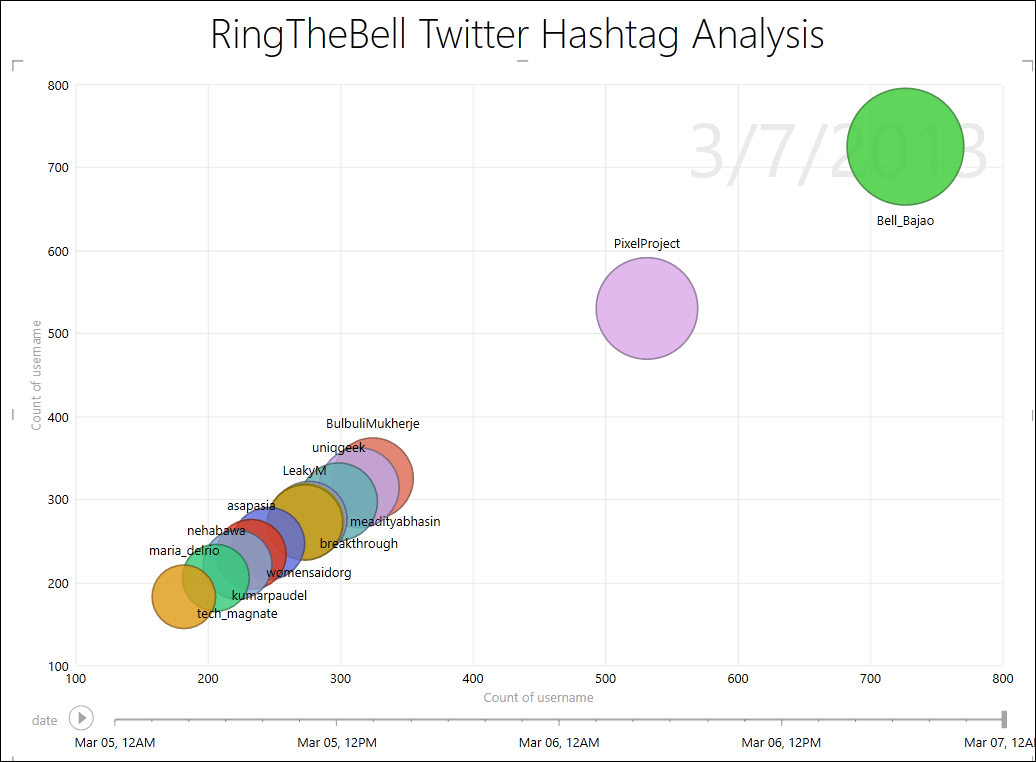
I wanted to take this a bit further, so I created a scatter graph with the Date column as the Play axis. The graph below shows me all twitter handles that have over 150 tweets over a period of three days! This allows me to see how the Twitter accounts were sharing updates/tweets prior to the event and during the event.
image

The video below shows the interactivity features of the Power View report in Excel. What you can do with such rich visualizations are endless. Just by looking at certain visual representations, it is easy to draw interesting conclusions. For example, the timeline shows me that the Bell_Bajao and PixelProject twitter handles were extremely active on the day of the event. There were others who were more silent in the days running upto the event and then started live tweeting/re-tweeting throughout the event. The TOP 5 contributors on the day of the event had a major pie of the tweets that were shared on 7th March. Within a very short time, I was able to decipher trends which would have taken me a while to dig out using traditional analysis methods!

*Note that the above times are based on the US timezone (Pacific time), which is why the 8th March event activity shows up as 7th March on the timeline.

I do know of a lot of individuals who use Twitter raw data for trend analysis. So here is a quick way to get that done with Power View and Excel 2013!

SQL Server 2012: Debugging Deadlocked Schedulers

I had blogged about debugging deadlocked schedulers earlier for SQL Server 2008 R2 and below releases. Since there have been some fundamental changes in SQL Server 2012, I thought it would be a good idea to post about debugging the same scenario on SQL Server 2012 instances.

Older posts:
Debugging Deadlocked Schedulers Part 1
Debugging Deadlocked Schedulers Part 2

Continue reading