System Health Session: Part 2

I had written an introductory post on monitoring the system health using the default extended events sessions that runs on a SQL Server 2008 instance and above. Now it is time for next part for this post. In the first post, I provided a set of queries which would be used for getting all the errors that were recorded by the System Health Extended Events session. Now I can create a set of reports using Business Intelligence Development Studio which can be used by the Custom Reports feature of Management Studio.

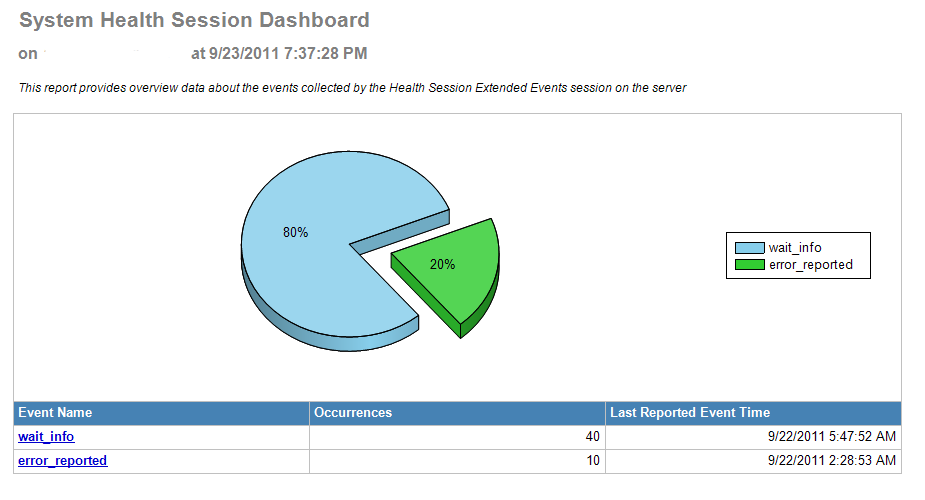
I put together a three-level drill down report to get a summary report for all the errors reported by the T-SQL queries in my previous post. The dashboard report which will basically serve as the landing page for what I am terming as the System Health Dashboard looks something like this: image

As you can see above, the report shows me the different events captured by the Extended Events session. The first level drill down provides a summary of all the different errors reported.

image

The last drill-down option is to go look into every occurrence of a specific error number. This report basically shows all the occurrences of a specific error number along with the query text (if captured) and specifics for the event recorded rather than the generic error description that you see in the above report.

image

The other category of events captured by the Health Session are wait information which fall under the following category:

  • Any sessions that have waited on latches (or other interesting resources) for > 15 seconds.
  • Any sessions that have waited on locks for > 30 seconds.
  • Any sessions that have waited for a long time for preemptive waits. The duration varies by wait type. A preemptive wait is where SQL Server is waiting for external API calls.

The query below will give you the query which experienced the wait along with the wait times which were recorded by the System Health session.

SELECT CAST(xet.target_data AS XML) AS XMLDATA

INTO #SystemHealthSessionData

FROM sys.dm_xe_session_targets xet

JOIN sys.dm_xe_sessions xe

ON (xe.address = xet.event_session_address)

WHERE xe.name = 'system_health'

;WITH CTE_HealthSession (EventXML) AS

(

SELECT C.query('.') EventXML

FROM #SystemHealthSessionData a

CROSS APPLY a.XMLDATA.nodes('/RingBufferTarget/event') as T(C)

WHERE C.query('.').value('(/event/@name)[1]', 'varchar(255)') in ('wait_info','wait_info_external')

)

SELECT

EventXML.value('(/event/@timestamp)[1]', 'datetime') as EventTime,

EventXML.value('(/event/data/text)[1]', 'varchar(50)') as WaitType,

EventXML.value('(/event/data/value)[3]', 'int') as Duration,

EventXML.value('(/event/data/value)[4]', 'int') as Max_Duration,

EventXML.value('(/event/data/value)[5]', 'int') as Total_Duration,

EventXML.value('(/event/action/value)[2]', 'varchar(10)') as Session_ID,

EventXML.value('(/event/action/value)[3]', 'varchar(max)') as sql_text

FROM CTE_HealthSession

ORDER BY EventTime DESC

DROP TABLE #SystemHealthSessionData

A sample output of the above query is shown above. The .sql file for the above query can be downloaded from here.

image

Note: Beware of false positives for PREEMPTIVE_OS_GETPROCADDRESS waits described here.

In the next post, I shall give a preview of the wait reports and provide another set of queries to track a category of events tracked by the System Health session.

Once I have completed this series, I shall upload all the series of reports to my SkyDrive so that they can be downloaded for your benefit.

System Health Session: Part 1

SQL Server 2008 introduced a new feature called Extended Events which opened a new vista for troubleshooting SQL Server issues. Bob Ward in a post on the CSS SQL Server Engineers blog had written about the system_health Extended Events session which is started by default on any instance of SQL Server 2008 or above. This session uses a ring buffer target so the information stored about the events tracked by this session don’t stick around forever much like the SQL Server default trace. Jonathan (Blog | Twitter) blogged about the System Health session and way it is setup in detail. Note that if you have an event session setup for a ring_buffer target and the data you feed the target exceeds 4Mb, you may not be able to retrieve all XML nodes from the target data. Bob Ward mentioned about this in detail in his blog post. So the System_Health session also suffers from this drawback.

This is the first post of a series of post that I will be writing about the System Health session and how you can use this to your SQL Server 2008 monitoring on the next level without having to install anything new on your servers… Maybe for the first few posts Winking smile

The first thing that you would need to do is get the different events reported with the oldest event time present in the ring buffer and the last event reported time using the query below:

SET NOCOUNT ON

— Store the XML data in a temporary table
SELECT CAST(xet.target_data as xml) as XMLDATA
INTO #SystemHealthSessionData
FROM sys.dm_xe_session_targets xet
JOIN sys.dm_xe_sessions xe
ON (xe.address = xet.event_session_address)
WHERE xe.name = ‘system_health’

— Get the different events reported in a grouped manner
;WITH CTE_HealthSession AS
(
SELECT C.query(‘.’).value(‘(
/event/@name)[1]’, ‘varchar(255)’) as EventName,
C.query(‘.’).value(‘(
/event/@timestamp)[1]’, ‘datetime’) as EventTime
FROM #SystemHealthSessionData a
CROSS APPLY a.XMLDATA.nodes(‘/RingBufferTarget/event’) as T(C))
SELECT EventName,
COUNT(*) as Occurrences,
MAX(EventTime) as LastReportedEventTime,
MIN(EventTime) as OldestRecordedEventTime
FROM CTE_HealthSession
GROUP BY EventName
ORDER BY 2 DESC
— Drop the temporary table
DROP TABLE #SystemHealthSessionData

One of the set of  events tracked are errors reported by the database engine. The u_tables.sql(C:\Program Files\Microsoft SQL Server\<install folder>\MSSQL\Install) script which contains the specification of the system_health session shows that the following errors are tracked:
1. Any error which has a severity greater than or equal to 20.
2. Errors reported for out of memory conditions (Error #: 17803, 701, 802, 8645, 8651, 8657 or 8902)

The script below will give you a total number of errors reported along with the error reported counts. The second query will list out all the recorded information for a particular error number shown in the first queries output:

SET NOCOUNT ON

— Store the XML data in a temporary table
SELECT CAST(xet.target_data as xml) as XMLDATA
INTO #SystemHealthSessionData
FROM sys.dm_xe_session_targets xet
JOIN sys.dm_xe_sessions xe
ON (xe.address = xet.event_session_address)
WHERE xe.name = ‘system_health’

— Get statistical information about all the errors reported
;WITH CTE_HealthSession (EventXML) AS
(
SELECT C.query(‘.’) EventXML
FROM #SystemHealthSessionData a
CROSS APPLY a.XMLDATA.nodes(‘/RingBufferTarget/event’) as T(C)
),

CTE_ErrorReported (EventTime, ErrorNum) AS
(
SELECT EventXML.value(‘(
/event/@timestamp)[1]’, ‘datetime’) as EventTime,
EventXML.value(‘(/event/data/value)[1]’, ‘int’) as ErrorNum
FROM CTE_HealthSession
WHERE EventXML.value(‘(
/event/@name)[1]’, ‘varchar(255)’) = ‘error_reported’
)
SELECT ErrorNum,
MAX(EventTime) as LastRecordedEvent,
MIN(EventTime) as FirstRecordedEvent,
COUNT(*) as Occurrences,
b.[text] as ErrDescription
FROM CTE_ErrorReported a
INNER JOIN sys.messages b
ON a.ErrorNum = b.message_id
WHERE b.language_id = SERVERPROPERTY(‘LCID’)
GROUP BY a.ErrorNum,b.[text]

— Get information about each of the errors reported
;WITH CTE_HealthSession (EventXML) AS
(
SELECT C.query(‘.’) EventXML
FROM #SystemHealthSessionData a
CROSS APPLY a.XMLDATA.nodes(‘/RingBufferTarget/event’) as T(C)
WHERE C.query(‘.’).value(‘(
/event/@name)[1]’, ‘varchar(255)’) = ‘error_reported’

)
SELECT
EventXML.value(‘(
/event/@timestamp)[1]’, ‘datetime’) as EventTime,
EventXML.value(‘(/event/data/value)[1]’, ‘int’) as ErrNum,
EventXML.value(‘(/event/data/value)[2]’, ‘int’) as ErrSeverity,
EventXML.value(‘(/event/data/value)[3]’, ‘int’) as ErrState,
EventXML.value(‘(/event/data/value)[5]’, ‘varchar(max)’) as ErrText,
EventXML.value(‘(/event/action/value)[2]’, ‘varchar(10)’) as Session_ID
FROM CTE_HealthSession

— Drop the temporary table
DROP TABLE #SystemHealthSessionData

Now you have a set of queries which you can use to fetch information about all the errors reported for your SQL Server instance. Remember that the target of the extended events session is a ring buffer. So, if your server instance have been running for a long period of time, the data will be overwritten.

Modification: Sept 15, 2011: WordPress doesn’t seem to like the @name XML attribute in the XQuery. After multiple attempts at formatting the query above, I finally decided to upload the query as System_Health_Session_1.sql to SkyDrive. You can download it here.

Modification: Sept 21, 2011: Jonathan (Blog | Twitter) dropped me an email stating that the above script could fall prey to incorrect timestamp issue. This issue is already filed as a Connect item. Jonathan described on a viable workaround for this solution in his blog post.

Modification: March 3, 2012: The timestamp value reported is in UTC (GMT) format. So if you want to report event time as per your SQL Server instance time, then you would need to perform the calculation and account for the GMT time difference.

As the title says, Part 1… There is definitely more to come on this topic. Stay tuned!

Deadlocked Schedulers and event notifications with a bit of Powershell

I had written 2 posts recently about Deadlocked Schedulers debugging (Part 1 | Part 2) which basically walked through a 17784 and 17888 condition and the steps that you could take to debug such an issue. A quote from the both these articles:

So if you have a monitoring tool that is capturing the output of queries being executed by the active SQL Server sessions, then you can go back to your monitoring repository and dig up the queries which these threads were executing. If such data is not available from the time of the issue, more often that not you will have to end up collecting additional data for the next problem occurrence!

You will need to collect additional data if there wasn’t a monitoring software collecting the same to determine the set of queries and sequence of events leading upto the issue. CSS Engineers can dig into the dump using the private symbols and probably provide you with additional information which can help you along the right direction. But alas, even they do not have magic wands if you cannot provide them with additional information like blocking output/profiler traces for 17884 and 17888 conditions caused by excessive blocking or parallelism.

SQL Server 2008 Service Pack 2 provided an update which made the FailoverAnalysis.sql script available again. This was available in SQL Server 2005 and now is available for SQL Server 2008 as well. This is particularly useful for SQL Server Failover Clusters where you can configure SQLDumper to generate a dump before the failover occurs and also set the SqlDMVScriptTimeout property to get an output of the DMVs used in the script before a failover happens.

image

You can refer “Cluster failovers and the Sqldumper.exe utility” section in the KB917825 for more details on the above mentioned feature. So what am I doing writing this post??

This post is aimed at SQL Server Standalone instances where you cannot benefit from sqldumper. Deadlocked Schedulers are reported with EventIDs 17884 or 17888. I am going to use this to create an scheduled task on a Event Log entry for these two specific EventIDs. I am big fan of automating repetitive tasks and the benefit of such an automation is that you can get additional data from the problem occurrence without having to just rely on a SQL Server mini-dump memory file and be at the mercy of the Windows Debugging tools. For this post, you can say a small good-bye to your favorite debugging tool and read on for some automation in monitoring!!

However, there are some requirements for this kind of indigenous monitoring to work:

1. Dedicated Administrator Connection needs to be enabled for your SQL Server instance(s) – This is required because during a Deadlocked Schedulers condition, you would have run out of worker threads. So, new connection requests cannot be processed unless and until you establish a connection through DAC. If you are planning to use Event Subscription and remote data gathering, then you need Remote DAC enabled for your SQL instance(s) being monitored. Note: Event subscription is a feature available on Windows Server 2008 and above.

2. You need sysadmin privileges for the account that will be used to collect the output of the FailoverAnalysis.sql script.

3. Powershell and SQLPS needs to be available on the server being monitored. If you don’t want to install Powershell components, then the same functionality can be achieved using SMO and VBScript which I have used extensively in the past till I became a fan of POSH awesomeness!! Smile

Now that I have the pre-requisites out of the way, let’s get down to the good part…

The Powershell Script

I had already mentioned that I will be using a Powershell script to get the output of the FailoverAnalysis.sql script for the SQL instance that is encountering the 17884 condition. The piping feature of Powershell really makes it easy to write compact scripts to perform a wide variety of tasks. The script is divided into three parts.

The first part of the script actually uses the script in the section “Adding the SQL Server Snap-ins to Windows PowerShell” of the article “Running SQL Server PowerShell” to initialize the SQLPS snap-in in the session that you will be running the script.

The second part of the script reads the Application event log for the first occurrence of an informational message with the text substring “have not been picked up by a worker thread in the last 60 seconds” from any SQL Server instance as the source.

The third part of the script figures out the SQL Server instance name and connects to it to execute the FailoverAnalysis.sql script. You can modify the output location of the script output below as appropriate for your environment.

Script filename: DeadlockSchedulerMonitor.ps1


#################################################################################

# Script Name: DeadlockSchedulerMonitor #

# Author: Amit Banerjee #

# Date: 9/1/2011 #

# Description: #

# The script reads the first 17884 (Deadlocked Schedulers) event from the #

# Windows Application Event log and identifies the source. Based on the #

# source name, it connects to the SQL Server instance using a DAC #

# connection and collects the FailoverAnalysis.sql script output. #

#################################################################################

$vMsg = (Get-Date).Year.ToString() + (Get-Date).Month.ToString() + (Get-Date).Day.ToString() + (Get-Date).Hour.ToString() + (Get-Date).Minute.ToString() + ":Performing SQLPS snap-in initialization`n"

Write-Host $vMsg

# Call the initialization script to load the SQLPS snap-in in the session that you running your script

# Add the SQL Server Provider.

$ErrorActionPreference = "Stop"

$sqlpsreg="HKLM:\SOFTWARE\Microsoft\PowerShell\1\ShellIds\Microsoft.SqlServer.Management.PowerShell.sqlps"

if (Get-ChildItem $sqlpsreg -ErrorAction "SilentlyContinue")

{

Write-Host "SQL Server Provider for Windows PowerShell is not installed.`n"

}

else

{

$item = Get-ItemProperty $sqlpsreg

$sqlpsPath = [System.IO.Path]::GetDirectoryName($item.Path)

}

# Set mandatory variables for the SQL Server provider

Set-Variable -scope Global -name SqlServerMaximumChildItems -Value 0

Set-Variable -scope Global -name SqlServerConnectionTimeout -Value 30

Set-Variable -scope Global -name SqlServerIncludeSystemObjects -Value $false

Set-Variable -scope Global -name SqlServerMaximumTabCompletion -Value 1000

# Load the snapins, type data, format data

Push-Location

cd $sqlpsPath

Add-PSSnapin SqlServerCmdletSnapin100 -ErrorAction SilentlyContinue

Add-PSSnapin SqlServerProviderSnapin100 -ErrorAction SilentlyContinue

Update-TypeData -PrependPath SQLProvider.Types.ps1xml -ErrorAction SilentlyContinue

update-FormatData -prependpath SQLProvider.Format.ps1xml -ErrorAction SilentlyContinue

Pop-Location

$vMsg = (Get-Date).Year.ToString() + (Get-Date).Month.ToString() + (Get-Date).Day.ToString() + (Get-Date).Hour.ToString() + (Get-Date).Minute.ToString() + ":SQLPS snap-in initialization completed`n"

Write-Host $vMsg

# Local variables to store the event log source and the instance name to which the DAC connection needs to be made

[string] $vSource

[string] $vInstName

[string] $vFileName

$vMsg = (Get-Date).Year.ToString() + (Get-Date).Month.ToString() + (Get-Date).Day.ToString() + (Get-Date).Hour.ToString() + (Get-Date).Minute.ToString() + ":Reading Application Event Log`n"

Write-Host $vMsg

# Get the source which generated the 17884 message

$vSource = Get-EventLog -LogName "Application" -Message "*have not been picked up by a worker thread in the last 60 seconds*" -Source MSSQL* -Newest 1

$vSource = $vSource.Source.ToString()

$vMsg = (Get-Date).Year.ToString() + (Get-Date).Month.ToString() + (Get-Date).Day.ToString() + (Get-Date).Hour.ToString() + (Get-Date).Minute.ToString() + ":Connecting to SQL instance and executing script`n"

Write-Host $vMsg

# Check if it is a default instance or named instance and accordingly collect the output

if ($vSource.Equals("MSSQLSERVER"))

{

# Create the filename

$vFileName = "F:\" + (Get-Date).Year.ToString() + (Get-Date).Month.ToString() + (Get-Date).Day.ToString() + (Get-Date).Hour.ToString() + (Get-Date).Minute.ToString() + (Get-Date).Second.ToString() + "_" + $env:ComputerName.ToString() + "_FailoverAnalysis.OUT"

# Use Invoke-Sqlcmd to get the output of the script

Invoke-Sqlcmd -InputFile "C:\Program Files\Microsoft SQL Server\MSSQL.1\MSSQL\Install\FailoverAnalysis.sql" -ServerInstance $env:ComputerName -DedicatedAdministratorConnection | Out-File -filepath $vFileName

}

else

{

# Construct the SQL Server name to connect to for a named instance

$vInstName = $env:ComputerName + "\" + $vSource.Split("$")[-1]

# Create the filename

$vFileName = "F:\" + (Get-Date).Year.ToString() + (Get-Date).Month.ToString() + (Get-Date).Day.ToString() + (Get-Date).Hour.ToString() + (Get-Date).Minute.ToString() + (Get-Date).Second.ToString() + "_" + $vInstName + "_FailoverAnalysis.OUT"

# Use Invoke-Sqlcmd to get the output of the script

Invoke-Sqlcmd -InputFile "C:\Program Files\Microsoft SQL Server\MSSQL.1\MSSQL\Install\FailoverAnalysis.sql" -ServerInstance $vInstName -DedicatedAdministratorConnection | Out-File -filepath $vFileName

}

$vMsg = (Get-Date).Year.ToString() + (Get-Date).Month.ToString() + (Get-Date).Day.ToString() + (Get-Date).Hour.ToString() + (Get-Date).Minute.ToString() + ":Script execution completed`n"

Write-Host $vMsg

The Task Scheduler Configuration

The next thing that is needed to be done is create Task Scheduler task to execute the Powershell script above when a 17884 condition is reported.

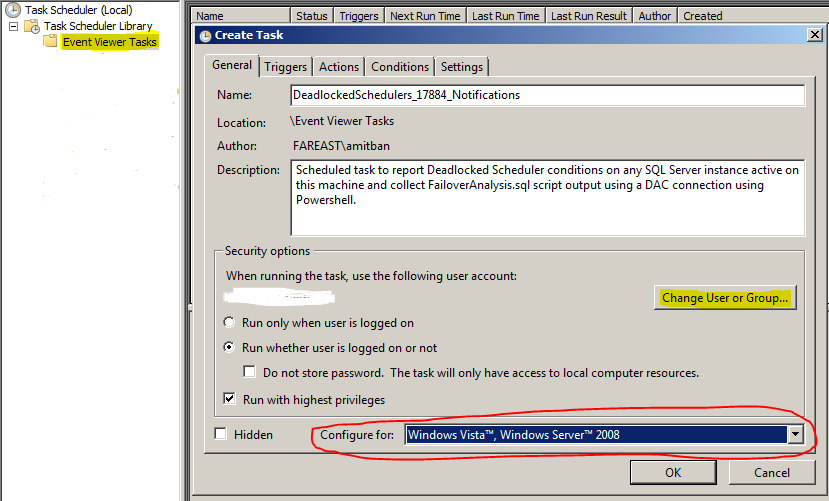
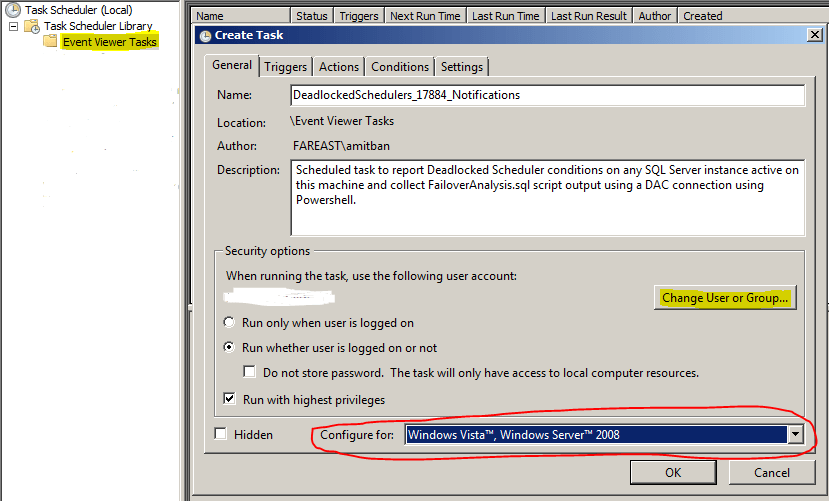
1. Open the Task Scheduler MMC using Start –> Administrative Tools –> Task Scheduler to get the Task Scheduler UI. Right click on Event Viewer Tasks and click on Create Task (see screenshot below). Provide the appropriate settings, description and name. The salient points to keep in mind here are:
a. Use the Change User or Group option to provide an account which has permissions to log into the SQL Server instance(s) to gather the output of the FailoverAnalysis.sql script.
b. You can use the Configure for drop-down box to configure the task for Windows Server 2003 as well.image
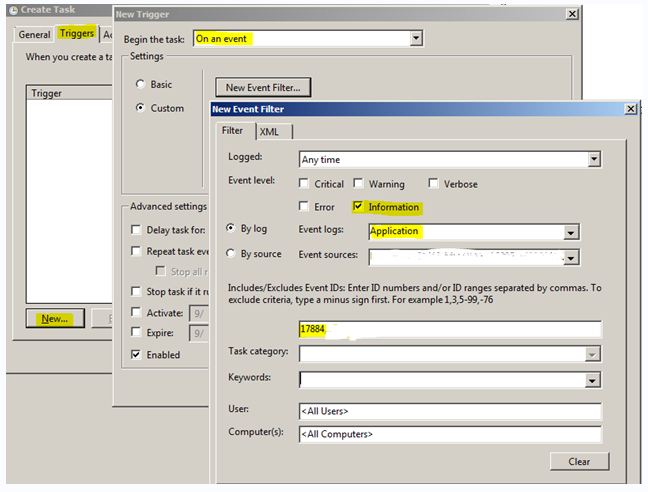
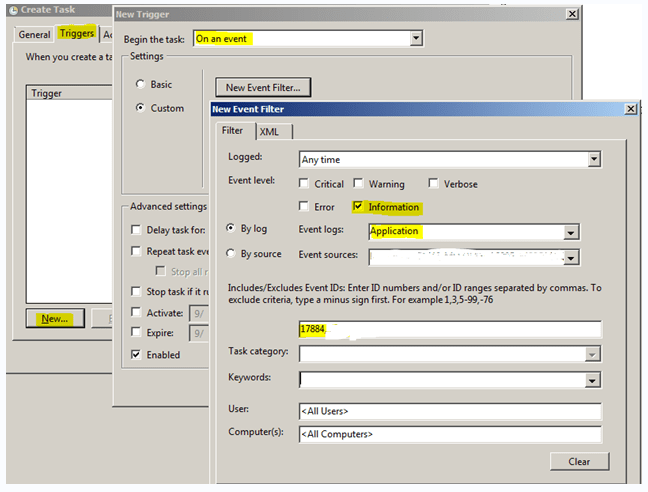
2. Next click on the Triggers tab. Click on New, which will open the New Trigger dialog box. Use the Begin the Task drop down box to select On an event option (see screenshot below). Then select the Custom radio button and click on New Event Filter button which will open the New Event Filter dialog box. Provide the options as shown by the highlighted items in the screenshot. In the event sources drop down list, I selected all the SQL Server instances installed on my server. You can choose to leave the default option in case you plan to install more instances on this server. Using the default option can be beneficial if you choose to export this task to other servers as well. Provide the Advanced Settings option in the New Trigger dialog box. I chose to Stop task if it runs more than 30 minutes. Once that is done, you should see new trigger entry in the Trigger tab as On an Event with a custom event filter and the status as enabled.image
3. Under the Actions tab, click on New. Select Start a Program from the Action drop-down box. In the Program/script text box, provide Powershell.exe. In the Add arguments (optional) text box, provide the following: -File “F:\DeadlockSchedulerMonitor.ps1”. Or you can choose to provide a .cmd file path whose contents are “Powershell.exe -File “F:\DeadlockSchedulerMonitor.ps1” > F:\DeadlockSchedulerMonitorLog.txt”. I went with the second option. F: drive root is where my .ps1 script and .cmd file are present. You would need to modify this accordingly depending on where your script is. Once that is done, your action tab should be similar to the screenshot below.

image

4. I used the default settings for the Conditions and Settings tab. You can modify this as appropriate for your environment.

Once the task is created, all you need is for a 17884 condition to occur for the script output to be generated.

Let’s see the configuration in action

image

I simulated a 17884 condition on my SQL Server instance, see if the newly created task gets fired. (see above Application Log snippet). Looking into the F: drive, I find that the following files were created

20119212197_<sql instance name>_FailoverAnalysis.OUT
201192121918_<sql instance name>_FailoverAnalysis.OUT

The reason I have two files is that this is a two NUMA node box, and the deadlock schedulers condition was reported for both nodes. Note that this script reports first occurrence which is reported at 60 seconds since the message text snippet that is used to fetch the event from the Application log specifically looks for the 60 seconds keyword.

NOTE: You can monitor for 17888 events using the following message text instead of the one used above in the script for 17884 script and create a new task for the same. Message text: *appear deadlocked due to a large number of worker threads waiting*

What next?

Well with automation the possibilities are endless… Some of the quick things that come to my mind are:

1. You can create an event subscription and use the Forwarded Events log to track all 17884 from different servers which have SQL Server instances installed on them.
2. You can modify the powershell script to perform additional post processing or send out email notifications to your DBAs for the occurrence of such events.
3. You could even add additional post processing to the Powershell script to perform additional tasks.

If you have SCOM or any other Event log monitoring software, the only thing that you need to do is setup a custom alert for 17884 or 17888 error messages.

Have fun monitoring and customizing further!

Reference:

Understanding and Using PowerShell Support in SQL Server 2008
Windows Server 2008 Event Subscription with Task Scheduling

Disclaimer: This script and the solution provided is “AS IS” and any deployment that you do using a similar logic described requires due-diligence and testing on your part. The testing that I did for this was on Windows Server 2008 R2 & SQL Server 2008 R2.

Getting the Default Data and Log path using PowerShell

I remember a while back being asked about a way to fetch the Default Data and Log path for a SQL Server instance. This information is present in the registry keys and the keys are created only if you modify the default paths to a path other than the SQLDataRoot path using which the SQL instance was installed.

So I thought I would put together a quick post to fetch this information using a Powershell script. The function takes in the instance name as the parameter value. Note that for a default instance, the instance name is MSSQLServer.


############################################################

# Author: Amit Banerjee

# Information: Finds out default data and log file paths for a given SQL Server instance

############################################################

Function fnGetDefaultDBLocation

{

Param ([string] $vInstance)

# Get the registry key associated with the Instance Name

$vRegInst = (Get-ItemProperty -Path HKLM:"SOFTWARE\Microsoft\Microsoft SQL Server\Instance Names\SQL" -ErrorAction SilentlyContinue).$vInstance

$vRegPath = "SOFTWARE\Microsoft\Microsoft SQL Server\" + $vRegInst + "\MSSQLServer"

# Get the Data and Log file paths if available

$vDataPath = (Get-ItemProperty -Path HKLM:$vRegPath -ErrorAction SilentlyContinue).DefaultData

$vLogPath = (Get-ItemProperty -Path HKLM:$vRegPath -ErrorAction SilentlyContinue).DefaultLog

# Report the entries found

if ($vDataPath.Length -lt 1)

{

$vRegPath = "SOFTWARE\Microsoft\Microsoft SQL Server\" + $vRegInst + "\Setup"

$vDataPath = (Get-ItemProperty -Path HKLM:$vRegPath -ErrorAction SilentlyContinue).SQLDataRoot + "\Data\"

Write-Host "Default Data Path: " $vDataPath

}

else

{

Write-Host "Default Data Path:" $vDataPath

}

if ($vLogPath.Length -lt 1)

{

$vRegPath = "SOFTWARE\Microsoft\Microsoft SQL Server\" + $vRegInst + "\Setup"

$vDataPath = (Get-ItemProperty -Path HKLM:$vRegPath -ErrorAction SilentlyContinue).SQLDataRoot + "\Data\"

Write-Host "Default Log Path: " $vDataPath

}

else

{

Write-Host "Default Log Path:" $vLogPath

}

}

fnGetDefaultDBLocation "MSSQLServer"

T-SQL Tuesday #20 Wrap-up and a few smiles

I had the privilege of hosting this month’s T-SQL Tuesday which is a recurring blog party, the brainchild of MVP Adam Machanic (blog|twitter). It goes without saying that the posts this time were a wonderful read and it’s very encouraging to see such brilliant engagement from the community. A big “thank you” to all the people who took the time to pen down a post for this month’s topic: “T-SQL Best Practices”. If you are a newcomer to the world of T-SQL or a seasoned pro, the insights shared in these posts are definitely a good read if you work with SQL Server.

Below is a round-up of all the posts from this month (in chronological order of comments appearing on my invitation post):

1. Jason Bacani [Blog | Twitter] writes about why T-SQL formatting is best as well as good practice and makes it easier for the person supporting the code that you have written. I feel motivated on working on the code only if I like looking at it.

2. Rob Farley [Blog | Twitter], a popular SQL Server MVP, talks about why understanding query plans can help in writing better and more efficient T-SQL code. Totally agree with Rob here and from experience I can say that this goes a long way in writing efficient T-SQL code.

3. Dirk Wegener [Blog] talks about why including comments to explain your code logic and reiterates why T-SQL formatting is important in his first T-SQL Tuesday post. Way to go Dirk and we look forward to your participation in the future.

4. Noel McKinney [Blog | Twitter] talks about coding best practices which are quite pertinent in today’s development world. I completely agree that everything shouldn’t be done through T-SQL. Sometimes exploring other avenues may be the right answer!

5. Pinal Dave [Blog | Twitter], a friend and now a colleague at Microsoft, talks about practices that can be avoided in environments generally and not just from a T-SQL perspective.

6. Thomas Rushton [Blog | Twitter] talks about coding best practices, some of which is generally applicable to the world outside T-SQL as well. Absolutely loved the quote at the end of your post!

7. Rich Brown [Blog | Twitter] shows with an example how a developer managed to get into trouble by using an ORDER BY construct for an INSERT statement.

8. Sebastian Meine [Blog | Twitter] shows why an interface layer is required between the application and database. This is quite difficult to achieve due to various reasons (some of it maybe just ignorance sometimes) but if you can pull it off, it really does save a lot of time during a post-deployment crisis scenario.

9. Muthukkumaran Kaliyamoorthy [Blog | Twitter] talks about a list of DOs and DON’Ts while writing T-SQL code.

10. Nick Haslam [Blog | Twitter] talks about how multiple database files can help improve throughput of your DML queries for large data warehouse with the help of some TPC-H test numbers that he shares in the same post.

11. Marcos Freccia [Blog | Twitter] talks about a recent performance problem he resolved by avoiding an implicit convert operation in the query plan with the help of a small change in his T-SQL query. An example of how following best practices can help performance.

12. Matt Velic [Blog | Twitter] talks about best practices to follow while writing T-SQL code from a readability, formatting and code clarity standpoint. Supporting and fixing a code is much faster if it’s easy to read!

13. Robert Matthew Cook [Blog | Twitter] shows how not following simple best practices led to a cascading effect where a stored procedure failed to execute. He goes the extra mile to explain why the issue happened!

14. Erin Stellato [Blog | Twitter] explains why following T-SQL coding standards and adding comments to your code can help save painful hours of searching and brain-wracking during the time of a crisis.

15. Josh Feierman [Blog | Twitter] talks about what can be done in the current scheme of things with the business angle kept in mind. And what he talks about in his post are ground realities and what can be done to counter them to make us efficient in what we do without having sleepless nights while handling a critical issue.

16. Aaron Bertrand [Blog | Twitter], a popular MVP, talks about some of the best practices that should be followed while writing T-SQL code. He provides examples on what kind of issues you could run into when such practices are not followed.

17. Jack Vamvas [Blog | Twitter] gives an example and shows how filtered indexes come to the rescue when T-SQL code which doesn’t follow best practices cannot be tuned due to support and license agreements.

18. Gabriel Villa [Blog | Twitter] talks about T-SQL coding best practices which would help in better management of the code base in the post-deployment phase. This would definitely lead to less consumption of aspirins for the team managing and supporting the code.

19. Nancy Hidy Wilson [Blog | Twitter] talks about adding proper comments to your T-SQL code in a crisp and concise post.

20. Ricardo [Blog | Twitter] re-iterates why comments in the code are necessary but they necessarily don’t need to be short stories. Additionally, he mentions about testing the T-SQL code to ensure that it works in production and not just on the Development box that you are using it write the code on. The post is in Spanish but Bing Translate helped me read the English version of the post and I did have a smile on my face while reading through it.

21. Colleen Morrow [Blog | Twitter] explains with an example why using functions in the predicate of a T-SQL query can be bad karma for your code.

22. Carlos Bossy [Blog | Twitter] explains in his post why T-SQL code made to function in a procedural manner is not probably the best approach.

23. Jes Borland [Blog | Twitter] shares her top three T-SQL best practices and how keeping it simple is the best idea!

Once again, my sincere thanks to all the SQL folks that contributed to this month’s T-SQL Tuesday! And also, my thanks to Adam for letting me host this virtual blog party for this month!

Since a major part of my daily job involves troubleshooting SQL Server performance related issues, I do come across T-SQL code which from a best practices standpoint has a lot to be desired. So, I would say that the next few lines are my 2 cents from what I have seen based on my experience but I ‘m afraid it’s going to turn out to be a $1 worth of rambling!

1. If your company has established coding standards/formats, follow them – This helps keep consistent across the board and the standards and formats were put in place majority of the time with a good intention in mind. If there aren’t any defined, then define a set for yourself and follow them!
2. Use some form of source-control – It could be as simple as adding comments in the procedure code itself. It really saves time and helps blood pressure levels stay normal when trying to find out why a small change in the code was made and when, which is the current cause of the performance bottleneck!
3. Add comments/description to your code – I am yet to come across a production application which has a single person in-charge of the production, support, maintenance and version upgrades. Your code more often than not will be supported and maintained by someone else. Help that person understand why that piece of code is there and what is it supposed to do. What is obvious to you may not be obvious to someone else. So, rather than having a DBA curse you at an unearthly hour, mention (a single line is sufficient most times) why a best practice was not followed.
4. T-SQL is not the answer for everything – There are some things that can probably be done much better through code in some other language like C#. Don’t be afraid to explore such an option. At the end of the day, SQL Server is a database platform and NOT an application server. (*ducks and runs*)
5. It doesn’t hurt to look under the hood – It’s not necessary to know how the query optimizer works or how to read a query plan or even how indexes should be designed for tables for writing T-SQL code. But if you did understand some of this if not a majority of it, you will find that you end up writing much more efficient T-SQL code than you used to when you didn’t know some of under-the-hood workings of the database engine.

Do not misunderstand the above points to mean that I write the best T-SQL code can be written. All I am trying to say is that write T-SQL code which is easy to read, decipher and support! Even then as a Developer you might not become a DBA’s best friend overnight but you would have taken a giant step in getting there and bridging that chasm that exists between the two worlds! Smile

While reading Thomas Rushton’s [Blog | Twitter] submission this month I came across the quote mentioned below. Going forward, this is going to be my punch-line when I talk about best practices. If you are one of those individuals where a visual aid helps, then the above picture should probably aid in following best practices while writing T-SQL code.

Always code as if the person who ends up maintaining your code is a violent psychopath who knows where you live.

*courtesy Jeff Atwood (blog|twitter)

In case you want to keep getting updates on what is happening on my blog, then you can do so using one of the icons below (Facebook page, Twitter or RSS Feeds).

Facebook Fan PageTwitterRSS Feeds

Disclaimer: I have provided the correct links to your blog, twitter accounts and posts to the best of my knowledge. In case there are discrepancies, please leave a comment and I shall make the necessary corrections. Such an error was purely unintentional!