How to log into an Azure VM using a Microsoft Account

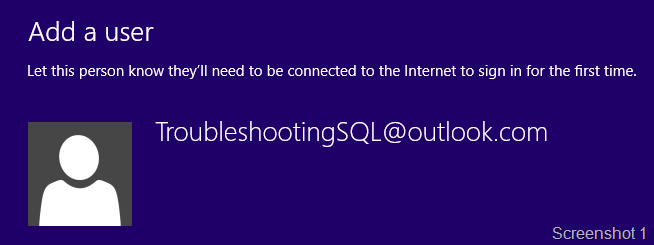
I recently deployed a Windows 8.1 VM in Microsoft Azure. I now needed to add my Microsoft account as an Administrator to my VM. This seemed like a simple enough task, right! I added the user to the list of users on the VM and then made the user an admin. When I attempt to log into my VM using my @outlook.com (Microsoft) account, I get a logon failed.
image

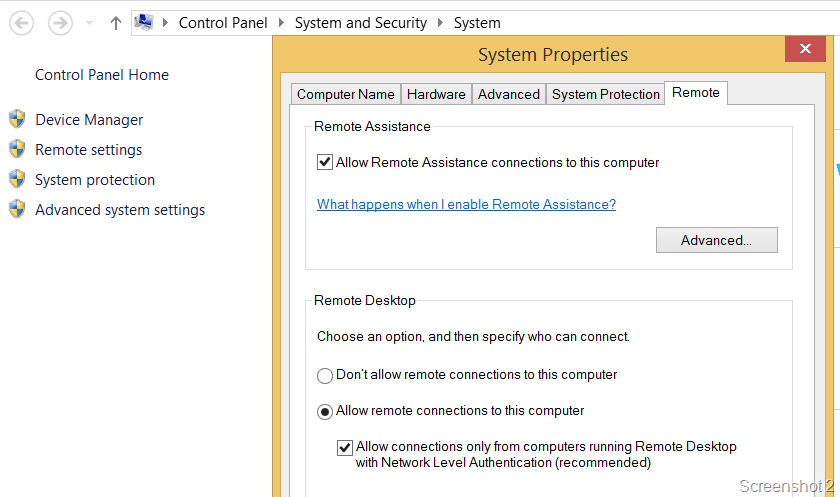
You actually need to make a few changes in the VM to allow remote connections. Go to Settings –> PC Info –> Remote Settings on the VM and uncheckAllow connections only from computers running Remote Desktop with Network Level Authentication (recommended)“. See Screenshot 1.
image

imageAfter that connect to the VM from Microsoft Azure Portal again, download and save the RDP file. Edit the RDP file and replace “prompt for credentials:i:1” with “enablecredsspsupport:i:0“. After the change, the RDP file should look like what you see in screenshot 3. Save the RDP file and use that to login into the VM. You will be able to log into the VM and now you can choose the account that you had added above (see Screenshot 4). image

Once you have logged in, you can checkAllow connections only from computers running Remote Desktop with Network Level Authentication (recommended)” option which you had disabled earlier. Once you do that, you will need to do the exact opposite action. Edit the RDP file and replace “enablecredsspsupport:i:0” with “prompt for credentials:i:1“.

Once you do the above, you will be able to log into your VM with MicrosoftAccount\email address as user name in the remote desktop dialog.

Reference:

http://visualstudio2013msdngalleryimage.azurewebsites.net/windowsclient.htm
Creating a Client VM on Azure for testing

I had recently blogged about setting up a SQL Server environment on Microsoft Azure for testing purposes. With the availability of Windows 7 and Windows 8.1 images, developers and testers could take advantage of deploying the applications to these Azure VMs for testing without having to create or setup new machines in their environments. Deploying Windows 7 and Windows 8.1 Enterprise clients to Microsoft Azure is now available for MSDN subscribers.

When you attempt to create a new Virtual Machine, the Wizard will offer you a choice of picking a virtual machine from a Gallery . imageThe gallery has a pre-created set of images which you can use to create your virtual machine and can save you time from additional post-setup configurations. I am looking to create a Windows 8.1 machine which comes in two flavors:

a. Windows 8.1 Enterprise (x64)

b. Windows 8.1 Enterprise N (x64)

I chose Windows 8.1 Enterprise x64.

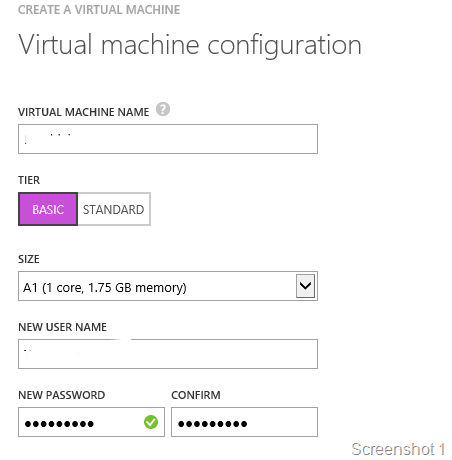
In the virtual machine configuration page, I provided the details for the VM like the machine name, user account  as seen in the Screenshot 1. I picked an A1 size configuration (Basic) for the client. This can obviously be extended at will at a later time.

On the next configuration page, I used an existing cloud service that I had and picked the pre-created storage account for hosting the VHDs. Creating a storage account is not mandatory as the wizard for creating a VM will create a randomly named storage account for you. However, I do not like have entities named with weird alphanumeric sequences which is why I chose to pre-create the storage account.

In the next configuration screen, I picked the VM Agent (enabled by default) and the Microsoft Antimalware which is in Preview (see Screenshot 2). image

Now you have a virtual machine created in a few minutes which is ready for testing.

If you need to install additional software for testing, then install it on the virtual machine by establishing a remote desktop connection to the Azure VM. Once your post-deployment steps are complete, capture an image of the virtual machine. This can be done using the Capture option available in the Azure Management portal by highlighting the VM instance that you want to capture the image of! Once the image is captured, it will be available under the Images tab under Virtual Machines in the Azure Management portal. This however has a caveat! The image is created in the same container where your VM VHD is stored. Subsequent captures of the VM are stored in the same Storage Account. If you do not want this behavior, then you will need to use the Create Image wizard available in the Images tab. This is something that I will show in another blog post.

image

Reference

Deploying Windows 7 and Windows 8.1 Enterprise Clients to Microsoft Azure Available for MSDN Subscribers

Azure VM Image

Setting up SQL Server on Azure for testing

I recently had the need for testing out a setup program which installs database components, integration services packages and reporting services reports. Setting up a machine like this would be really quick if you have Hyper-V installed and a VHD already pre-created with a SQL Server image. What if you do not have that handy and need to carry out your testing. This is what Microsoft Azure Virtual Machines comes to the rescue.

I used my Azure subscription to create a virtual machine for my testing. In this blog post, I will walk you through the steps for setting up a SQL Server virtual machine for testing purposes!

Continue reading

A full house–We could not have asked for more

The turnout at today’s event had an overwhelming response today. A big thank you to everyone who attended today’s event. An overwhelming response… So thank you everyone who attended and made this UG meeting a grand success! This was our very own version of introducing SQL Server 2014 to the SQLBangaloreUG community!

We had a brilliant line-up of topics… Just to re-cap the day.. Here is a short summary..

The day started off with a keynote session from Anupam Tiwari who is Business Program Manager and closely works with the team that supports developer technologies at Microsoft. He talked about where IT as we know it today is headed tomorrow.

Sourabh Agarwal [Blog | Twitter] covered the performance enhancements in SQL Server 2014 and explained why this version is bigger, faster and stronger! Smile

Then I had the opportunity of explaining the new enhancements in backup and restore in SQL Server 2014. I talked about backing up to a URL i.e. a storage account in Azure, managed backups to Azure and encrypted backups. The slide deck from today’s presentation is available below.

This was followed by Pinal Dave’s [Blog | Twitter] session on “Performing an effective Presentation” One key takeaway from this session is that the art of story-telling can weave out a presentation which can keep the audience hooked! He demonstrated this during his session and kept the audience awake after lunch! Smile

Then we had Balmukund Lakhani [Blog | Twitter] talking about InMemory Enhancements with SQL Server 2014. You can follow his SQL Server 2014 learning series to gain in-depth insights into the various enhancements that he talked about.

His session was followed by Vinod Kumar [Blog | Twitter] who talked about the Some more lesser known enhancements with SQL Server 2014 where he talked about managed lock priority, delayed durability and more.

And last but not the least was Kane Conway – (Support Escalation Engineer at Microsoft) who talked about Power Packed – Power BI with SQL Server. If you have not played around with PowerBI, then you should start now! Presenting data with compelling visualizations just got a new definition.

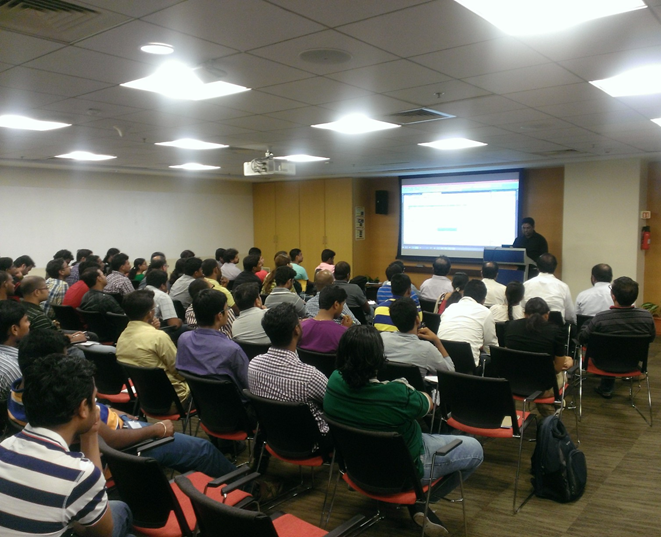
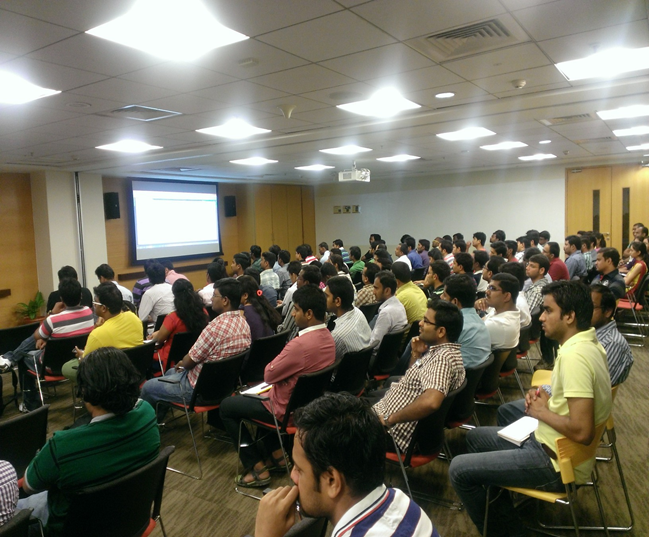
image image

It was a house full event and I had to put in two pictures to showcase the turnout today! It is not possible to have a successful event without the audience participation. We personally want to apologize to folks who came in late and had to return because the hall was overcrowded and the seats were full. Please do come in early for next UGs for sure.

A special thanks to Microsoft GTSC for giving us the space and the support till date. Also a special thanks to SQL Server Product Marketing team for sponsoring this Launch Event. Finally, a special thanks to team Pluralsight for supporting the UG till date and giving us numerous gifts as giveaway at the event.

The presentation that I used at the event today is available below:

March Architect Innovation Cafe Webcasts-Register Today!


image

March 25, 2010 at 1:00pm – 2:00pm EST

Title: Extending Your Sites Reach with IE8 Add On Features

Abstract Today’s users are getting more sophisticated and they expect more features from the sites and services they use. In this session learn about how to implement low effort, high value add-ons that expand your sites reach and bring value to your customer base .

Link to Register: https://swrt.worktankseattle.com/webcast/4240/preview.aspx

Presenter:
Jim Cirone
Architect Evangelist, Microsoft

Jim Cirone is an Architect Evangelist with Microsoft’s Developer and Platform Evangelism team. He joined the DPE team 3 years ago after spending 10 years in Microsoft’s services group architecting and delivering complex solutions. In his current role he is focused on new and emerging web technologies.

March 26, 2010 at 1:00pm – 2:00pm EST

Title: Windows Azure Design Patterns

Abstract: One of the challenges in adopting a new platform is finding usable design patterns that work for developing effective solutions. The Catch-22 is that design patterns are discovered and not invented. Nevertheless it is important to have some guidance on what design patterns make sense early in the game.

This webcast attacks the problem through a set of application scenario contexts, Azure features and solution examples. It is unique in its approach and the fact that it includes the use of features from all components of the Windows Azure Platform including the Windows Azure OS, Windows Azure AppFabric and SQL Azure. In this webcast you will learn about the components of the Windows Azure Platform that can be used to solve specific business problems.

Link to Register: https://swrt.worktankseattle.com/webcast/4241/preview.aspx

Presenter:
Bill Zack
Architect Evangelist, Microsoft

Bill Zack is an Architect Evangelist with Microsoft. He comes to this role after serving as a Solutions Architect in the Financial Services Unit of Microsoft Consulting Services. His experience includes developing, supporting and evangelizing .NET/SOA based frameworks used to jump-start development projects for financial services companies.

Stay Connected:

clip_image002 clip_image004clip_image006