There are multiple instances where you might need to collect a dump for a process which generates an Access Violation or just setup a crash rule for an application that crashes and that doesn’t generate a dump to investigate further. So today I am going to
  demonstrate a way to capture a crash dump of a process using the Debug Diagnostic Tool. The example shown here can be extended to SQL Server as well. Once you launch the Debug Diagnostic Tool, you will notice that the tool has 3 different tabs namely Rule, Advanced Analysis and Processes.
I am now going to walkthrough setting up of a Crash Rule for an EXE called DebugDiag_CrashRule.exe which I had written to generate an Access Violation and then no exception handler written in the code which would result in a termination of the EXE.
The steps that you can use to setup the Crash Rule are:
1. Use the Rule tab and click on the Add Rule button. Select the option “Crash” in the Select Rule Type window and click on Next. (see screenshot on the left)
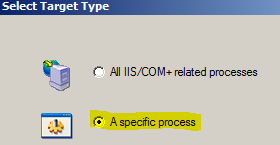
2. Then select “A specific process” option in the Select Target Type window and click on Next. (see screenshot on the right)
3. Next you are presented with an option to select a process from the list of active processes.  I gave the process name in the Selected Processes text-box and didn’t select the “This process instance only” option. If you select this option, then the monitoring will be setup for only the particular instance that you have selected. If left unchecked, then the monitoring will be setup for any instance of the process spawned on the machine. (see screenshot on the right). Click on Next after you have given the appropriate process name or selected the process ID.
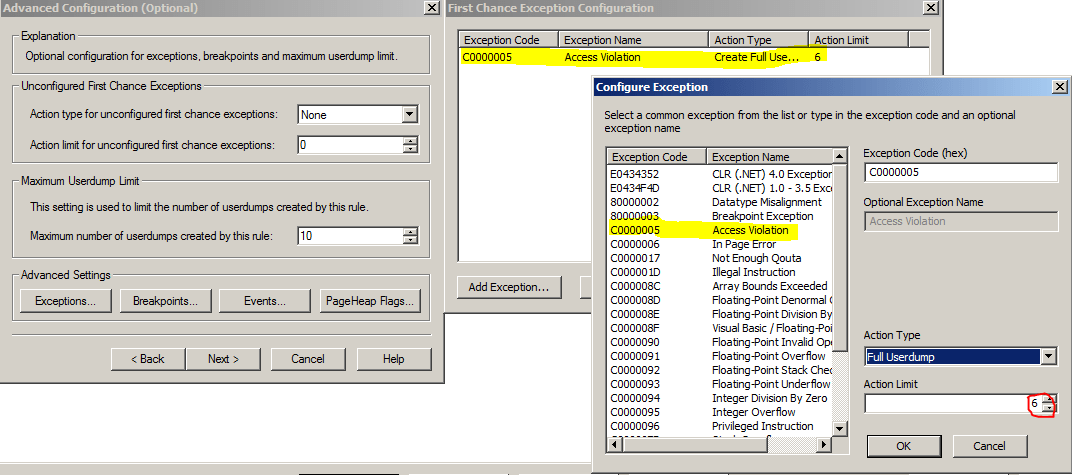
4. In the next screen “Advanced Configuration”, I clicked on the Exceptions button which lets you configure actions for First Chance Exceptions for the process being monitored. Click on the Add Exception button on the First Chance Exception Configuration window. Select Access Violation for the exception name and for the Action Type, select Full User Dump. The Action Limit that I have set in this case is 6 which means that after 6 dumps captured by this rule, no further dumps will be generated. This is a good way of limiting the number of dumps that will be generated for the process that you are monitoring. Notice that that Action type for unconfigured first chance exceptions is set to None. This means that for any first chance exception that is generated apart from the one that you have configured, no action will be taken by the rule. (see screenshot below).

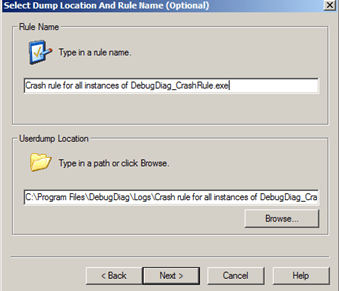
5. Next you get the “Select Dump Location and Rule Name” window where you can changed the rule name and the location of the dumps generation. By default the dumps are generated at <Debug Diagnostic Install Path>\Logs\<Rule Name> folder. (see screenshot on the left)
6. In the last window, use the Activate option to enable the rule.
Now that the rule is active, when I launch my EXE, I can find that the Being Debugged column has the value “Yes” for DebugDiag_CrashRule.exe under the Processes tabs. I launched my application once and this generated 2 dumps. The Rules tab will show you the rule configured, status of the rule and the number of dumps captured by the rule and the location of the dump. (see screenshot above)
Now that the data is captured, the tool allows you to perform Crash Analysis using the Advanced Analysis tab. Using the Analyze Data button, you can analyze the dump files together and get a HTML report of the dumps captured. The Analysis of the dumps generated should be done on a non-production machine to prevent an overhead of downloading symbols and performing the analysis. The symbol search path can be provided using the Tools –> Options and Settings –> Folders and Search Path tab. The symbol search path would be: SRV*<local folder>*http://msdl.microsoft.com/download/symbols. A local folder is always good to have so that the symbols used are cached locally if required later. This prevents having to connect to the Microsoft Symbol Server everytime you analyze a dump.
This is what I see in the DebugDiag_CrashRule__PID__3576__Date__05_24_2011__Time_12_59_56AM__612__First Chance Access Violation.dmp file. It tells me that Thread 0 generated the dump. As you can see in the screenshot below, the report gives you the call stack as well. The Exception information shows that an Access Violation was raised while trying to write to a memory location by a sprintf function called by the DebugDiag_CrashRule EXE.
Exception Information
In DebugDiag_CrashRule__PID__6476__Date__05_24_2011__Time_12_08_12AM__341__First Chance Access Violation.dmp the assembly instruction at msvcr100!vcwprintf_s+2f07 in C:\Windows\System32\msvcr100.dll from Microsoft Corporation has caused an access violation exception (0xC0000005) when trying to write to memory location 0x3f9721d0 on thread 0
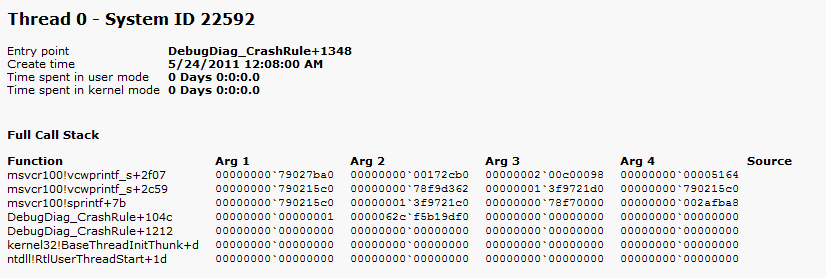
The HTML report has a similar output for the DebugDiag_CrashRule__PID__3576__Date__05_24_2011__Time_12_59_57AM__647__Second_Chance_Exception_C0000005.dmp file as well. An additional file DebugDiag_CrashRule__PID__3576__Date__05_24_2011__Time_12_59_56AM__612__ProcessList.txt is also generated which contains a list of processes running on the machine when the dump was generated. All the reports are saved in the <Debug Diagnostic install path>\Reports folder by default.
Hope this makes it easier to capture crash dumps for processes which are terminating without giving you much information in the Windows event logs or the logs generated by the application. This is a tool that is commonly used by CSS to configure crash rules on a machine and capture crash dumps.
Once you have collected the required data, you can go to the Rules tab, right click on the rule and click on De-activate rule. Once the rule status shows up as Not Active, you can choose to remove the rule by right-clicking on the rule and selecting the Remove Rule option.
The Debug Diagnostic Tool v1.1 available on the Microsoft Downloads site doesn’t have a x64 version which lets you configure rules and monitor processes for Windows Server 2008/R2/Windows 7/Windows Vista. The 64-bit version of the tool only has Advanced Analysis option. The Debug Diagnostic Tool v1.2 available from here has a 64-bit download (Beta version) which allows to configure rules and monitor processes for Windows Server 2008/R2/Windows 7/Windows Vista.
TIP: Let’s talk about a quick tip about taking dumps of a SQL Server process using Debug Diagnostic tool. In case you find that your SQL Server process is hung and you cannot log into the SQL instance using Dedicated Administrator Connection (DAC) or don’t have DAC enabled for the instance, then you can take a mini-dump using the Processes tab.
Steps
1. Click on the Processes tab.
2. Right-click on the process name sqlservr.exe. If you have multiple instances, you can identify the correct instance using the Active Services column which will give you the instance name. (see screenshot below)
3. Right-click on the process name, click on Create Full Userdump or Create Mini Userdump option to generate a full or mini memory dump of the selected process. The dump location will be default location configured for the dump under Tools –> Options and Settings –> Folders and Search Path tab –> Manual Userdump Save Folder. By default it is <Debug Diagnostic install path>\Logs\Misc.
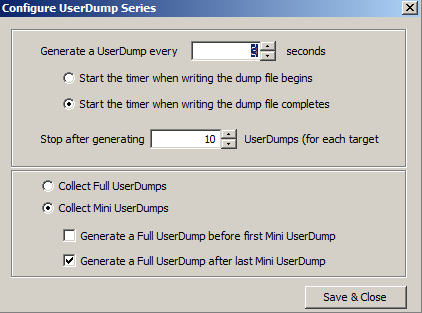
 You might also encounter a situation where you are required to take a dump of a process every n seconds/minutes. This can be done by right clicking on the process name and selecting the Create Userdump series… option. This will give you a window with the set of options as seen in the screenshot on the left. As you can see, it lets you configure a number of options for the process namely:
1. Time interval between each dump created
2. When to start the timer, before or after the dump file writing completes.
3. When to stop generating the dumps
4. Whether to collect Full or Mini dumps
5. Option to collect a single Full user dump when a Mini-dump series is created for a process before or after the series is completed.
Tess Ferrandez [Blog], an Escalation Engineer in CSS, also has a pretty detailed blog post on how to setup a crash rule for ASP.NET applications.
Note: For a 64-bit process (eg. 64-bit SQL Server instance) which has a large process address space, it would be advisable to configure a User Mini Dump as the Exception action instead of a full-user dump. When a dump file is generated, the process threads are frozen to take a snapshot. For a large dump generation on a system with a slow Disk IO, you might end up with SQL outages and on a cluster it can result in a failover during the dump generation period.