
SQL PASS Summit 2012

If you follow SQL Server related hashtags on Twitterverse, then you are already aware of the tweets that have been helping in the building of the SQL PASS Summit being held at Seattle from November 6-9. Rest assured that there will be a flurry of tweets originating from the Washington State Convention & Trade Center starting from Tuesday. And the reason for the excitement is coupled by the fact that I shall be present in person rather than following the event via Twitter or a streaming video session!

You might have already read the various blog posts doing the rounds on the net on why you should attend and what you can look forward to. I shall give you my 2 cents on why I think this is really worth a SQL Server professional’s time.

First and foremost, you will very rarely find the majority of the SQL Server brains in the world gathered under a single roof for a period of three days discussing and exchanging ideas about what you deal with everyday i.e. SQL Server. The session’s line-up will re-emphasize what I just said! Some of the best speakers in the industry will talk about various topics on SQL Server and you stand to gain a wealth of knowledge by just attending these sessions.

I have interacted with a lot of folks on Twitter regarding SQL Server related queries and it would be a great opportunity to connect faces to the Twitter handles that I am familiar with. Networking is one of the key components in SQL PASS and whether you want to or not, you will end up making acquaintances and even friends during the course of the three days (four if you are attending the Pre-Cons). Networking and interacting with the SQL Server community is the biggest motivation for me to attend PASS!

I always love to discuss SQL Server at any given opportunity and I will be available at the SQL Server Clinic on all three days. So feel free to walk up with your queries! Remember no question is a bad question! You don’t know till you don’t ask! You will get the opportunity to discuss your SQL Server related queries with some of the most experienced SQL Server engineers and members of the SQL CAT team)…. So feel free to walk by the clinic. The SQL Server Clinic timings are as follows:

•Wednesday

◦7:00am-8:00am (Early Birds)

◦10:00am – 6:15pm

•Thursday

◦7:00am-8:00am (Early Birds)

◦10:00am – 6:30pm

•Friday

◦7:00am – 2:00pm

We will be in 4C-3 which will be across from the Expo hall and on your way to the meal hall.

The Microsoft CSS team will also be delivering sessions at PASS. So don’t miss out on those. Bob Ward [B|T] will be delivering another session titled Inside SQL Server 2012 on November 7th: 1:30 pm – 4:30pm. Don’t miss that! For more details on what the CSS team will be upto at PASS, read the post by Adam Saxton [B|T] (yes, he is also delivering sessions).

Hope to see you there!

Psssstt… We shall try to get Bob’s Twitter followers to cross Adam’s… So start following Bob if you are not already doing so!!

Creating custom XEvent Templates

SQL Server 2012 added the Extended Events UI which made working with Extended Events session much easier. You no longer need to chalk up lengthy T-SQL scripts to spawn off your Extended Events monitoring session. The UI also provides you an option to view the collected data and perform groupings and aggregations for easier analysis.

The templates that you see while configuring an Extended Event session are located at “C:\Program Files (x86)\Microsoft SQL Server\110\Tools\Templates\sql\xevent“. When you export an Extended Events session, you will be given an option to export the Session as a Template to the following folder: “C:\Users\<user name>\Documents\SQL Server Management Studio\Templates\XEventTemplates“. The template is always exported as an XML file. Now when you create a new Extended Event Session, you will see the template under the user templates section in the templates view as shown in the screen shot below:

You can now choose to create as many templates as you want for your monitoring purposes. However, the template files have to be deposited in the above mentioned location so that Management Studio can show them to you while creating an Extended Events session.

The above blog post is a manifestation of a seemingly simple question asked by Naman Vadhera yesterday while he was exploring the Extended Events UI option.

Reference: http://msdn.microsoft.com/en-us/library/ms174169.aspx

System Health Session and beyond

I had blogged extensively about System Health Session available in SQL Server 2008 and above. I had also demonstrated how the System Health Session can be used in conjunction with SQL Server Management Studio reports in previous series that I ran on my blog.

System Health Session Dashboard Reports for SQL Server 2008 and SQL Server 2008 R2 – A set of reports available for SQL Server 2008/SQL Server 2008 R2 which provide visualizations for the events tracked by the System Health Session. The reports can be used using the custom reports option in SQL Server Management Studio.

System Health Session Dashboard – Shows the basic information of the information that can be fetched from the System Health Session.

System Health Session Dashboard — sp_server_diagnostics and more – A look into the different issues tracked by the sp_server_diagnostics script and how to build visualizations using that information.

System Health Session Dashboard – sp_server_diagnostics – The basics of what is covered by the sp_server_diagnostics procedure and how to build visualizations on top of the data captured.

System Health Session Dashboard – Error Summary Report
– Shows information on how to write queries to fetch information about various errors tracked by the System Health Session. Shows information tracked by the enhanced System Health Session in SQL Server 2012.

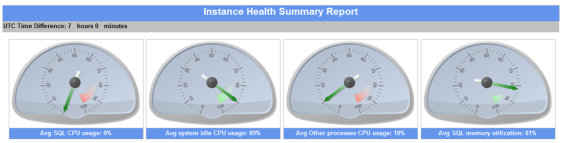
System Health Session Dashboard – Health Summary Report
– Gives you information about the SQL Server instance health like CPU usage, memory etc. A screenshot of the report is shown below:

I have added UTC time formatting so that the time is shown in the same time zone based on the server on which you are viewing the report.

I will keep updating this post once I keep updating with the new reports. As usual, feedback is always welcome.

The report definitions (.rdl) can be downloaded from here.

Awesomesauce: Finding out missing sequences

Another of those #sqlhelp inspired posts. This was around ways to track down missing numbers in a sequence table. This task can be done in multiple ways and as I like to say that there are multiple ways to skin a cat! However, this blog post is about using the new T-SQL enhancements in SQL Server 2012 to figure out missing sequential numbers. I will demonstrate this using an example.

I have a table tblsequences which has two integer columns with the primary key being an int datatype. I did some random inserts into the table. The script below can be used to find out missing sequential numbers in an identity column or an integer column which is supposed to store sequential values.


-- Replace starting value with minimum starting value and increment for your sequence
-- Replace the table name with the table name that you are interested in
declare @startvalue int = 1, @increment int = 1
;with cte as
(
select a,(a-lag(a,1) OVER (ORDER BY a)) as MissingSequences
from tblsequences
)
select a, (MissingSequences/@increment)-1 as MissingSequences
from cte
where MissingSequences > @increment
union all
select TOP 1 MIN (a),
CASE (MIN(a)- @startvalue)/@increment
when 0 then null
else (MIN(a)- @startvalue)/@increment
end as MissingSequences
from tblsequences
group by a
order by a

The output is as shown below in the screenshot. You will notice that the first column reports the primary key value and the MissingSequences column reports the number of missing sequential values lesser than the value in the first column. You will need to make the necessary changes to the two scripts shown in this blog post so that the tables you want analyzed are done so.

image

Next, lets talk about Sequences which is a new feature in SQL Server 2012. I created a new sequence using the a start value of 10 and an increment value of 3.

I used the Sequence which was created for generating OrderID values in two different tables. Now we are posed with an interesting problem. I have two different tables in which I want to compare missing sequence numbers. This can be done with T-SQL code below.


-- Replace schema name, table name(s) and sequence name as appropriate
declare @startvalue int = 1,@interval int = 1, @seqname sysname = 'TestSeq', @schemaname sysname = 'dbo'
select @startvalue = TRY_CAST(TRY_CAST(start_value as varchar(255)) as int),
@interval = TRY_CAST(TRY_CAST(increment as varchar(255)) as int)
from sys.sequences
where name = @seqname and [schema_id] = (select [schema_id] from sys.schemas where name = @schemaname)

if (@startvalue IS NOT NULL and @interval IS NOT NULL)
begin
;with cte as
(
select OrderID,(OrderID-lag(OrderID,1) over (order by OrderID)) as MissingSequences
from
(select OrderId as OrderID
from tblTestSeq
union all
select OrderId as OrderID
from tblTestSeq_2) A
)
select OrderID, (MissingSequences/@interval)-1 as MissingSequences
from cte
where MissingSequences > @interval
union all
select TOP 1 OrderID,
CASE (MIN(OrderID)- @startvalue)/@interval
when 0 then null
else (MIN(OrderID)- @startvalue)/@interval
end as MissingSequences
from tblTestSeq
group by OrderID
order by OrderID
end
else

else
begin
PRINT 'CAST FAILED'
end


The logic used is the same as the logic when we were looking for missing sequences in identity/integer columns described in the first half of the post. However, since sequences can be used for one or more tables, I have used a UNION query to get all the columns together which use the same sequence object. The second result set of the output in the screenshot below shows the tables involved along with the sequential OrderIDs. As you can see below, there are 4sequence numbers missing  10, 13, 16 and 28. The first result set reports exactly that by notifying that there are 3 sequence ids missing lesser than 19 and 1 sequence number missing lesser than 31.

The output of the above T-SQL script is shown in the screenshot below.

image

Another way how T-SQL enhancements in SQL Server 2012 can make your life easier.

Happy T-SQL coding and a have a great weekend!

Moving those large files for secondary databases

I remember seeing a question on the #sqlhelp hashtag on how to move the secondary database files to a new physical location. While this might seem a mundane task but can throw up a few surprises. If you don’t want to tear down your log shipping configuration and re-establish it with the files in the new physical location, then this post will definitely interest you.

If you are running your log shipping in standby mode, you will first need to switch to norecovery mode. This is due to the fact that you cannot execute an ALTER DATABASE command on a standby database as it is not writable. You will be presented with a following error if you attempt to do so:

Msg 5004, Level 16, State 4, Line 1
To use ALTER DATABASE, the database must be in a writable state in which a checkpoint can be executed.

So to avoid the above issue, you need to switch to norecovery mode. If you are already running in this mode, then you have one task reduced from your list. Keep in mind that the switch of the operating mode takes effect only after the next log restore operation.

Now here are the exact set of steps that you need to follow:

1. Disable the Log Shipping Restore SQL Agent job.
2. Use ALTER DATABASE command to change the location of the secondary database files
3. Stop the SQL Server instance hosting the secondary database files
4. Move the secondary database files to the new location as updated in Step #1. (OS File Copy)
4. Start the SQL Server instance
5. Enable the Log Shipping Restore SQL Agent job

Verify that the log shipping jobs are running without any errors. The reason you need to stop the SQL Server instance is because an ALTER DATBASE…OFFLINE doesn’t work when the database is in RESTORING state. You will be blocked by the following error if you attempt to set the database offline:

Msg 5052, Level 16, State 1, Line 1
ALTER DATABASE is not permitted while a database is in the Restoring state.
Msg 5069, Level 16, State 1, Line 1
ALTER DATABASE statement failed.

Hope the above helps in moving the database files of the secondary databases which are configured for log shipping. The steps mentioned above works for both data and log files.