System Health Session and Deadlocks

I had blogged about retrieving deadlock related information using the default Extended Event session which runs by default on all SQL Server 2008 instances and above. However, once you have retrieved the XML deadlock graph, it could be quite cumbersome to read if the deadlock happens to be complex or involves multiple nodes. I frequently require the need to fetching the information about past deadlocks from the System Health Session data while working on customer environments. Due to the frequent repetitive nature of the data collection, I decided to automate this task.

I again decided to use a combination of Powershell and T-SQL to extract this information. The Powershell script (TransformtoXDL.ps1), which requires Powershell 2.0 or above, uses a T-SQL script (TransformtoXDL.sql ) to extract data from the System Health Session and outputs each individual deadlock graph as a separate .XDL file into a folder of your choice with the timestamp of the occurrence of the deadlock. Note that the time reported will be in GMT timezone.

The powershell script accepts two parameters: vServername for the SQL Server instance that you want to extract the data from and the vPath for the folder into which the XDL files should be saved into.

.\TransformToXDL.ps1 -vServername "<server name>" -vPath "C:\Tempdb\"

Yes… I have a folder called Tempdb on my C: drive!! Smile

A sample output is shown in the screenshot below:

image

The Transact-SQL script called TransformtoXDL.sql does the following:

1. Extracts the System Health Session data into a temporary table
2. Based on the version of your SQL Server instance, it performs the parsing to extract the deadlock graph. This script accounts for issues mentioned in KB978629. I would like to thank Michael Zilberstein [B] for the proposed corrective action on an issue that Jonathan Kehayias [B|T] had blogged about.
3. The last action that the script takes is to perform XML modification to get the XML deadlock data in the same format which is recognized by SQL Server 2012 Management Studio when viewing XDL files.

The powershell and T-SQL script can be downloaded here.


#    Script Name: TransformToXDL
#    Author: Amit Banerjee
#    Date: September 6, 2012
#    Description:
#    The script reads the deadlock graphs from the System Health Session
#    Ring Buffer and parses them to create an individual deadlock graph
#    in a folder of your choice.
#    Usage: .\TransformToXDL.ps1 -vServername "INST1" -vPath "C:\Tempdb\"
# This Sample Code is provided for the purpose of illustration only and is not intended to be used in a production environment. THIS SAMPLE CODE AND ANY RELATED INFORMATION ARE PROVIDED "AS IS" WITHOUT WARRANTY OF ANY KIND, EITHER EXPRESSED OR IMPLIED, INCLUDING BUT NOT LIMITED TO THE IMPLIED WARRANTIES OF MERCHANTABILITY AND/OR FITNESS FOR A PARTICULAR PURPOSE. We grant You a nonexclusive, royalty-free right to use and modify the Sample Code and to reproduce and distribute the object code form of the Sample Code, provided that You agree: (i) to not use Our name, logo, or trademarks to market Your software product in which the Sample Code is embedded; (ii) to include a valid copyright notice on Your software product in which the Sample Code is embedded; and (iii) to indemnify, hold harmless, and defend Us and Our suppliers from and against any claims or lawsuits, including attorneys’ fees, that arise or result from the use or distribution of the Sample Code.

Param ([string] $vServername,
[string] $vPath)

cls

# Load the SQL Server snap-in for using sqlcmd cmdlet
$ErrorActionPreference = "SilentlyContinue"
Import-Module sqlps
$ErrorActionPreference = "Continue"

Write-Host "`nConnecting to SQL Server instance " $vServerName " to extract deadlock information"
# Extract the deadlock graphs and parse them in the system health session
Invoke-Sqlcmd -InputFile "C:\Tempdb\TransformToXDL.sql" -ServerInstance $vServerName

# Function to get the information from the table stored in tempdb
function Get-SqlData
{
param(
[string]$serverName=$(throw 'serverName is required.'),
[string]$databaseName,
[string]$query
)

$connString = "Server=$serverName;Database=$databaseName;Integrated Security=SSPI;"
$da = New-Object "System.Data.SqlClient.SqlDataAdapter" ($query,$connString)
$dt = New-Object "System.Data.DataTable"
[void]$da.fill($dt)
$dt

}

# Get the data stored in tempdb using the function defined above
$rows = get-sqldata $vServername  "tempdb"  "select row_id,event_time,deadlockgraph from tempdb.dbo.deadlock_graphs"

$vCount = 0
# Extract each row retrieved into an individual XDL file with the timestamp of the issue
foreach ($row in $rows)
{
if($row -ne $null)
{
$vCount++
$vFileName = $vPath + $vServername.Replace("\","_")+ "_" + $row.event_time.ToString().Replace(":","_").Replace("/","_") + ".xdl"
Write-Host "`nCreating file: "  $vFileName
$row.deadlockgraph | Out-File $vFileName
}
}

Write-Host "`nDeadlocks found: " $vCount.ToString()
Write-Host "`nPerforming cleanup"
Invoke-Sqlcmd -Query "IF EXISTS (SELECT TOP 1 name FROM tempdb.sys.objects where name = 'deadlock_graphs')
BEGIN
DROP TABLE tempdb.dbo.deadlock_graphs
END" -ServerInstance $vServerName

The above has been tested on SQL Server 2008, SQL Server 2008 R2 and SQL Server 2012. The resulting XDL files can be opened in SQL Server 2012 Management Studio. I am always looking for feedback. So please feel free to Tweet, Facebook or Email me regarding any issues or enhancements that you might need for the same.

You might want to remember that the T-SQL query used is a resource intensive query and it is preferable that you run this extraction exercise during non-business hours especially if your SQL Server instance is experiencing a large number of deadlocks.
Awesomesauce: Deprecated Features usages

SQLServer:Deprecated Features is a performance object that is available since SQL Server 2005. The number of deprecated features have definitely increased since SQL Server 2005. In SQL Server 2012, there are a number of deprecated features whose use on your SQL Server 2012 instance can be determined through the use of this performance object.

Some of the common features that you might be interested in finding out the usage are DBCC REINDEX, DBCC SHOWCONTIG, DBCC INDEXDEFRAG. Once you have found the usage of these, you can find out which application uses this by looking up the SQL Server default trace.

Example:

declare @tracename nvarchar(4000)

select @tracename = path from sys.traces where id = 1
select TextData, StartTime, EndTime, spid, ServerName, HostName, error, SessionLoginName ,ApplicationName, TransactionID
from fn_trace_gettable(@tracename,default)
where EventClass = 116
and (TextData like '%showcontig%' or TextData like '%reindex%' or TextData like '%indexdefrag%') 

Download the T-SQL script to find out the deprecated features being used on your SQL Server 2012 instance using the script below.

Script name: Deprecated_Features.sql

The above is a good way to determine the use of deprecated features and which requires a change in your SQL Server environment.

References
Discontinued Engine Features in SQL Server 2012
http://msdn.microsoft.com/en-us/library/ms144262.aspx
Deprecated Engine Features in SQL Server 2012
http://technet.microsoft.com/en-us/library/ms143729(SQL.110).aspx

Awesomesauce: Perf Dashboard on Native SSRS

I had been asked the question about using the Perf Dashboard reports from a Reporting Services instance multiple times. Though this was not the intention of launching the SQL Server Performance Dashboard Reports but there is a compelling need at times to have these accessible from a web URL. In today’s age, you will find a lot of DBAs monitor their SQL Server instances remotely. Sometimes, there is another layer of complexity added to this when they want to just look at the health of the SQL Server instance by accessing a URL exposed through a corporate server in their environment. In such cases, you wouldn’t want to jump through a few hoops of setting up your VPN connection and blah blah.

So with all that in mind, let’s talk about how you can get your SQL Server 2012 Performance Dashboard to your existing SQL Server Reporting Services instance.

  • First you need to create a new Reporting Services Project using SQL Server Data Tools (SSDT).
  • Use the solution explorer to add all the existing performance dashboard reports from the C:\Program Files (x86)\Microsoft SQL Server\110\Tools\Performance Dashboard folder.
  • Modify the project properties to ensure that the data source gets written to the same folder as the reports.
  • Create a shared data source pointing to your SQL Server instance.
  • Open each report that was imported into the project and modify the data source properties to use the shared data source that you created in the above step.
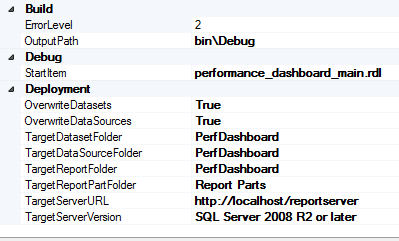
  • Modify the project deployment properties as shown below.

image

Now you are ready to deploy your Performance Dashboard SSRS project to your reporting services instance.

What can you do next?

You can now set up Report Server subscriptions for the set of reports that you wish to receive via email. You can get a status report of your SQL Server instance without even having to lift a finger and that to right in your mailbox! Smile

Note that Performance Dashboard is a tool which is provided “AS-IS” by Microsoft. The steps mentioned above will help you deploy the existing Performance Dashboard reports to a SQL Server Reporting Services instance. However, the failure to deploy these reports as mentioned above is not liable for support by Microsoft SQL Server Support team.

SQL Feature Discovery Script

As part of my work, I very frequently have to collect information about the various database engine features that are currently being used on a particular SQL Server instance. Sometimes, this requires me to write T-SQL scripts to fetch the required information. I had updated my initial data collection script some time back and this gave me the idea to write up another set of T-SQL queries to fetch the information for the database engine features in use.

The script collects a bunch of information which are categorized under the following headings:

1. General Server Configuration
        Server Info
        Non-default sp_configure settings
        Server Settings
        Active Trace Flags
2. Replication Configuration
        Replication Publishers
        Merge Replication Publishers
        Replication Subscribers
        Replication Distributors
3. Full-text enabled databases
4. Linked Servers
5. SQL Agent information
6. Databases
        Database information
        Database file information
7. Server Triggers
8. Policy Based Management
9. Resource Governor
10. Database Mail
11. Log Shipping
12. Database Mirroring
13. SQL CLR Assemblies
14. sp_OA* procedures

Usage

  1. Download the script using the link given at the bottom of the page and save it to a file named SQL_DISCOVERY.SQL. Open the script file in a SSMS Query Window.
  2. Press CTRL+SHIFT+F so that the output results are put into a file. Doing this will not produce a message or any other notification.
  3. Execute the script and specify SQL_DISCOVERY.html as the output file name so that we can get the output in the require HTML format.
  4. Once the script is completed, open the HTML file.

Script download: image

If you have any feedback about the script or feel any new additions to the existing data that is being captured, please feel free to leave a comment!

Technorati Tags: ,,

SQLDIAG and SQL Server 2012

SQLDIAG is a data collection utility that is used for collecting T-SQL script output, perfmon data and profiler traces in a consolidated manner. This allows the database administrators for collect a single output without having to configure multiple data collection utilities for capturing the required data.

SQLDIAG has been shipping with the SQL Server product since SQL Server 2005. Now the reason I am writing this post is to talk about a specific issue that you can encounter when you already have a previous version of SQLDIAG installed on your machine along with SQL Server 2012.

Using the command below I am trying to execute a SQLDIAG data collection using a specific SQL Server 2012 SQLDIAG configuration file. The command that I used was to specify the output folder and the default SQLDIAG configuration file available at C:\Program Files\Microsoft SQL Server\110\Tools\Binn\SQLDiag.XML:

C:\>sqldiag /O "F:\Temp\SQLDIAG Output" /I "C:\Program Files\Microsoft SQL Server\110\Tools\Binn\SQLDiag.XML"

The output that I got was:

SQLDIAG Output path: F:\Temp\SQLDIAG Output\

SQLDIAG Invalid SQL Server version specified.  SQL Server version 11 is not supported by this version of the collector

SQLDIAG . Function result: 87. Message: The parameter is incorrect.

The reason for the above issue is that my environment PATH variable has the path for a previous version of SQLDIAG listed before the path of the SQL Server 2012 SQLDIAG. My path variable has the directory “C:\Program Files\Microsoft SQL Server\100\Tools\Binn\” listed before “C:\Program Files (x86)\Microsoft SQL Server\110\Tools\Binn\” which is the default location of the SQLDIAG utility. The PATH variable is updated with the SQL specific directories during a SQL Server installation. In my case, I have a SQL Server 2008 R2 instance installed on my box. So the configuration file which specifies a data collection for a SQL Server 2012 is failing because I am using a SQLDIAG from a SQL Server 2008 R2 installation.

If I executed the following command, then my SQLDIAG initialization will work correctly:

"C:\Program Files\Microsoft SQL Server\110\Tools\Binn\sqldiag.exe" /O "F:\Temp\SQLDIAG Output" /I "C:\Program Files\Microsoft SQL Server\110\Tools\Binn\SQLDiag.XML"

To summarize, you need to full qualify your SQLDIAG executable path when collecting SQLDIAG data from a machine which has multiple versions of SQLDIAG installed on the machine.