Report Server Analytics with PowerPivot

I recently needed to query report execution statistics for a SQL Server Reporting Services instance where the number of rows were quite large. So I decided to use Excel 2013 and PowerPivot to analyze the data. This would allow me to directly pull all of the data into an Excel sheet and then perform analysis on the extracted data without having to query the Report Server database repeatedly.

The first thing to do is to create a connection to your Report Server database table. That can be done using the PowerPivot tab in Excel 2013. Click on the Manage button (Screenshot 1).

image

Once you are PowerPivot window, you will need to establish a connection with your Report Server database. This can be done using the From Database drop-down list with the From SQL Server option (Screenshot 2).

image

Create a connection to your SQL Server instance which hosts the Report Server database using the Table Import Wizard. In the Choose How to Import Data screen, select the second option i.e. Write a query that will specify the data to import. Once you click Next, provide a friendly name for the query and copy-paste the query shown below.

 select
b.Name,a.UserName,
CASE(a.RequestType)
WHEN 0 THEN 'Interactive'
WHEN 1 THEN 'Subscription'
WHEN 2 THEN 'Refresh Cache'
ELSE 'Unknown'
END AS RequestType,
a.Format, a.InstanceName,
CASE(a.ReportAction)
WHEN 1 THEN 'Render'
WHEN 2 THEN 'BookmarkNavigation'
WHEN 3 THEN 'DocumentMapNavigation'
WHEN 4 THEN 'DrillThrough'
WHEN 5 THEN 'FindString'
WHEN 6 THEN 'GetDocumentMap'
WHEN 7 THEN 'Toggle'
WHEN 8 THEN 'Sort'
WHEN 9 THEN 'Execute'
WHEN 10 THEN 'RenderEdit'
ELSE 'Unknown'
END AS ItemAction,
a.TimeStart,a.TimeEnd,a.TimeDataRetrieval,a.TimeProcessing,a.TimeRendering,a.[Status],a.ByteCount,a.[RowCount]
from dbo.ExecutionLogStorage a
inner join dbo.[Catalog] b
on a.ReportID = b.ItemID 

Now data obtained from the query will be imported into the PowerPivot table. Now I create a new PowerView sheet in the Excel workbook. Add a new column to add the TimeDataRetrieval, TimeProcessing and TimeRendering columns so that the total report duration is available at a single glance.

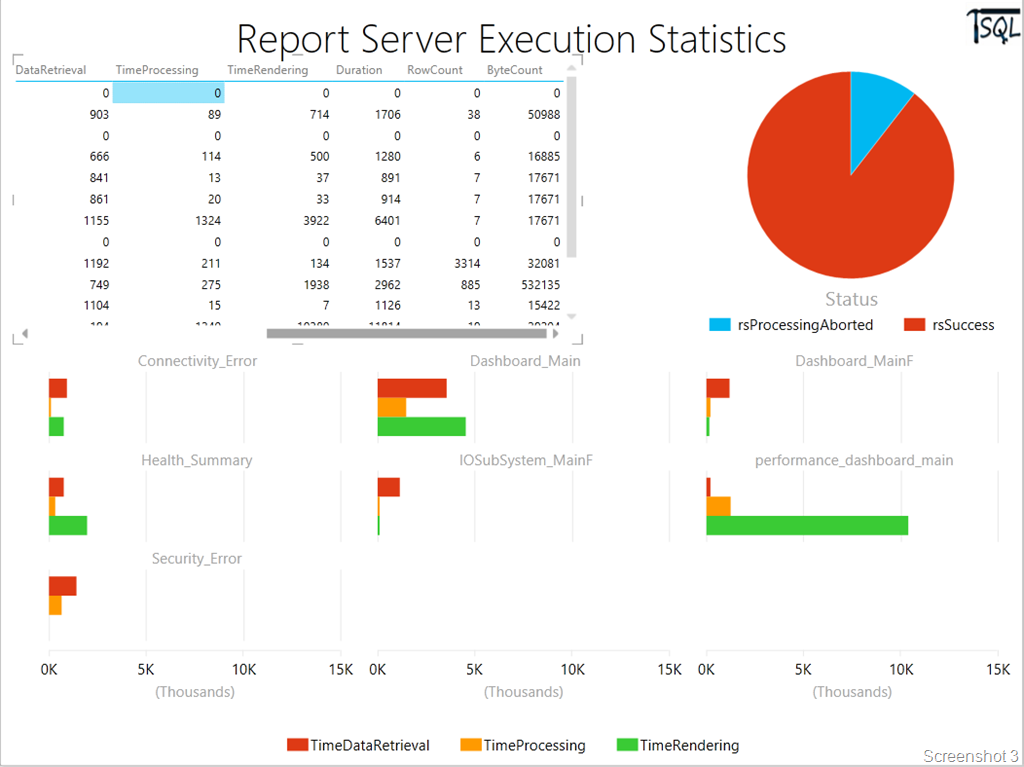
Now save the PowerPivot data and add a new PowerView Excel sheet called “Execution Stats”. This would allow you to create a view as shown in Screenshot 3.
image

Leverage PowerView’s interactive capabilities to view the Report execution statistics, the report processed status (failure or success) and the processing, rendering and data retrieval times for each report.

I have uploaded the file to SkyDrive which would allow you to connect to your own Reporting Services database and use the same report format for analysis. Stay tuned for additional PowerView sheets to give you various slicing and dicing options on report execution statistics.

Excel File Download Link: http://sdrv.ms/17ZmbK0 (Filename: SSRS_Exec_Stats.xlsx) Works with Excel 2013 only.

Twitter Hashtag analysis using Excel 2013

Recently I had written a blog post on my non-SQL Server blog on an event that was being organized world wide to raise awareness to help end violence against women. As with today’s events, the social media was used to garner support and spread the word. There was even a live twitter feed that was running for the #RingTheBell hashtag!

The campaign’s name is Bell Bajao, which in Hindi literally means Ring the Bell started with showing how domestic violence can be prevented by simply ringing the door bell.

The event at Delhi took place at the British council on 8th March, 2013. I used the Tweet Archivist service to start a Tweets archive so that I could do analysis of the tweets received after the event. The archive created can be downloaded as an Excel/CSV file.

This blog post is to show how the Power View option in Excel 2013 can be utilized for performing analysis of Tweets. Once I had the tweets exported to an Excel file, I used the Power View report option to create a new Power View report. See screenshot below.

image

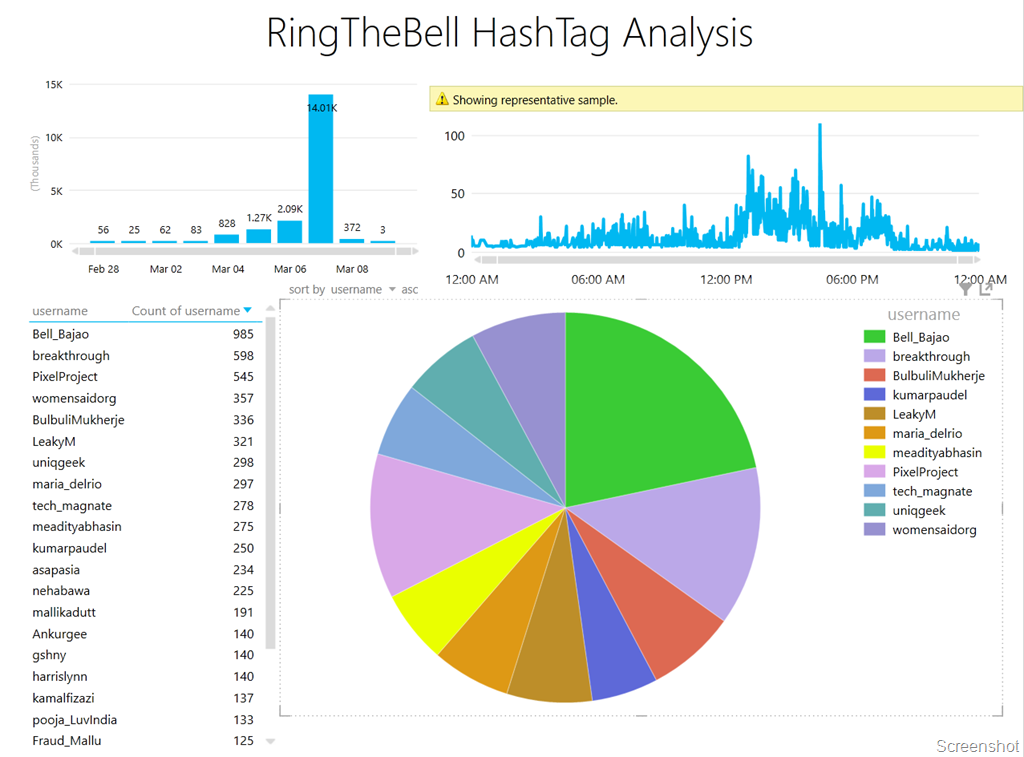
I added a bar chart, a table, a line chart and a pie chart to create a dashboard of sorts in the design area with the following properties:

1. The bar chart shows all the tweets between 28th February, 2103 to 9th March, 2013
2. The line chart shows the tweets from 6th-7th March, 2013 with a 24-hour period
3. The table shows all the users who have tweeted using this hashtag and with a tweet count of over 100.
4. The pie chart shows the percentage of tweets by each user for the period being analyzer with a tweet count over 250.

As it is clear from the above, information present in each of the four components have a different set of filters applied to them.

image
What makes it interesting is that the above report has interactivity built into it. So if I click on any one of the charts or table, the rest of the table/charts also change to reflect the data for the selection made. This is evident from the video at the bottom of this post.

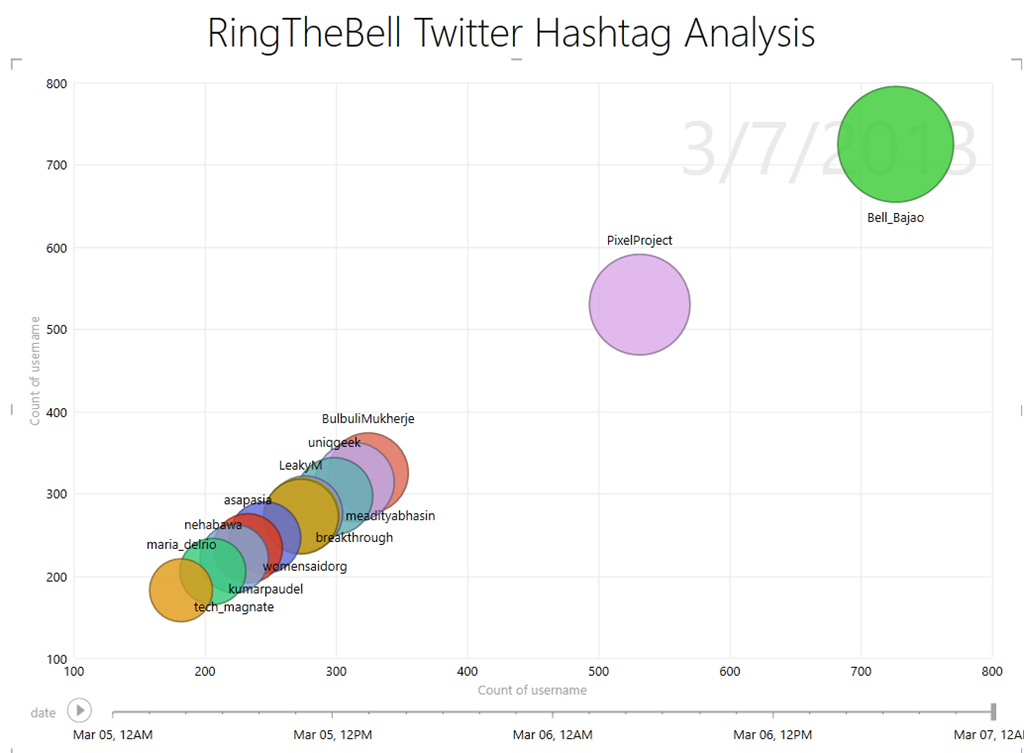
I wanted to take this a bit further, so I created a scatter graph with the Date column as the Play axis. The graph below shows me all twitter handles that have over 150 tweets over a period of three days! This allows me to see how the Twitter accounts were sharing updates/tweets prior to the event and during the event.

image

The video below shows the interactivity features of the Power View report in Excel. What you can do with such rich visualizations are endless. Just by looking at certain visual representations, it is easy to draw interesting conclusions. For example, the timeline shows me that the Bell_Bajao and PixelProject twitter handles were extremely active on the day of the event. There were others who were more silent in the days running upto the event and then started live tweeting/re-tweeting throughout the event. The TOP 5 contributors on the day of the event had a major pie of the tweets that were shared on 7th March. Within a very short time, I was able to decipher trends which would have taken me a while to dig out using traditional analysis methods!

*Note that the above times are based on the US timezone (Pacific time), which is why the 8th March event activity shows up as 7th March on the timeline.

I do know of a lot of individuals who use Twitter raw data for trend analysis. So here is a quick way to get that done with Power View and Excel 2013!

SQL Server 2012: Debugging Deadlocked Schedulers

I had blogged about debugging deadlocked schedulers earlier for SQL Server 2008 R2 and below releases. Since there have been some fundamental changes in SQL Server 2012, I thought it would be a good idea to post about debugging the same scenario on SQL Server 2012 instances.

Older posts:
Debugging Deadlocked Schedulers Part 1
Debugging Deadlocked Schedulers Part 2

Continue reading

Enabling Transactional Replication: A bit of help

Over the past few months, I have discussed the feasibility of enabling transaction replication for customer databases on various occasions. Every time I end up writing queries to answer certain questions about the database… the most common one being if the tables that need to be replicated have primary keys.

So I finally decided to write a T-SQL script which will help me answer the most common questions asked about a database while deciding on the feasibility of enabling transaction replication.

The script doesn’t capture information like workload, performance metrics etc. to decide if the replication workload (snapshot and distribution agent) can be supported on the existing hardware and resources available in the environment.

My take on the matter is that this information is required only once we have figured out if transactional replication can be enabled on the database or not. Eg. If the main tables that need to be replicated do not have primary keys, then the question of resource availability and hardware capability is moot point!

The script below checks the following:

1. Existing of primary keys on the tables in the database. Objects (articles) without primary keys cannot be replicated as part of a transactional replication publication.
2. If the database has transparent database encryption enabled. The subscriber database is not automatically enabled for TDE in such a scenario.
3. Constraints, primary keys, triggers and identify columns which have  NOT FOR REPLICATION bit set and which objects do not. You might choose to replicate or not replicate some of these objects. However, you need to be aware of what you are replicating.
4. Tables having ntext, text and image columns as there are special considerations for handling DMLs on such columns.
5. XML schema collections present in the database. Modifications to the XML Schema collection are not replicated.
6. Tables with sparse column sets as they cannot be replicated.
7. Objects created using WITH ENCRYPTION option. Such objects cannot be replicated either.

As always, in case you think that there are additional checks that could be included in the script, then please leave a comment on my blog and I will add the same into the script.

Continue reading

CScript and RunAsAdmin

I had written a script a while back which would set the TCP/IP port for a SQL Server instance. Before you start throwing brick bats at me…. Powershell was not in existence in those days and yes…. doing the same tasks in Powershell is much easier! Phew… Now let me get back to my story!

One of my colleagues told me that the script was failing due with the following error message:

SQL_PortChange.vbs(52, 1) Microsoft VBScript runtime error
: Object required: ‘objOutParams

Now the above error is not the most intuitive of error messages considering the fact the object is being assigned a value in my VBscript. With a little bit of troubleshooting, we figured out that the RunAs Administrator (it can really catch you off-guard) option was not used to launch the command prompt.

So when running such VBscripts, do not forget to use RunAs Administrator option!

Now let us look under the hood a bit! I naturally was curious as to why the access denied message was not being thrown back to the user. I used Process Monitor to trace the registry activity of cscript.exe and wmiprvse.exe which actually works in the background to perform the tasks mentioned in the VBscript. I found that there were Access Denied messages in the Process Monitor trace but they were not being bubbled up to the user (see screenshot below)!

image

As you can see above, the access denied was on the SQL Server TCP/IP registry key and the WBEM keys. Since the registry key could not be read, the object was not created. And which is why we got the weird error listed above.

I thought this would be a good issue to blog on in case some one else ran into a similar issue!