Hello HDInsight 3.1

imageMicrosoft Azure now has a Preview version of HDInsight Cluster 3.1. In this blog post, I will walk you through the setup process. When you launch the HDInsight cluster creation Wizard in the Azure Management Portal, you will need to select the Custom Create option (Screenshot 1).

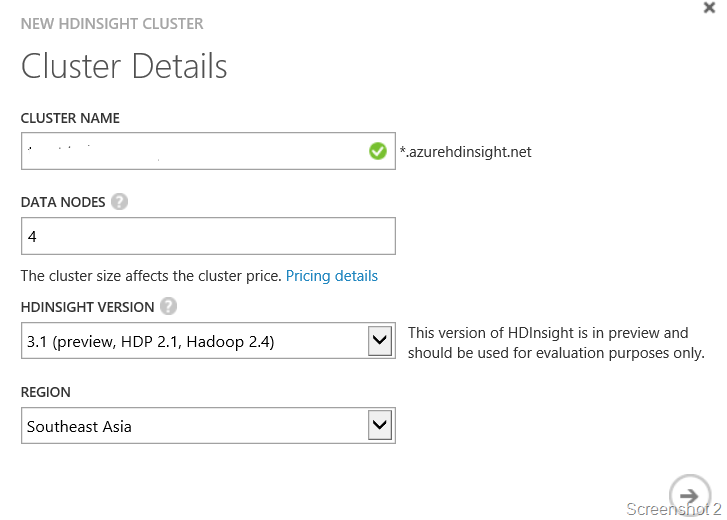
In the New HDInsight Cluster page, you will need to pick the version as 3.1 (preview, HDP 2.1, Hadoop 2.4) which is Hadoop 2.4 with HDInsight cluster version 3.1 using Hortonworks Data Platform 2.1 (see Screenshot 2). Remember to pick the region that you want.

In the next page (Configure Cluster User), you will have to assign a user name and a password which must comply with the following criteria:
an uppercase letter, a lowercase letter, a number, a special character

If you want to enable the “Enter the Hive/Oozie Metastore” option, then you will need at least one SQL database created and configured in the same data center as the HDInsight cluster.
imageThe next task is to configure the storage to host all the nodes. In the Storage Account page, you get to pick from three options:

  • Creating a new Storage Account
  • Using an existing Storage Account
  • Using a Storage Account from an existing subscription
  • imageI chose to create a new Storage Account which allowed me to specify the Storage Account name and the container name.

    Once you are providing the configuration information for your HDInsight Cluster storage, you will be on your way to create your cluster. Azure does it’s magic and voila, after a few minutes of waiting…. you will have your HDInsight cluster staring back at you in the Azure Management Portal. Looking into the configuration, I find that I have 4 data nodes and 2 head nodes (as per the configuration requested).

    Click HDINSIGHT from the left pane. You shall see the cluster created. Click the cluster name where you want to run the Hive job. Click MANAGE CLUSTER from the bottom of the page to open HDInsight cluster dashboard. It opens a Web page on a different browser tab. The URL is <cluster name>.azurehdinsight.net/Home/ where I can login using the user name and password that I created during my configuration. This URL is accessible without the Azure Management Portal as well. In the home page, I get access to:

  • Hive Editor to write and submit hive queries.
  • Job History to view the status of the jobs submitted and look into their details
  • File Browser to get a list of the files available
  • Azure HDInsight clusters are stateless so it is easy to drop and re-create a cluster. When you are not using your cluster, you could drop the cluster to save the cost especially if you are evaluating or in development phase. When you need the cluster again recreate it again.

    If you want remote desktop access to your cluster, then you will need to enable Remote Access to the Azure HDInsight using a user account which does not exist on the nodes. This means that the user provisioned in the earlier section cannot be used. The remote access can be granted to a maximum period of 7 days only!

    When you look into your storage account, you will find a large number of files in the container that you chose to host the cluster files as shown in Screenshot 3.

    Once remote access is configured and you log into the head node, you will find that the machine is a Windows Server 2012R2 node.

    C:\apps\dist\hadoop-2.4.0.2.1.3.0-1728>hadoop version
    Hadoop 2.4.0.2.1.3.0-1728

    The version information available from the command line confirms that I am on 2.4. On the desktop of the head node, I have access to three html files namely,

    • Hadoop Name Node Status
    • Hadoop Service Availability
    • Hadoop Yarn Status

    So that was quick view of what I get in the Preview. In future blogs posts, I shall share new adventures with HDInsight!

    References

    What’s new in the Hadoop cluster versions provided by HDInsight
    HDInsight Pricing Details

    Get started using Hadoop 2.4 in HDInsight

    How to log into an Azure VM using a Microsoft Account

    I recently deployed a Windows 8.1 VM in Microsoft Azure. I now needed to add my Microsoft account as an Administrator to my VM. This seemed like a simple enough task, right! I added the user to the list of users on the VM and then made the user an admin. When I attempt to log into my VM using my @outlook.com (Microsoft) account, I get a logon failed.

    image

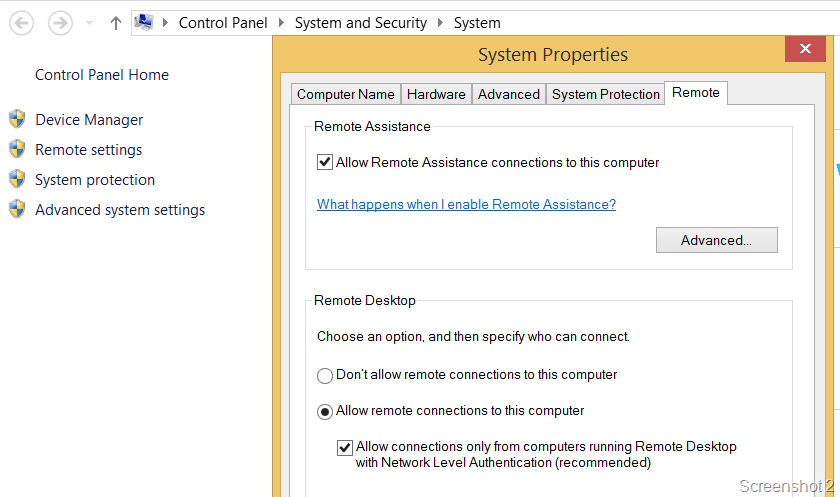
    You actually need to make a few changes in the VM to allow remote connections. Go to Settings –> PC Info –> Remote Settings on the VM and uncheckAllow connections only from computers running Remote Desktop with Network Level Authentication (recommended)“. See Screenshot 1.

    image

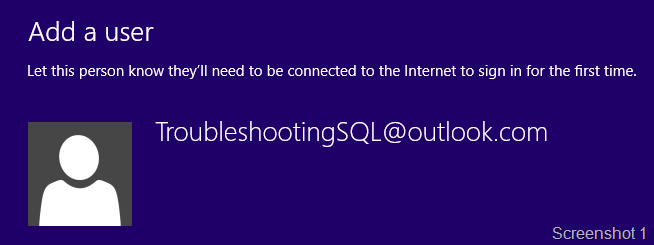
    imageAfter that connect to the VM from Microsoft Azure Portal again, download and save the RDP file. Edit the RDP file and replace “prompt for credentials:i:1” with “enablecredsspsupport:i:0“. After the change, the RDP file should look like what you see in screenshot 3. Save the RDP file and use that to login into the VM. You will be able to log into the VM and now you can choose the account that you had added above (see Screenshot 4). image

    Once you have logged in, you can checkAllow connections only from computers running Remote Desktop with Network Level Authentication (recommended)” option which you had disabled earlier. Once you do that, you will need to do the exact opposite action. Edit the RDP file and replace “enablecredsspsupport:i:0” with “prompt for credentials:i:1“.

    Once you do the above, you will be able to log into your VM with MicrosoftAccount\email address as user name in the remote desktop dialog.

    Reference:

    http://visualstudio2013msdngalleryimage.azurewebsites.net/windowsclient.htm

    Creating a Client VM on Azure for testing

    I had recently blogged about setting up a SQL Server environment on Microsoft Azure for testing purposes. With the availability of Windows 7 and Windows 8.1 images, developers and testers could take advantage of deploying the applications to these Azure VMs for testing without having to create or setup new machines in their environments. Deploying Windows 7 and Windows 8.1 Enterprise clients to Microsoft Azure is now available for MSDN subscribers.

    When you attempt to create a new Virtual Machine, the Wizard will offer you a choice of picking a virtual machine from a Gallery . imageThe gallery has a pre-created set of images which you can use to create your virtual machine and can save you time from additional post-setup configurations. I am looking to create a Windows 8.1 machine which comes in two flavors:

    a. Windows 8.1 Enterprise (x64)

    b. Windows 8.1 Enterprise N (x64)

    I chose Windows 8.1 Enterprise x64.

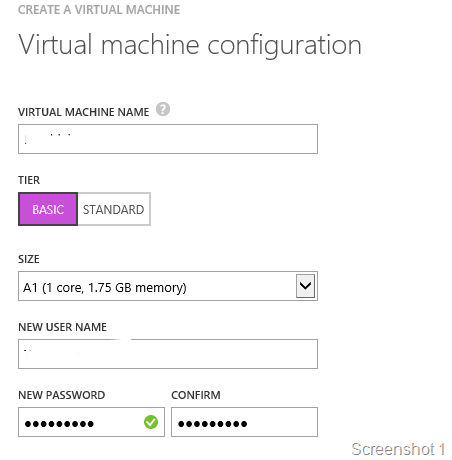
    In the virtual machine configuration page, I provided the details for the VM like the machine name, user account  as seen in the Screenshot 1. I picked an A1 size configuration (Basic) for the client. This can obviously be extended at will at a later time.

    On the next configuration page, I used an existing cloud service that I had and picked the pre-created storage account for hosting the VHDs. Creating a storage account is not mandatory as the wizard for creating a VM will create a randomly named storage account for you. However, I do not like have entities named with weird alphanumeric sequences which is why I chose to pre-create the storage account.

    In the next configuration screen, I picked the VM Agent (enabled by default) and the Microsoft Antimalware which is in Preview (see Screenshot 2). image

    Now you have a virtual machine created in a few minutes which is ready for testing.

    If you need to install additional software for testing, then install it on the virtual machine by establishing a remote desktop connection to the Azure VM. Once your post-deployment steps are complete, capture an image of the virtual machine. This can be done using the Capture option available in the Azure Management portal by highlighting the VM instance that you want to capture the image of! Once the image is captured, it will be available under the Images tab under Virtual Machines in the Azure Management portal. This however has a caveat! The image is created in the same container where your VM VHD is stored. Subsequent captures of the VM are stored in the same Storage Account. If you do not want this behavior, then you will need to use the Create Image wizard available in the Images tab. This is something that I will show in another blog post.

    image

    Reference

    Deploying Windows 7 and Windows 8.1 Enterprise Clients to Microsoft Azure Available for MSDN Subscribers

    Azure VM Image

    Setting up SQL Server on Azure for testing

    I recently had the need for testing out a setup program which installs database components, integration services packages and reporting services reports. Setting up a machine like this would be really quick if you have Hyper-V installed and a VHD already pre-created with a SQL Server image. What if you do not have that handy and need to carry out your testing. This is what Microsoft Azure Virtual Machines comes to the rescue.

    I used my Azure subscription to create a virtual machine for my testing. In this blog post, I will walk you through the steps for setting up a SQL Server virtual machine for testing purposes!

    Continue reading

    A little bit of POSH for document conversion

    This is a completely non-SQL Server post. I had to recently convert a large number of word documents into Web Archive (.MHT) format. I would not mind doing that for one or two documents but when I have over 50 documents to perform this exercise on, it could get cumbersome and monotonous! This is where PowerShell came to the rescue.

    The most common example available on the web is to convert Word documents to PDF. What I needed for the work that I was doing was a way to convert the Word documents to the Web Archive format. After a few Bing searches, I was able to determine that the Web Archive format enumeration number was 9. The following link has information about all the enumeration values: http://msdn.microsoft.com/en-us/library/office/bb238158(v=office.12).aspx

    The PowerShell script below allows you to traverse a folder, pick all the word documents in the folders recursively and then convert each of those word documents in a .MHT file with the same name in the same location.

    The script can be downloaded from OneDrive also.

    
    <#
    
    #################################################################################
        
    Script Name: ConvertToWord                        
        Author: Amit Banerjee                            
        Date: April 28, 2014                            
        
    Description:                                 
        This script takes a folder as an input and then converts the docx files present in the folder to web archive documents        
    #################################################################################
    
    This Sample Code is provided for the purpose of illustration only and is not 
    intended to be used in a production environment. THIS SAMPLE CODE AND ANY 
    RELATED INFORMATION ARE PROVIDED "AS IS" WITHOUT WARRANTY OF ANY KIND, EITHER 
    EXPRESSED OR IMPLIED, INCLUDING BUT NOT LIMITED TO THE IMPLIED WARRANTIES OF 
    MERCHANTABILITY AND/OR FITNESS FOR A PARTICULAR PURPOSE. We grant You a 
    nonexclusive, royalty-free right to use and modify the Sample Code and to 
    reproduce and distribute the object code form of the Sample Code, provided that 
    You agree: (i) to not use Our name, logo, or trademarks to market Your software 
    product in which the Sample Code is embedded; (ii) to include a valid copyright 
    notice on Your software product in which the Sample Code is embedded; and (iii) 
    to indemnify, hold harmless, and defend Us and Our suppliers from and against 
    any claims or lawsuits, including attorneys fees, that arise or result from the 
    use or distribution of the Sample Code.
    
        The enumeration for the various document types that you can save as from Microsoft Word when you use the SaveAs option
        Const wdFormatDocument                    =  0
        Const wdFormatDocument97                  =  0
        Const wdFormatDocumentDefault             = 16
        Const wdFormatDOSText                     =  4
        Const wdFormatDOSTextLineBreaks           =  5
        Const wdFormatEncodedText                 =  7
        Const wdFormatFilteredHTML                = 10
        Const wdFormatFlatXML                     = 19
        Const wdFormatFlatXMLMacroEnabled         = 20
        Const wdFormatFlatXMLTemplate             = 21
        Const wdFormatFlatXMLTemplateMacroEnabled = 22
        Const wdFormatHTML                        =  8
        Const wdFormatPDF                         = 17
        Const wdFormatRTF                         =  6
        Const wdFormatTemplate                    =  1
        Const wdFormatTemplate97                  =  1
        Const wdFormatText                        =  2
        Const wdFormatTextLineBreaks              =  3
        Const wdFormatUnicodeText                 =  7
        Const wdFormatWebArchive                  =  9
        Const wdFormatXML                         = 11
        Const wdFormatXMLDocument                 = 12
        Const wdFormatXMLDocumentMacroEnabled     = 13
        Const wdFormatXMLTemplate                 = 14
        Const wdFormatXMLTemplateMacroEnabled     = 15
        Const wdFormatXPS                         = 18
    
    #>
    
    # Replace with the correct folder path
    # Remove the -recurse option if you only want to convert the documents in the first level folders
    # Retrieve the list of documents
    $Files = Get-ChildItem "C:\Windows\*.docx" -recurse 
    
    foreach ($File in $Files)
    {
        # Create the name of the new document
        $Name = $File.FullName.replace(“docx”,”mht”)
        
        if (Test-Path $Name)
        {
            # Check if the file already exists
            # If it does then do not do anything
            Write-Host "Skipping conversion for " $Name  
        }
        else 
        {
            # Save the file as a web archive if it does not exist
            Write-Host "Creating file " $Name
            ConvertToMHT $File.FullName
        }
    }
    
    # Function to convert the file
    function ConvertToMHT ($FileName)
    {        
        # Create a word document object
        $Word=NEW-OBJECT –COMOBJECT WORD.APPLICATION
        # Open the word document
        $Doc=$Word.Documents.Open($FileName)
                
        # Replace with appropriate document format type using the enumeration provided above in the comments
        # Save the document in the required format in the same location
        [ref]$SaveFormat = "System.Object" -as [type]
        $Doc.saveas([ref] (($FileName).replace(“docx”,”mht”)),  [ref]9)
        # Quit word after closing the document
        $Doc.close()
        $Word.Application.Quit()
    }


    Reference:
    http://blogs.technet.com/b/heyscriptingguy/archive/2013/03/24/weekend-scripter-convert-word-documents-to-pdf-files-with-powershell.aspx