Installing the SQL Server Cloud Adapter Service

The Cloud Adapter is a stateless, synchronous service that receives messages from the on-premise instance of SQL Server. This service is required when you are deploying a database from your on-premise SQL Server instance to a SQL Server deployed on an Azure Virtual Machine.

Cloud Adapter is supported with SQL Server 2012 and higher. On SQL Server 2012, the Cloud Adapter for SQL Server requires SQL Management Objects.

For your SQL Server 2012 installation, you will need the SQL Server Cloud Adapter to be installed. This is available for download from the SQL Server 2014 Feature Pack. The filename that you need to download is SqlCloudAdapter.msi.

When you try to install this on your Azure VM, you might end up with the error message below:

Service cannot be started. System.IO.FileNotFoundException: Could not load file or assembly ‘Microsoft.SqlServer.SqlEnum, Version=12.0.0.0, Culture=neutral, PublicKeyToken=89845dcd8080cc91’ or one of its dependencies. The system cannot find the file specified.
File name: ‘Microsoft.SqlServer.SqlEnum, Version=12.0.0.0, Culture=neutral, PublicKeyToken=89845dcd8080cc91′
   at Microsoft.SqlServer.Management.CloudAdapter.Service.CloudAdapterService.ReadConfigurationParameters()
   at Microsoft.SqlServer.Management.CloudAdapter.Service.CloudAdapterService.OnStart(String[] args)
   at System.ServiceProcess.ServiceBase.ServiceQueuedMainCallback(Object state)

The above error message clearly states that the version number that the installer is looking for is SQL Server 2014 i.e. version = 12.0.0.0. You can install this assembly when Microsoft® SQL Server® 2014 Shared Management Objects (SharedManagementObjects.msi) is installed from SQL Server 2014 Feature Pack.

Reference:
Cloud Adapter for SQL Server
http://msdn.microsoft.com/en-us/library/dn169301.aspx

Configuring the Azure VM for SQL Server connectivity

In the last SQL Bangalore UG meeting, I had talked about how to use the Custom Scripting component in Azure to run the post configuration operations on an Azure VM which was hosting a SQL Server instance. The post configuration options that I am going to talk about in this post are necessary for you to be able to connect to your SQL Server instance on an Azure VM from a Management Studio running on your on-premise machine.

Before you can connect to the instance of SQL Server from the Internet, the following tasks must be completed:

  • Configure SQL Server to listen on the TCP protocol and restart the Database Engine.
  • Open TCP ports in the Windows firewall.
  • Configure SQL Server for mixed mode authentication.
  • Create a SQL Server authentication login.
  • Create a TCP endpoint for the virtual machine. This would normally be done while providing the endpoint configuration if you are using the Azure Management Portal wizard.

If you had used an Image from the Image gallery, then you will get a default database engine installed with the TCP/IP port configured as 1433. I had written a post earlier which walks through an Azure VM creation using a SQL Server image from the image gallery.

Here I am going to talk about how to automate the bulleted points mentioned above using PowerShell and the Custom Script extension that the Azure provides. This is going to be a long read… So I suggest you get a coffee before you start reading further!

Continue reading

August SQLBangalore UG Meet: It was a cloudy day

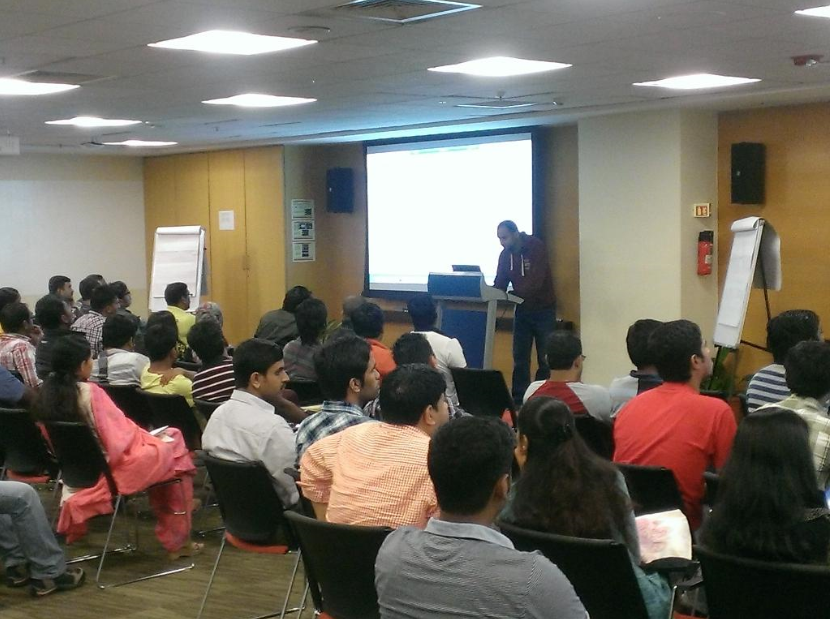
imageI am always amazed by the turnout on Saturdays for the SQLBanglaore UG Meetings. This time around it was an all Azure day where we had four sessions talking about different features that Azure offers.

The first session as about Machine Learning by Govind. He showed us how Machine Learning can make the machines smarter. It doesn’t mean that the machines are taking over but they can become your assistants with a bit of training. He went on to demo what Azure Machine Learning (in Preview) has to offer in this space.

This was followed by Angshuman’s session on Azure Redis Cache (in Preview). It gives you access to a secure, dedicated Redis cache, managed by Microsoft. A cache created using Azure Redis Cache is accessible from any application within Microsoft Azure.

The next session by Pranab was on the Smart Backup Feature in SQL Server 2014 which allows you to backup your SQL Server databases directly to Windows Azure Storage accounts. This enables you to pull down those backups for restore from anywhere in the world!

I had the last session and I was the one who was standing between attendees and their lunch! Not an enviable position to be in on a Saturday afternoon! This time around I had attempted to do things a bit differently. I started with the demo and moved onto my presentation. I used a video from PowToon to create a story line for provisioning a SQL Server virtual machine in a short span of time! That is available below. Lately, I have been using animation videos for a few of my presentations. And the view below is the one that I used for this session.

The presentation that I had used for my session is available below:

If you want the PowerShell script which performed the magic after creating the Azure SQL VM, you can from the files section of the SQLBangalore Facebook Group. Look forward to further posts on this blog detailing additional possibilities for that script.

Once again, a big THANK YOU to all the attendees as without them, these sessions will never be a success!

If you want to get notified about future posts, then you can follow me on one of these channels: Facebook | Twitter or simply subscribe to this blog (Available in the side-bar on the left).

Remapping the temporary drive on an Azure VM

There might be explicit requirements from an application standpoint which requires the D: drive to be available. While re-mapping your application to use another drive may be a very simplistic suggestion, it might not be viable in a certain scenarios. If you have used an Azure Virtual Machine, it is made clear in various articles that the temporary drive i.e. the D: drive should not be used. In this blog post, I shall show you how to re-claim that the letter D from your Azure Virtual Machine and assign that to another drive that might be craving for this particular letter of the English alphabet.

Azure VM Disk Management The first thing that you will need to do is assign a new data disk or an existing data disk to your Azure VM if you do not have a spare disk. This can be accomplished easily from following the steps mentioned here.

Once you have initialized the disks, your disk management view should be something similar to what you see in Screenshot 1. The temporary disk shows that it hosts the Page File. Remapping this first requires you to move the page file to a new disk or some other data disk that was already present on the server. You will have to reboot the machine for the  changes to take effect.

Once the machine is back up, change the drive letter mapping from Disk Management.

Change the page file settings to use the temporary storage but this time the drive letter would be a different one. Once you reconfigure the page file settings, you will need to reboot the virtual machine again.

When the virtual machine is finally online again, you will have your desired drive letter mapping. As you can see in Screenshot 2, the page file and my temporary storage is now the Z: drive where as the D: drive is assigned to a data drive.

Azure VM Page File Changed

Chasing the Ghost Cleanup in an Availability Group

Because read operations are mapped to snapshot isolation transaction level, the cleanup of ghost records on the primary replica can be blocked by transactions on one or more secondary replicas. The ghost record cleanup task will automatically clean up the ghost records for disk-based tables on the primary replica when they are no longer needed by any secondary replica. This is similar to what is done when you run transaction(s) on the primary replica. In the extreme case on the secondary database, you will need to kill a long running read-query that is blocking the ghost cleanup. Note, the ghost clean can be blocked if the secondary replica gets disconnected or when data movement is suspended on the secondary database. This state also prevents log truncation, so if this state persists, we recommend that you remove this secondary database from the availability group.

The above is a snippet from the official Microsoft documentation for Availability Group Secondary Replicas under the limitations and restrictions section.

So a transaction on a secondary replica can block an operation on a primary replica… Hmm.. Now that smells like a mystery!

Before I go further, let me explain what Ghost Cleanup does. Let me give you the official text from the Books Online.

Deletes operations from a table or update operations that cause a row to move can immediately free up space on a page by removing references to the row. However, under certain circumstances, the row can physically remain on the data page as a ghost record. Ghost records are periodically removed by a background process. This residual data is not returned by the Database Engine in response to queries.

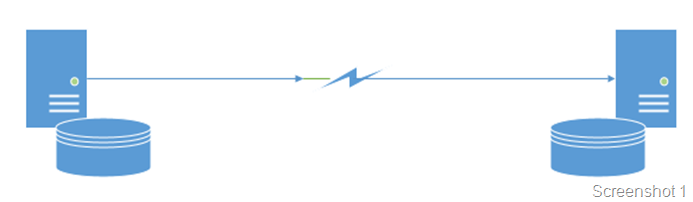
I had some free time a while back and decided to actually track this down to show how the Ghost Cleanup actually works in an availability group replica. My availability group setup was a simple one which had two SQL Server instances sitting across two different subnets as shown in Screenshot 1.
image

So, let’s get the show on the road and let me walk you through walk you the through the ghost cleanup behavior on the secondary replica.

The DML

On my existing Availability Group setup, I inserted a single row in a table of a primary replica database with the value of 3. The logged operations show up as follows in the SQL Server transaction log.. Psst.. Don’t tell anyone that I was reading the log file Winking smile

image

As you can see from the green highlight above the Transaction ID is 11899 (0x2e7b) which inserted a row on Page ID 315 (ox13b).

What was on the page

I verified that the page on the primary replica database had the new entry that I had added into the heap using the Page ID retrieved from the transaction log. Note that we are keeping track of the oldest active transaction as well. The record shows the transaction timestamp which was responsible for the DML operation 11899 (0x2e7b). From Screenshot 2 below, you can see that the version information is maintained and the transaction timestamp shows up correctly (green highlight). The value also shows up correctly (pink highlight).

image

What happened after that?

Then I started a transaction on the secondary replica and executed a SELECT query on the same table with a HOLDLOCK hint to keep the row lock. Then I proceeded to delete both the rows with value 3 in the primary replica. I verified that the rows were not retrieved by a SELECT query on the primary and secondary replica. The transaction log dump from secondary replica shows that the changes were replayed.

Oops! I had to read the transaction log again.

From the green highlights in Screenshot 4, you can see that the GhostCleanupTask transaction ran on the secondary replica. The pink highlights shows that the transaction ID 11900 (0x2e7c) deleted two rows from the Page ID 315 (ox13b). So all is good now.

image

Curiosity killed the cat!

imageWell curiosity got the better of me and I decided to check if the same the story was being told inside the transaction log of the primary replica database. And this is where David Duchovny’s a.k.a. Agent Moulder and Gillian Anderson a.k.a. Agent Scully’s faces from the X-Files will be an apt representation of what I present next.

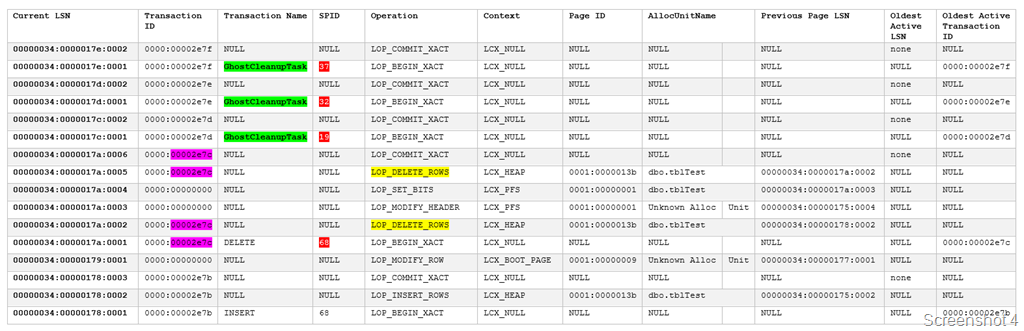
Screenshot 5 will show that the Ghost Cleanup Task continues to execute on the Primary Replica Database! What now executed? Did we not delete the rows and verify everything was alright…

The first observation is that the transaction log is being replayed to the letter on the secondary replica. Notice that the transaction IDs of the Ghost Cleanup Task correspond with the transaction IDs of the Ghost Cleanup Task found on the secondary replica instance database. It wasn’t a joke when the documentation said that transactions are replayed on the secondary replica!

The yellow highlights show that the rows were deleted from the table that I had performed the delete on. The pink highlights confirm that the same transaction was associated with both the deletes.

I had verified that there were no ghost records in the database when I started the repro. So, the important question was:

Why Ghost Cleanup Task was running repeatedly on the primary replica database?

image

What was really happening: THE EXPLANATION

Since I had an open transaction on the secondary replica database, I had an active version store! Screenshot 6 shows that my active version store on the secondary replica with a transaction sequence number of 11900 (0x2e7c) which matches the transaction ID of the delete operation. This active version stored was created on the delete operation because I had performed a SELECT with a HOLDLOCK earlier as mentioned in this post on the table from the secondary replica.

Then I created a table on the primary replica database and inserted a row in it. I checked if this data was available on the secondary replica and it was!

image

I found that on the primary replica, the database page shows ghost version records (Screenshot 7). The transaction timestamp matches the transaction ID which performed the delete operation i.e. transaction ID 11900 (0x2e7c).

image

Light at the end of the tunnel

Once transaction which I had stated on the secondary replica with the HOLDLOCK hint was committed, the ghost cleanup task was able to perform the cleanup on the primary replica’s page. Once this was completed successfully, the ghost records on the secondary replica were cleaned up promptly as well.

The above behavior is true for both synchronous and asynchronous modes of operation.

I hope this was a fun Friday read! Have a good weekend!