Awesomesauce: Perf Dashboard on Native SSRS

I had been asked the question about using the Perf Dashboard reports from a Reporting Services instance multiple times. Though this was not the intention of launching the SQL Server Performance Dashboard Reports but there is a compelling need at times to have these accessible from a web URL. In today’s age, you will find a lot of DBAs monitor their SQL Server instances remotely. Sometimes, there is another layer of complexity added to this when they want to just look at the health of the SQL Server instance by accessing a URL exposed through a corporate server in their environment. In such cases, you wouldn’t want to jump through a few hoops of setting up your VPN connection and blah blah.

So with all that in mind, let’s talk about how you can get your SQL Server 2012 Performance Dashboard to your existing SQL Server Reporting Services instance.

  • First you need to create a new Reporting Services Project using SQL Server Data Tools (SSDT).
  • Use the solution explorer to add all the existing performance dashboard reports from the C:\Program Files (x86)\Microsoft SQL Server\110\Tools\Performance Dashboard folder.
  • Modify the project properties to ensure that the data source gets written to the same folder as the reports.
  • Create a shared data source pointing to your SQL Server instance.
  • Open each report that was imported into the project and modify the data source properties to use the shared data source that you created in the above step.
  • Modify the project deployment properties as shown below.
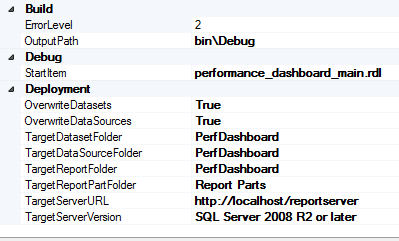
image

Now you are ready to deploy your Performance Dashboard SSRS project to your reporting services instance.

What can you do next?

You can now set up Report Server subscriptions for the set of reports that you wish to receive via email. You can get a status report of your SQL Server instance without even having to lift a finger and that to right in your mailbox! Smile

Note that Performance Dashboard is a tool which is provided “AS-IS” by Microsoft. The steps mentioned above will help you deploy the existing Performance Dashboard reports to a SQL Server Reporting Services instance. However, the failure to deploy these reports as mentioned above is not liable for support by Microsoft SQL Server Support team.

SQL Server 2008 Trace Flags

SQL Server exposes multiple trace flags which are required to set specific server characteristics or to switch off a particular behavior. Some trace flags are required to enable the fix post the installation of the update.

This is currently a work-in-progress. The trace flags mentioned in the table below have the associated public article links mentioned which provide more information about the trace flag.

If you want a trace flag to be mentioned in the list below, then feel free to leave a comment. Note that only publicly documented trace flags will appear in this list.

The list of trace flags available for SQL Server 2005 are documented here.

Disclaimer
1. Data mentioned below is as of 17th July, 2012.
2. Trace flags should be used under the guidance of Microsoft SQL Server support.  They are used in this post for discussion purposes only and may not be supported in future versions.
3. Trace flags for hotfixes should be only enabled if the fix is applicable to the SQL Server instance that you are enabling the trace flag on.

Continue reading

SQL Server 2005 Trace Flags

SQL Server exposes multiple trace flags which are required to set specific server characteristics or to switch off a particular behavior. Some trace flags are required to enable the fix post the installation of the update.

This is currently a work-in-progress. The trace flags mentioned in the table below have the associated public article links mentioned which provide more information about the trace flag.

If you want a trace flag to be mentioned in the list below, then feel free to leave a comment. Note that only publicly documented trace flags will appear in this list.

Disclaimer
1. Data mentioned below is as of 29th June 2012.
2. Trace flags should be used under the guidance of Microsoft SQL Server support.  They are used in this post for discussion purposes only and may not be supported in future versions.
3. Trace flags for hotfixes should be only enabled if the fix is applicable to the SQL Server instance that you are enabling the trace flag on.

Continue reading

CPU Hyperthreading: Is it ON or OFF

Sometime back a customer had asked a question on how to find out the different between hyperthreaded CPUs and multi-core CPUs using Powershell. There are multiple utilities available on the web which provide this information readily along with code samples i.e. if you have an affinity for coding.

However, my requirement was to get this information without the use of an executable. Such an endeavor seemed worthwhile for me since such scripts can be used for auditing and inventory related purposes.

The powershell script below can help you identify if hyperthreading is enabled on the server or not and gives you information about the number of logical and physical processors on the server/machine. The powershell script below makes use of Win32_Processor WMI class. The script can be easily adapted to using VBScript as well.

Continue reading

SQL Feature Discovery Script

As part of my work, I very frequently have to collect information about the various database engine features that are currently being used on a particular SQL Server instance. Sometimes, this requires me to write T-SQL scripts to fetch the required information. I had updated my initial data collection script some time back and this gave me the idea to write up another set of T-SQL queries to fetch the information for the database engine features in use.

The script collects a bunch of information which are categorized under the following headings:

1. General Server Configuration
        Server Info
        Non-default sp_configure settings
        Server Settings
        Active Trace Flags
2. Replication Configuration
        Replication Publishers
        Merge Replication Publishers
        Replication Subscribers
        Replication Distributors
3. Full-text enabled databases
4. Linked Servers
5. SQL Agent information
6. Databases
        Database information
        Database file information
7. Server Triggers
8. Policy Based Management
9. Resource Governor
10. Database Mail
11. Log Shipping
12. Database Mirroring
13. SQL CLR Assemblies
14. sp_OA* procedures

Usage

  1. Download the script using the link given at the bottom of the page and save it to a file named SQL_DISCOVERY.SQL. Open the script file in a SSMS Query Window.
  2. Press CTRL+SHIFT+F so that the output results are put into a file. Doing this will not produce a message or any other notification.
  3. Execute the script and specify SQL_DISCOVERY.html as the output file name so that we can get the output in the require HTML format.
  4. Once the script is completed, open the HTML file.

Script download: image

If you have any feedback about the script or feel any new additions to the existing data that is being captured, please feel free to leave a comment!

Technorati Tags: ,,