Debugging the deadlock but for the scheduler: Part 1 of 2

I had very recently blogged about debugging a non-yielding scheduler condition for a SQL Server instance. In today’s post, I shall talk about debugging a “deadlocked schedulers” issue which is a.k.a the infamous 17884 to you old-school folks. If ALL schedulers are considered stuck and SQL Server is not under active memory pressure, then the 17884 or 17888 condition is reported starting from SQL Server 2005. In this post, I shall show you how to dig into the root cause for a 17888 message reported in the SQL Errorlog. There are subtle differences between a 17888 and 17884 condition detected and reported by the SchedulerMonitor. A 17884 generally tells you that no work is being processed by a particular NUMA Node (for non-NUMA machines, it denotes the entire instance). On the other hand, 17888 tells you that no new work request is being processed on a particular NUMA node by the SQL server instance due to worker threads waiting on particular resource(s). The whitepaper mentioned at the end of this post covers the nitty-gritty details of the detection algorithm.

Description of the error messages from sys.messages catalog

17784 – New queries assigned to process on Node %d have not been picked up by a worker thread in the last %d seconds. Blocking or long-running queries can contribute to this condition, and may degrade client response time. Use the "max worker threads" configuration option to increase number of allowable threads, or optimize current running queries. SQL Process Utilization: %d%%. System Idle: %d%%.

17888 – All schedulers on Node %d appear deadlocked due to a large number of worker threads waiting on %ls. Process Utilization %d%%.

When a 17888 is reported, you will find messages of the following nature in the SQL Errorlog:

2008-03-25 14:14:53.37 Server      ***Stack Dump being sent to g:\mssql\data\MSSQL\LOG\SQLDump0006.txt
2008-03-25 14:14:53.38 Server      * BEGIN STACK DUMP:
2008-03-25 14:14:53.38 Server      *   03/25/08 14:14:53 spid 0
2008-03-25 14:14:53.38 Server      *
2008-03-25 14:14:53.38 Server      * Deadlocked Schedulers
2008-03-25 14:14:53.38 Server      * Short Stack Dump
2008-03-25 14:14:53.41 Server      Stack Signature for the dump is 0x00000260
2008-03-25 14:14:56.44 Server      External dump process return code 0x20000001.
External dump process returned no errors.

2008-03-25 14:14:56.44 Server      All schedulers on Node 0 appear deadlocked due to a large number of worker threads waiting on LCK_M_S. Process Utilization 1%.

Again note the differently colored lines and text whose significance, if not self-explanatory at this time, I shall talk about them later in the post. The last message in the above excerpt very clearly tells you that you have a blocking issue on the SQL instance and most of the worker threads on Node 0 are waiting for a LCK_M_S which they cannot acquire due to a conflicting lock(s) held on the object(s) by another session. This time around the SQLDumpXXXX.txt filename is mentioned in the Errorlog unlike the non-yielding scheduler message. So what needs to be done is locate the .mdmp file (in this case SQLDump0006.mdmp) from the same location and use WinDBG to load the dump for analysis.

If you encounter this condition on a SQL Server Failover Cluster instance, then this will result in IsAlive check failures and the SQL service being re-started on the same node or could even result in a failover, if the SQL instance doesn’t respond to the stop request in time. Note the “External dump process returned no errors.” in the above output. This means that the dump generation routine didn’t encounter any errors. Before I move onto the interesting part of looking through the data, let me set expectation here that there is very little information that you can coax a mini-dump for a deadlocked schedulers issue to provide you with while using public symbols. Even with the help of private symbols which CSS engineers have access to, it might not be possible to perform a complete root cause analysis of the issue. The main reason for this is that even if CSS engineers are able to find out the queries being executed on the SQL instance from the mini-dump, the blocking chain origin (in this case because it is clear from the error message excerpt in the Errorlog) cannot be determined from the mini-dump. This invariably ends up requiring collection of SQL Server Perf Stats script output (for capturing blocking information) and profiler traces to get the queries being executed by the head blocker which caused the blocking condition.

Now when you load the dump using WinDBG, as noted in the debugging a non-yielding scheduler issue, you will note similar things:

When you load the dump using WinDBG, you will see the following information:

Loading Dump File [g:\mssql\data\MSSQL\LOG\SQLDump0006.mdmp]
User Mini Dump File: Only registers, stack and portions of memory are available

Comment: ‘Stack Trace’
Comment: ‘Deadlocked Schedulers’

The above tells you that this is a mini-dump for a deadlocked schedulers condition and the location from where you loaded the dump. Then I use the command to set my symbol path and direct the symbols downloaded from the Microsoft symbol server to a local symbol file cache on my machine.

.sympath srv*D:\PublicSymbols*http://msdl.microsoft.com/download/symbols

Then I issue a reload command to load the symbols for sqlservr.exe. This can also be done using CTRL+L and providing the complete string above (without .sympath), checking the Reload checkbox and clicking on OK. The only difference here is that the all the public symbols for all loaded modules in the dump will be downloaded from the Microsoft Symbol Server which are available.

.reload /f sqlservr.exe

Next thing is to verify that the symbols were correctly loaded using the lmvm sqlservr command. If the symbols were loaded correctly, you should see the following output. Note the text in green.

0:019> lmvm sqlservr
start end module name

01000000 02c0a000   sqlservr T (pdb symbols)          d:\publicsymbols\sqlservr.pdb\389EF554D94A4947846D85FCDC4233382\sqlservr.pdb

If symbols were not loaded, then you will see an output as shown below.

0:005> lmvm sqlservr
start    end        module name
01000000 02c0a000   sqlservr (export symbols) sqlservr.exe

Since I know that there is a blocking issue due to which a deadlocked schedulers condition was reported, I shall use the !findstack debugger command to find out all the callstacks which are potentially waiting for a lock:

!findstack sqlservr!LockOwner::Sleep 2

Output for one of the threads from the above command:

Thread 271, 1 frame(s) match
          00 6db5eef8 7c821fc4 ntdll!KiFastSystemCallRet
          01 6db5eefc 77e43c1d ntdll!NtSignalAndWaitForSingleObject
          02 6db5ef70 010034f2 kernel32!SignalObjectAndWait
          03 6db5ef94 01002172 sqlservr!SOS_Scheduler::Switch
          04 6db5f108 01002cb9 sqlservr!SOS_Scheduler::SwitchContext
          05 6db5f120 01001c75 sqlservr!SOS_Scheduler::SuspendNonPreemptive
          06 6db5f138 01002f25 sqlservr!SOS_Scheduler::Suspend
          07 6db5f15c 01056f6a sqlservr!SOS_Event::Wait
       * 08 6db5f198 01057081 sqlservr!LockOwner::Sleep
          09 6db5f238 0100a75d sqlservr!lck_lockInternal
          10 6db5f2b4 0100d506 sqlservr!GetLock
          11 6db5f324 010432c7 sqlservr!BTreeRow::AcquireLock
          12 6db5f3a4 0100dc00 sqlservr!IndexDataSetSession::GetRowByKeyValue
      ….
      ….
          33 6db5feb0 010b9064 sqlservr!SystemThread::RunWorker
          34 6db5ff10 010b9201 sqlservr!SystemThreadDispatcher::ProcessWorker
          35 6db5ff78 781329bb sqlservr!SchedulerManager::ThreadEntryPoint
          36 6db5ffb0 78132a47 msvcr80!_callthreadstartex
          37 6db5ffb8 77e6608b msvcr80!_threadstartex
          38 6db5ffec 00000000 kernel32!BaseThreadStart

As you can see from the above call-stack, the worker thread is waiting for the lock that it requested for to become available. I found that most of the call-stacks reported in the !findstack output were similar. I found that 183 threads (counted the number of match keyword occurrences in the !findstack output) reported LockOwner::Sleep in their call-stack. This confirms that I have a serious blocking issue either due to large number of concurrent requests asking for the same conflicting lock(s) which are held by other thread(s) or it could be a single long running transaction or uncommitted transaction which is causing all threads to wait for the lock to be released post the commit or completion of the query. In my experience of handling such issues, I have seen the latter cause to be most prevalent.

If you need to find out the total number of threads in the dump, then use the ~* command to get the number of threads.

0:278> ~*
   0  Id: 45c.43c Suspend: 1 Teb: 7ffdd000 Unfrozen
      Start: sqlservr!wmainCRTStartup (02432df8)
      Priority: 0  Priority class: 32  Affinity: ff
   1 Id: 45c.51c Suspend: 1 Teb: 7ffda000 Unfrozen
      Start: msvcr80!_threadstartex (781329e1)
      Priority: 0  Priority class: 32  Affinity: 22


.278  Id: 45c.2b4c Suspend: 1 Teb: 7fea3000 Unfrozen
      Start: msvcr80!_threadstartex (781329e1)
      Priority: 0  Priority class: 32  Affinity: ff

This means that 183 threads out of 278 threads (65% of total worker threads) are waiting for locks!!! In case you got a wait type reported in the 17888 message which is not a LOCK waittype, then what keyword do you search for using the !findstack command?? That would lead to an interesting scenario. You can then use another debugger command !uniqstack to list out the unique call-stacks in the dump.

0:278> !uniqstack

Partial output of the above command:
Processing 279 threads, please wait

.134  Id: 45c.30a8 Suspend: 1 Teb: 7ff36000 Unfrozen
      Start: msvcr80!_threadstartex (781329e1)
      Priority: 0  Priority class: 32  Affinity: 22
ChildEBP RetAddr
6db5eef8 7c821fc4 ntdll!KiFastSystemCallRet
6db5eefc 77e43c1d ntdll!NtSignalAndWaitForSingleObject
6db5ef70 010034f2 kernel32!SignalObjectAndWait
6db5ef94 01002172 sqlservr!SOS_Scheduler::Switch
6db5f108 01002cb9 sqlservr!SOS_Scheduler::SwitchContext
6db5f120 01001c75 sqlservr!SOS_Scheduler::SuspendNonPreemptive
6db5f138 01002f25 sqlservr!SOS_Scheduler::Suspend
6db5f15c 01056f6a sqlservr!SOS_Event::Wait
6db5f198 01057081 sqlservr!LockOwner::Sleep
6db5f238 0100a75d sqlservr!lck_lockInternal
6db5f2b4 0100d506 sqlservr!GetLock
6db5f324 010432c7 sqlservr!BTreeRow::AcquireLock
6db5f3a4 0100dc00 sqlservr!IndexDataSetSession::GetRowByKeyValue
….
….
6db5feb0 010b9064 sqlservr!SystemThread::RunWorker
6db5ff10 010b9201 sqlservr!SystemThreadDispatcher::ProcessWorker
6db5ff78 781329bb sqlservr!SchedulerManager::ThreadEntryPoint
6db5ffb0 78132a47 msvcr80!_callthreadstartex
6db5ffb8 77e6608b msvcr80!_threadstartex
6db5ffec 00000000 kernel32!BaseThreadStart

Total threads: 279
Duplicate callstacks: 219 (windbg thread #s follow):
3, 12, 13, 15, 16, 17, 19, 21, 22, … …. 276, 277, 278


With the thread IDs reported in the duplicate call-stacks output (italicized numbers), you will manually (with some soul searching) have to look through a few thread call stacks using the following commands (below) and check what is most common callstack pattern that you notice from the list of duplicate threads. Disclaimer: This is not an easy task unless you do engage in such kind of debugging on a regular basis! And definitely not for the faint hearted and easily irritated!

~[Thread ID]s
kL100

Example:

0:052> ~53s
eax=553985c0 ebx=7ff2ce38 ecx=00000000 edx=00000000 esi=00001bac edi=00000000
eip=7c82ed54 esp=693aeefc ebp=693aef70 iopl=0         nv up ei pl zr na pe nc
cs=001b  ss=0023  ds=0023  es=0023  fs=003b  gs=0000             efl=00000246
ntdll!KiFastSystemCallRet:
7c82ed54 c3              ret

0:053> kL100

ChildEBP RetAddr
6db5eef8 7c821fc4 ntdll!KiFastSystemCallRet
6db5eefc 77e43c1d ntdll!NtSignalAndWaitForSingleObject
6db5ef70 010034f2 kernel32!SignalObjectAndWait
6db5ef94 01002172 sqlservr!SOS_Scheduler::Switch
6db5f108 01002cb9 sqlservr!SOS_Scheduler::SwitchContext
6db5f120 01001c75 sqlservr!SOS_Scheduler::SuspendNonPreemptive
6db5f138 01002f25 sqlservr!SOS_Scheduler::Suspend
6db5f15c 01056f6a sqlservr!SOS_Event::Wait
6db5f198 01057081 sqlservr!LockOwner::Sleep
6db5f238 0100a75d sqlservr!lck_lockInternal
6db5f2b4 0100d506 sqlservr!GetLock
6db5f324 010432c7 sqlservr!BTreeRow::AcquireLock
6db5f3a4 0100dc00 sqlservr!IndexDataSetSession::GetRowByKeyValue
….
….
6db5feb0 010b9064 sqlservr!SystemThread::RunWorker
6db5ff10 010b9201 sqlservr!SystemThreadDispatcher::ProcessWorker
6db5ff78 781329bb sqlservr!SchedulerManager::ThreadEntryPoint
6db5ffb0 78132a47 msvcr80!_callthreadstartex
6db5ffb8 77e6608b msvcr80!_threadstartex
6db5ffec 00000000 kernel32!BaseThreadStart

TIP: The interesting thing to note is the thread IDs that you see above will directly match the OS Thread ID reported in the sys.dm_os_threads os_thread_id column value or the sys.sysprocesses kpid column value. So if you have a monitoring tool that is capturing the output of queries being executed by the active SQL Server sessions, then you can go back to your monitoring repository and dig up the queries which these threads were executing. If such data is not available from the time of the issue, more often that not you will have to end up collecting additional data for the next problem occurrence!

Also check if the Deadlocked Schedulers matches any KB Article (update) already released. Remember that deadlocked schedulers is a symptom and the not the cause!! So make sure that if you find a KB Article which talks about a Deadlocked Schedulers issue being addressed in a later build, the symptoms match the symptoms that you are experiencing on your server! If in doubt, ask CSS!

If you are stuck and have no clue why the issue happened, then this would be a good time to engage Microsoft CSS Support and provide them with the SQL Errorlogs, the dump file and the windows event logs in .txt format for further analysis.

Reference:
KB 315263 – How to read the small memory dump files that Windows creates for debugging
How To Diagnose and Correct Errors 17883, 17884, 17887, and 17888 whitepaper

Debugging a non-yielding scheduler issue

If you have read the How To Diagnose and Correct Errors 17883, 17884, 17887, and 17888 whitepaper, you would know what a 17883 error reported in SQL Server 2000 means. If you read the “SQL Server 2005 – SchedulerMonitor” section of the whitepaper, you will understand that the way non-yielding messages are reported for a SQL Server worker thread is much more refined than it’s predecessor. We report a non-yielding worker thread as a Non-yielding Scheduler message in the SQL Server Errorlog. Since the whitepaper is very comprehensive in explaining SQL Server non-yielding detection algorithms, I shall not reiterate the same. In this post, I shall show you how to track down the cause of a non-yielding scheduler using public symbols in conjunction with the SQL Server Errorlog and Windows Event Logs.

Below is an excerpt from an Errorlog which is reporting a non-yielding scheduler message.

2011-07-24 22:17:45.850 Server       * BEGIN STACK DUMP:
2011-07-24 22:17:45.850 Server       *   07/24/11 22:17:45 spid 2388
2011-07-24 22:17:45.850 Server       *
2011-07-24 22:17:45.850 Server       * Non-yielding Scheduler
2011-07-24 22:17:45.850 Server       Stack Signature for the dump is 0x00000000000003B6
2011-07-24 22:17:53.380 Server       External dump process return code 0x20000001.
External dump process returned no errors.

2011-07-24 22:17:53.400 Server Process 0:0:0 (0x990) Worker 0x0000000005A6C1A0 appears to be non-yielding on Scheduler 1. Thread creation time: 12955600342903. Approx Thread CPU Used: kernel 0 ms, user 0 ms. Process Utilization 0%. System Idle 99%. Interval: 70119 ms.

There are lines that I have colored differently in the above excerpt whose significance I shall detail later in this thread. The Windows Application Event Log will report this as an Informational message with the EventID = 17883. This is what I have in my application event log for the above reported non-yielding condition:

Process 0:0:0 (0x990) Worker 0x0000000005A6C1A0 appears to be non-yielding on Scheduler 1. Thread creation time: 12955600342903. Approx Thread CPU Used: kernel 0 ms, user 0 ms. Process Utilization 0%%. System Idle 99%%. Interval: 70119 ms.

The above message is the same message reported in the Errorlog excerpt above. Since the Errorlog doesn’t report the MDMP (dump file) number, you will have to track it down using the timestamp when the issue was reported or using the SQL Dumper log in case you are performing post-mortem analysis. The SQL Dumper log name is “SQLDUMPER_ERRORLOG.log” and it is located by default in the SQL Server LOG folder. You will find a message similar to the one shown below which will point you to the correct .mdmp file.

(2A30:2760) 07/24/11 22:17:52, ACTION, SQLDUMPER_UNKNOWN_APP.EXE, MiniDump completed: C:\Program Files\Microsoft SQL Server\MSSQL10_50.MSSQLSERVER\MSSQL\LOG\SQLDump0025.mdmp

Now I need to use Windows Debugging Tools to load the .mdmp file. Note that the non-yielding message in the SQL Server Errorlog reported “External dump process returned no errors.”. This means that the dump generation routine didn’t encounter any errors. The most common error that occurs while generating dumps (due to resource crunch – memory or CPU), is a timeout. This means that the dump generation timed out and it is a delayed dump. So the information contained in the dump file may or may not be useful to perform a complete post-mortem analysis. This is when Microsoft CSS would ask you to collect additional data for the next occurrence if the current data available is not sufficient for a complete post-mortem analysis.

So let’s move on to the good part now… i.e. analysis of the dump. Keep in mind that this is a mini-dump which means that the is limited amount of information stored in the dump and we are using public symbols to analyze the dump. Even with private symbols that Microsoft CSS Engineers have access to, there might not be a whole lot they can decipher from a mini-dump and might request additional data!

When you load the dump using WinDBG, you will see the following information:

Loading Dump File [C:\Program Files\Microsoft SQL Server\MSSQL10_50.MSSQLSERVER\MSSQL\Log\SQLDump0025.mdmp]
User Mini Dump File: Only registers, stack and portions of memory are available

Comment: ‘Stack Trace’
Comment: ‘Non-yielding Scheduler’


Debug session time: Sun Jul 24 22:17:52.000 2011 (UTC + 5:30)

The above tells you that this is a mini-dump for a non-yielding scheduler condition and the location from where you loaded the dump. Then I use the command to set my symbol path and direct the symbols downloaded from the Microsoft symbol server to a local symbol file cache on my machine. It also tells me the time when the dump was generated.

What is a minidump?
A memory dump which contains the memory for the call stack of all threads, the CPU registers and information about which modules are loaded.

.sympath srv*D:\PublicSymbols*http://msdl.microsoft.com/download/symbols

Then I issue a reload command to load the symbols for sqlservr.exe. This can also be done using CTRL+L and providing the complete string above (without .sympath), checking the Reload checkbox and clicking on OK. The only difference here is that the all the public symbols for all loaded modules in the dump will be downloaded from the Microsoft Symbol Server which are available.

.reload /f sqlservr.exe

Next thing is to verify that the symbols were correctly loaded using the lmvm sqlservr command. If the symbols were loaded correctly, you should see the following output. Note the text in green.

0:019> lmvm sqlservr
start             end                 module name
00000000`00c60000 00000000`04820000   sqlservr   (pdb symbols)          D:\publicsymbols\sqlservr.pdb\6A3527657A3F4090AB2C96F7008A55C52\sqlservr.pdb
    Loaded symbol image file: sqlservr.exe
    Mapped memory image file: C:\Program Files\Microsoft SQL Server\MSSQL10_50.MSSQLSERVER\MSSQL\Binn\sqlservr.exe
    Image path: C:\Program Files\Microsoft SQL Server\MSSQL10_50.MSSQLSERVER\MSSQL\Binn\sqlservr.exe
    Product version:  10.50.1790.0

If symbols were not loaded, then you will see an output as shown below.

0:019> lmvm sqlservr
start             end                 module name
00000000`00c60000 00000000`04820000   sqlservr   (export symbols)       sqlservr.exe
    Loaded symbol image file: sqlservr.exe
    Mapped memory image file: C:\Program Files\Microsoft SQL Server\MSSQL10_50.MSSQLSERVER\MSSQL\Binn\sqlservr.exe
    Image path: C:\Program Files\Microsoft SQL Server\MSSQL10_50.MSSQLSERVER\MSSQL\Binn\sqlservr.exe

Next I shall use the Thread ID noted above (0x990) in the Errorlog excerpt to switch to the thread and get the callstack for the thread which was reported as non-yielding.

0:019> ~~[0x990]s
ntdll!NtWaitForSingleObject+0xa:
00000000`76e06bda c3              ret
0:019> kL100

ntdll!NtWaitForSingleObject
kernel32!WaitForSingleObjectEx
sqlservr!SOS_Scheduler::SwitchContext
sqlservr!SOS_Scheduler::SuspendNonPreemptive
sqlservr!SOS_Scheduler::Suspend


msvcr80!endthreadex
msvcr80!endthreadex
kernel32!BaseThreadInitThunk
ntdll!RtlUserThreadStart

Looking at the callstack above, I can say that this is not the cause of the non-yielding condition (99.99999% true in most cases)!! The reason I can say this is because I find SwitchContext on the thread stack which means that the thread has yielded. The sequence of events is as follows: SQL Server detected a non-yielding worker thread. By the time, SQL Dumper was initiated to capture a memory dump of the SQL Server process, the thread yielded and the processing moved on to the next work request in the queue.

However, if your dump didn’t have the top functions as the ones noted above but was something like the two functions mentioned below, then you definitely have the right callstack and the issue noted below is due to stuck-stalled I/O.

ntdll!NtWriteFileGather
kernel32!WriteFileGather

The non-yielding scheduler message from the dump I investigated which had the above callstack had the following stuck-stalled IO warnings in the SQL Server Errorlog just prior to the dump getting generated:

SQL Server has encountered 218 occurrence(s) of I/O requests taking longer than 15 seconds to complete on file [C:\Program Files\Microsoft SQL Server\MSSQL10_50.MSSQLSERVER\MSSQL\DATA\tempdb.mdf] in database [tempdb] (2). 

So now I definitely know that the non-yielding condition was due to faulty disk sub-system and the SQL Server instance at this point is just a victim of the issue!

If you see the the following message in the SQL Server Errorlog along with the dump generation message, then it is definitely a delayed dump and it could have some valuable information missing that might have been pertinent to your analysis.

Timeout while waiting for external dump

Most of the common non-yielding conditions are documented in the whitepaper that I referred to above. If you are unable to get a callstack for the non-yielding issue and the symptoms or sequence of events leading up to the issue doesn’t match any KB Article, then it’s time to call CSS to get the memory dump analyzed with the help of the private symbols that the CSS engineers have access to.

Happy debugging!!

Reference:
KB 315263 – How to read the small memory dump files that Windows creates for debugging

T-SQL Tuesday #21: It’s easy to be lazy

This month’s revolving blog party is being hosted by the creator himself, Adam Machanic (blog|twitter). This month’s topic chosen by Adam is about the forgettable practices/habits of the past that can be avoided. This is a topic on which I can write long rants about… But I shall limit myself to writing about three areas where I have managed to chuck some bad habits and thereby reduced the amount of redundant time that I needed to spend due to these avoidable habits!

Your code needs some English!

One of the practices to be avoided pertaining to T-SQL coding was brought out in unison by the community members during last month’s T-SQL Tuesday was about adding relevant comments to your code. I shall take this a notch higher and talk about adding comments for two reasons:

a. Remember why a change/modification was made to the code
b. So that someone supporting your code understands the logic behind what you have written

More often than not it’s a convenience and sometimes sheer laziness which has prevented. This happens especially during crisis situations where a quick change to the code resolves the situation but you forgot to mention in the file why and when the change was made. This little indiscretion which I have been a victim as well as a perpetrator of has cost me a lot of precious time in the past. So, don’t be lazy… Add a few English lines to your code to help the person supporting it!

Simplicity in source control can prevent hair loss

Not maintaining any form of version control for your source code is quite common when it is an individual managing the entire project or the tool development. But I still believe that sometimes simple forms of source control can save you a lot of painful hours and wishing that you had one pill that Bradley Copper had in Limitless. You don’t need to have a version control software or VSTS setup to manage your code. You could use simple logic like taking a backup of your code or naming your files v1, v1.2 and so on and so forth before making a huge change to your application code that cannot be handled by the way of comments without writing a small essay. This is also a form of laziness which in the past has cost me hours of coding time. So be smart and maintain your code in such a way that you can revert your code back to a previous version in a matter of minutes!!

Documentation is an important key to saving time

I am sure all of you are well aware that documentation is necessary but it can be mundane at times. The entire reason I setup this blog was to document those unique quirks about SQL Server and those unique solutions that I arrived at by looking at disparate pieces of information. I must admit that I do not have photographic memory and I need to have reference to documentation which is available with the helps of a keywords search. I use the search on my blog to find my old posts!! So if I didn’t document a unique solution, I would end up spending the same X amount of hours working on the same issue the next time I encounter it. The value of documentation is that it saves time!

A wise man/woman learns from his/her mistakes. But a wiser man/woman learns from other people’s mistakes.

Getting the Default Data and Log path using PowerShell

I remember a while back being asked about a way to fetch the Default Data and Log path for a SQL Server instance. This information is present in the registry keys and the keys are created only if you modify the default paths to a path other than the SQLDataRoot path using which the SQL instance was installed.

So I thought I would put together a quick post to fetch this information using a Powershell script. The function takes in the instance name as the parameter value. Note that for a default instance, the instance name is MSSQLServer.


############################################################

# Author: Amit Banerjee

# Information: Finds out default data and log file paths for a given SQL Server instance

############################################################

Function fnGetDefaultDBLocation

{

Param ([string] $vInstance)

# Get the registry key associated with the Instance Name

$vRegInst = (Get-ItemProperty -Path HKLM:"SOFTWARE\Microsoft\Microsoft SQL Server\Instance Names\SQL" -ErrorAction SilentlyContinue).$vInstance

$vRegPath = "SOFTWARE\Microsoft\Microsoft SQL Server\" + $vRegInst + "\MSSQLServer"

# Get the Data and Log file paths if available

$vDataPath = (Get-ItemProperty -Path HKLM:$vRegPath -ErrorAction SilentlyContinue).DefaultData

$vLogPath = (Get-ItemProperty -Path HKLM:$vRegPath -ErrorAction SilentlyContinue).DefaultLog

# Report the entries found

if ($vDataPath.Length -lt 1)

{

$vRegPath = "SOFTWARE\Microsoft\Microsoft SQL Server\" + $vRegInst + "\Setup"

$vDataPath = (Get-ItemProperty -Path HKLM:$vRegPath -ErrorAction SilentlyContinue).SQLDataRoot + "\Data\"

Write-Host "Default Data Path: " $vDataPath

}

else

{

Write-Host "Default Data Path:" $vDataPath

}

if ($vLogPath.Length -lt 1)

{

$vRegPath = "SOFTWARE\Microsoft\Microsoft SQL Server\" + $vRegInst + "\Setup"

$vDataPath = (Get-ItemProperty -Path HKLM:$vRegPath -ErrorAction SilentlyContinue).SQLDataRoot + "\Data\"

Write-Host "Default Log Path: " $vDataPath

}

else

{

Write-Host "Default Log Path:" $vLogPath

}

}

fnGetDefaultDBLocation "MSSQLServer"

Performance benchmarking: Explicit vs Implicit Transactions

imageBenchmarking… The single most important word in Performance Tuning. Without an established benchmark, you really don’t know when to actually call it a day!

If you have ever worked in testing on database projects, you would have probably done testing by trying to narrow down the data set involved which is nearly representative of the actual production data set or used a sub-set of the queries which are representative of the workload which is expected or is active on the production environment.

Now this brings me to the reason of this post. It is quite often during testing that we forget that SQL Server executes all DML operations by default in autocommit mode. This means that all individual statements are committed if they complete successfully. If you want to avoid this behavior, then you either need to set IMPLICIT_TRANSACTIONS setting to ON for your database connection or use a BEGIN TRANSACTION command before you execute your query.

SQL Server follows Write Ahead Logging protocol which means no data modifications are written to disk before the associated log record is written to disk. This maintains the ACID properties for a transaction. (when you involve disk-caching, that opens up another can of worms but that discussion is outside the scope of this blog post)

My belief is that if you are comparing execution times between two different environments, then you should be doing that on exactly the same hardware configuration and if that is not feasible, you should at-least match the CPU, physical RAM and disk sub-system on both sides. I had already documented in an earlier blog post why RAM/CPU configurations are important when comparison execution statistics between two different SQL Server environments. Ideally, you should have the same exact environment as your test environment including the workload (i.e. number of users, connections etc.). However, we all know that Utopia is not a place where we live in and hence the toned down test scripts, scaled down/up environments, shared resources and I could keep lamenting!!

In the last month, I dealt with two such issues where in a T-SQL batch performing a large number of inserts on a database table was being used to compare the performance between two different environments. Since I get called in to fix a problem and no-one generally calls CSS to tell us that their server is running as expected… the problem invariably happened to be that a bigger, beefier server was taking a longer time to execute the same batch. I shall demonstrate where not knowing about the WAL protocol can cause such test mechanisms to be skewed and take you down the proverbial rabbit-hole!

The script that I shall be using for demonstrating the pitfalls of this behavior is pretty simple:

declare @cntr int = 1
while @cntr <= 1000000
begin
insert into tblInserts (SNo,RowVal) values(@cntr,’Record ID ‘ +CAST(@cntr as varchar(7)))
set @cntr += 1
end

The script inserts 1 million rows into a database table (a heap table) using a while loop. During the time of the insert, I shall capture various performance counter values during the execution along with wait statistics for the query.

Modification: September 9th, 2011: Based on Kendra’s (Twitter) feedback, changing the sub-headings. Test 1 makes use of auto-commit mode of SQL Server which is the default and Test 2 can be achieved either by using implicit transaction mode or performing an explicit transaction (BEGIN…COMMIT).

Test 1: With AutoCommit mode

For two iterations the above script on an average took 8 minutes and 30 seconds to complete. When I looked into the wait statistics captured (at 5 second intervals), I don’t see anything standing out other than a few non-zero wait durations for WRITELOGs during certain periods. The non-zero wait times (in milli-seconds) are shown below with the highest value being captured being 10 milli-seconds. The Average Disk Secs/(Read/Write) don’t show me any outstanding values during the data capture to indicate that the disk was a bottleneck, then why does the data below show so many WRITELOG waits. Keep in mind that the total amount of time waited for as indicated by the data below is also not a significantly large amount. So why is it taking over eight minutes to insert the data??image

Runtime Session_id Status Wait_type Wait_time Last_Wait_Type
12:46 AM 51 suspended WRITELOG 10 WRITELOG
12:46 AM 51 suspended WRITELOG 7 WRITELOG
12:47 AM 51 suspended WRITELOG 1 WRITELOG
12:47 AM 51 suspended WRITELOG 2 WRITELOG
12:47 AM 51 suspended WRITELOG 3 WRITELOG
12:47 AM 51 suspended WRITELOG 2 WRITELOG
12:48 AM 51 suspended WRITELOG 7 WRITELOG
12:49 AM 51 suspended WRITELOG 8 WRITELOG
12:49 AM 51 suspended WRITELOG 1 WRITELOG
12:49 AM 51 suspended WRITELOG 10 WRITELOG
12:49 AM 51 suspended WRITELOG 6 WRITELOG
12:50 AM 51 suspended WRITELOG 2 WRITELOG
12:51 AM 51 suspended WRITELOG 3 WRITELOG
12:51 AM 51 suspended WRITELOG 4 WRITELOG
12:51 AM 51 suspended WRITELOG 1 WRITELOG
12:51 AM 51 suspended WRITELOG 2 WRITELOG
12:52 AM 51 suspended WRITELOG 5 WRITELOG
12:52 AM 51 suspended WRITELOG 7 WRITELOG
12:53 AM 51 suspended WRITELOG 1 WRITELOG
12:53 AM 51 suspended WRITELOG 8 WRITELOG

To explain the query, I would need to fall back of SQL Server Performance Monitor counters (sampled at 5 second intervals). On analysis of the performance monitor counters, I found the following:
a. SQLServer:Databases: Log Bytes Flushed/sec showed that on an average 3.1 MB of log bytes were being flushed every 5 seconds for the database on which I was performing the inserts.
b. SQLServer:DatabasesLog Flushes/sec showed that about 6000 log flushes were occurring for this database every 5 seconds on an average.
c. SQLServer:Wait Statistics: Log write waits shows me that on an average there were about 9000+ waits started per second. However, the Cumulative wait time (ms) per second for the same counter shows me negligible values and the Average wait time (ms) value is nearly zero through the data collection period.

So how can I explain where the time is being spent?? Now I decided to run another test using implicit transactions.

imageTest 2: Without AutoCommit mode

I ran two iterations of the above T-SQL batch within BEGIN TRANSACTION…COMMIT block and the average duration was 14 seconds! Whattttt!??!?! Yes.. And all this can be simply explained using the same counters that I looked above. This time around the performance monitor data told me the following story:
a. SQLServer:Databases: Log Bytes Flushed/sec showed that on an average 26 MB of log bytes were being flushed every 5 seconds for the database on which I was performing the inserts.
b. SQLServer:DatabasesLog Flushes/sec showed that about 468 log flushes were occurring for this database every 5 seconds on an average.
c. SQLServer:Wait Statistics: Log write waits shows me that on an average there were about 23(approx.)+ waits started per second.

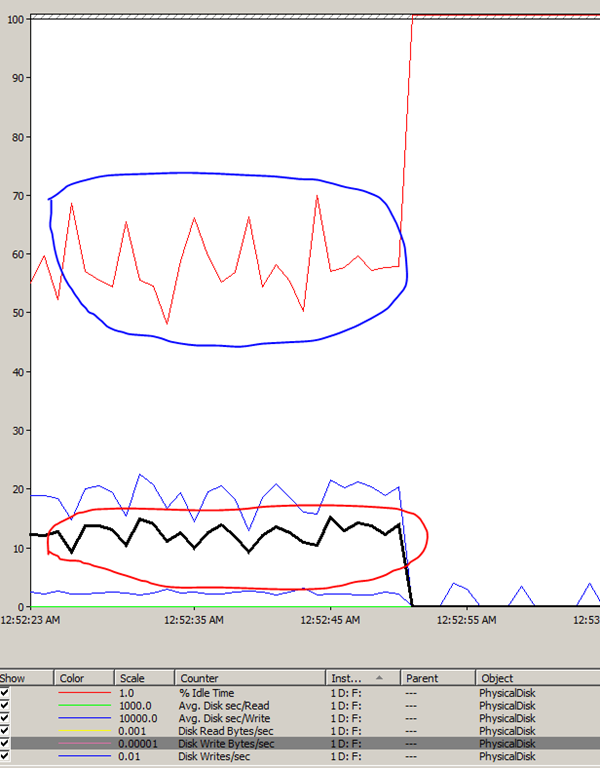
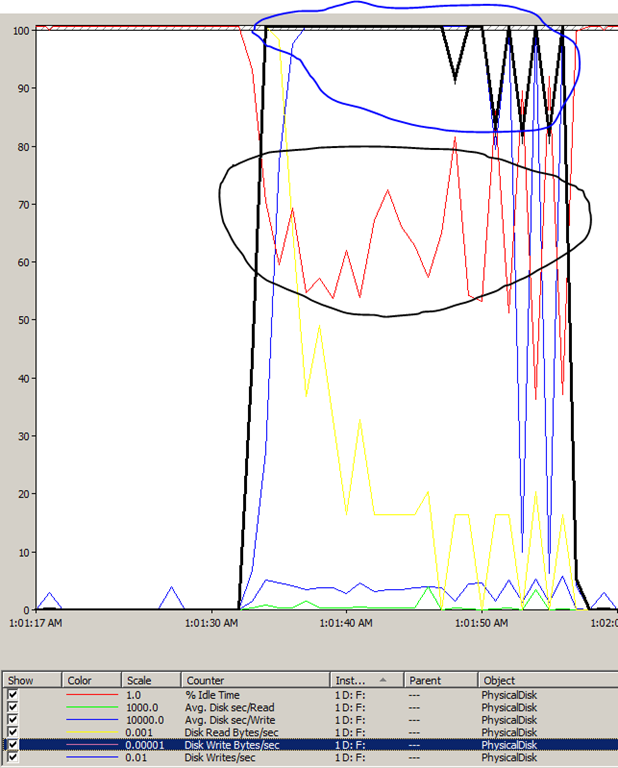
If you look at the Performance Monitor graphs for the disk statistics that I captured for a single run for Test 1 (screenshot above) and Test 2 (screenshot on the left), you will see that the %Idle Time for the disk, on which the database files resided on (in my case F: drive), shows was busy 50% of the time (see blue squiggly above) during the test and the value climbed back to ~100% after the test completed. On the contrary, the %Idle Time for the same disk has a very zig-zag pattern (see black squiggly on left) during Test 2 which indicates that the disk was sporadically busy and it was not a continuous pattern as observed in Test 1.

The Avg. Disk Sec/Write counter shows absolutely no latency which means that the there is no problem in terms of latency on the disks.

During Test 1, data was being written to the disk at the rate of 907 KB/s where as during Test 2, the write rate was 5MB/s which was determined by monitoring the Disk Write Bytes/sec counter.

The reason for this difference is that for every insert in Test 1 is followed by an autocommit. This means that you need to flush the log buffer for each insert. However in Test 2, the log buffer was being flushed much lesser but at the same time more data was being written to the disk for each log flush. Since SQL Server follows a WAL protocol, till the earlier log flush is completed, it cannot commit/move onto the next transaction.

If you are running a similar system with two different sets of hardware, then you would start having to chase down disk speeds/RPMs between the two servers. For servers which have disks performing optimally, this behavior is quite difficult to gather without the right set of data.

With SQL Server 2008, tracking down the waits for a single session is much, much easier with the help of XEvents. But that shall be a story for another day… errrr.. post!!

Moral of the story: If you are using a test query similar to the one shown above to test/benchmark performance and the query batch is not indicative of your actual workload, then you would probably not be able to gauge or establish an accurate performance benchmark for the queries executing on your system. And REMEMBER that SQL Server runs in auto-commit mode by default!

HAPPY TESTING! Smile