I published a blog post on the Tiger blog on a recent change that was introduced for SQLVID. You can also use the SQL Server Backup Simulator which is available on our tigertoolbox GitHub repository for checking backup/restore behavior using SQLVDI APIs. The updated SQLVDI header files required to use VDC_Complete is available on the Microsoft SQL Server Samples GitHub repository.
Category: Data
Posts about data platforms, SQL Server, databases, Azure SQL, analytics, and data engineering.
-
SQL Saturday 572–Extended Events and Always On
 This is the second year that I will be speaking at SQL Saturday at Portland. Last year I had talked about troubleshooting slow queries. This year I will talk about debugging SQL Server issues without having to use the debugger! As always, this will be an awesome prelude to the PASS Summit!
The event sees a great turnout with a number of data professionals talking about various topics. It’s a great opportunity to meet the SQL Server community and network with the folks that help you on the forums and social media. Also, you have a large number of experts under the same roof. So bring your questions.
Session Title: SQL Server Debugging Made Easy using Extended Events
Track: Enterprise Database Administration & Deployment
Level: Intermediate
Time: 1.30PM – 2:45PM
Abstract
This is a demo filled session that will show you how to debug several common issues in SQL server database engine and identify hotspots as well failures using only extended events. We will showcase how extended events make scenario based troubleshooting easier without having to collect disparate sets of diagnostic data, gather memory dumps and comprise on performance. There have been a plethora of Extended Events which have been added to SQL Server recently based on customer feedback which deprecates the need to run profiler in many commonly encountered situations in production environments. This session covers the new enhancements and capabilities available for Extended Events.Additional Notes
Understand the diagnostics enhancements in SQL Server database engine Use the diagnostics to troubleshoot and mitigate issues quickly in mission-critical environments Setup session templates proactively to reduce mitigation time during reactive situations.I will also be delivering a lightning talk on Enhancements in SQL Server 2016 which will keep your SQL Server environment Always On.
A big thank you to the organizers for giving me the opportunity to speak at the event again and talk about the enhancements that the Tiger team is shipping!
-
SQL on Azure VM BPCheck
After a long hiatus, I am back on the blogosphere and have decided to dedicate a series to running Best Practices checks using PowerShell on Azure virtual machines running in the new deployment model: ARM (Azure Resource Manager). If you have worked on the classic deployment model, then you will need to unlearn a few things and re-learn a little more. However, the learning curve ain’t that great. Think of Azure Resource Manager as a container for all the cloud components that make up your solution. If you had a SQL Server instance running on an Azure virtual machine, then you would be using compute, networking, storage components in Azure which would together be encapsulated in a Resource Manager group.
I had previously done a series of posts around running best practices checks on Azure Virtual Machines running SQL Server. Some of those checks are still valid today as they only dealt with the SQL Server instance. You will see components of those scripts reused. Some of the checks are way easier due to the way ARM deployments are managed in Azure and the endpoints that the Azure PowerShell 1.0 exposes.
The PowerShell scripts available on the GitHub repository are mentioned below. I will run a post on each of these scripts to explain what each of these do and what to expect as the output of each of these scripts.
- Get-AllocationUnitCheck.ps1 – Checks if the allocation unit size for the disks attached to the VM is 64K
- Get-DBProperties.ps1 – Checks if any database has AUTO CLOSE or AUTO SHRINK enabled
- Get-FilesOnTemp.ps1 – Checks to see if any database files are hosted on the temporary drive
- Get-IFI.ps1 – Checks to see if the SQL Server service account has instant file initialization security privileges
- Get-LPIM.ps1 – Checks to see if Lock Pages in Memory privilege is granted to the SQL Server service account
- Get-OSFilesDB.ps1 – Checks to see if database files are hosted on the OS drive
- Get-StorageAccountBP.ps1 – Checks to see if the storage account has replication enabled
- Get-VMSize.ps1 – Checks if the right virtual machine tier is being used
- Temporary Drive.ps1 – Finds out the temporary drive on the virtual machine
- Get-Backups.ps1 – Finds out if any backups are being taken to local disk
The PowerShell scripts are available on GitHub repository SqlOnAzureVM. Since these scripts are now on GitHub, please feel free to pull them and enhance them as per your needs.
-
SQL Saturday 511: Extended Events and more
 Extended Events have evolved a lot since they were first introduced in SQL Server 2008. And today, there are multiple extended events available in SQL Server which allow you to debug common scenarios without collecting having to collect memory dumps or diagnostic data which can be detrimental to your SQL Server instance’s performance.
On April 2nd, join me at Redmond to understand how to leverage the new extended events that are available in SQL Server 2012 Service Pack 3 and above in your environments. I will talk about common scenarios where the new extended events are available and provide canned scripts to help collect and analyze data for complex scenarios.
There are a host of SQL experts and as well as folks from the Microsoft SQL Server product group who will be at the event to present and answer questions that you have! Looking forward to meet the SQL Community at the event!
WHEN: April 2nd, 2016, 2.15 – 3.15 PM PST
SESSION: Troubleshooting made easier using Extended eventsDetails about the session are available here. The full schedule of the event is available here.
The slide deck that I used during the session is available below.
-
SQL Server 2016 Public Preview (CTP2) – Deploying to Azure VM
I had written a post earlier on deploying a SQL Server instance on a Azure Virtual Machine. Now that SQL Server 2016 CTP2 is out, let’s see how that looks on Azure. The wizard is the same as before but a new gallery option exists for deploying SQL Server 2016 CTP2. The catch is that any virtual machine created with this gallery image will expire on June 30th, 2016. The locations where this image can be deployed are East Asia, Southeast Asia, North Europe, West Europe, Central US, East US, East US 2 and South Central US. The gallery image gets provisioned with a single disk.
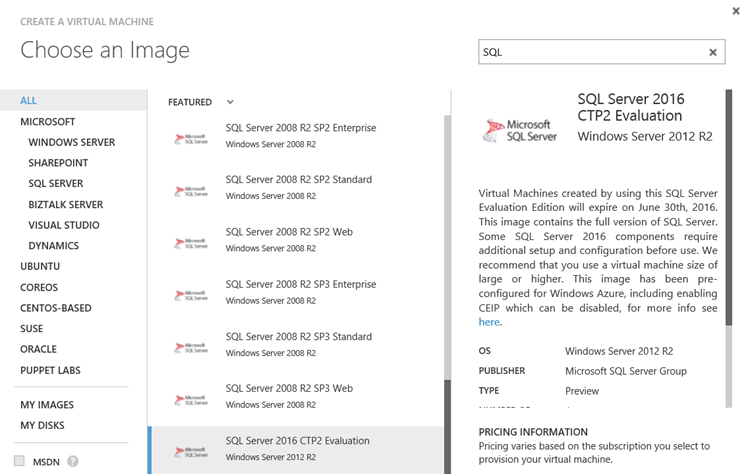
After the deployment is complete, you will need to enable connectivity for your SQL Server database engine as outlined in an earlier post of mine. What you get is the default instance of Database Engine, Analysis Services, Integration Services and Reporting Services. The deployment will not have the “PolyBase Query Service for External Data”. So if you are planning to test the PolyBase options in SQL Server 2016, then you will need to run the installation from the C:\SQLServer_13.0_Full folder. The other feature that is not available is the Distributed Replay. So, if you are planning to play around with these two features, then you would need to run the installer again.
Another feature which the gallery image does not use is the tempdb multiple file option setup parmater, “SQLTEMPDBFILECOUNT“. This is left at 1 so you will end up with the default tempdb configuration which you saw in the older releases. I would recommend using a virtual machine instance which has a SSD drive as the temporary drive so that you can use a SSD for testing out any intensive workload which requires either high tempdb usage or a local disk which supports high IOPs.
So now you have any option to play around with SQL Server 2016 CTP2 without having to hunt down a separate virtual machine or physical box in your environment.